


Internal SATA SSD Dell 480GB 3DCP0‑RFB
Markdown: Renew
Offer for a legal entity, non-cash payment.
Short description


Cheapest delivery:
Unisend LV
Product information
Description
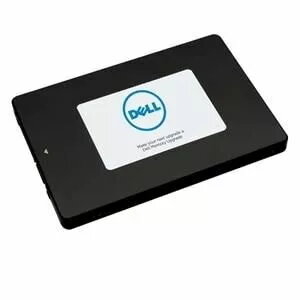
Dell 3DCP0‑RFB is a 480GB internal SATA SSD designed for compatible Dell systems in a standard 2.5" form factor. The drive provides 480GB of solid‑state storage using a SATA interface to improve boot times, application launch speed and general system responsiveness compared with traditional hard disk drives. The SSD is intended for operating system installation, office PCs, workstations and storage upgrades where reliable, compact solid‑state storage is required.
Advantages
This internal SATA SSD offers faster sequential and random read/write performance than many spinning drives in the same class, a compact 2.5" profile for easy installation into supported Dell chassis, and low power consumption typical of SATA SSDs. The 480GB capacity balances usable space for system files, applications and user data while maintaining predictable performance. The drive uses standard SATA connectors and mounting dimensions for compatibility with systems that accept 2.5" SSDs.
Suitable for
- OS installation and system drive replacement in compatible Dell desktops and laptops
- Office PCs and business workstations requiring improved responsiveness
- Storage upgrades to replace mechanical hard drives for faster boot and application load
- Light content creation workflows and data storage for documents, media and projects
Key specifications
- Brand: Dell
- Model / MPN: 3DCP0‑RFB
- Capacity: 480GB
- Interface: SATA (SATA III compatible)
- Form factor: 2.5"
- Usage: Internal SSD for compatible Dell systems
How to use
Power down the target system and disconnect it from mains power. Open the chassis or service panel according to the system manufacturer's instructions. Locate the 2.5" drive bay or mounting bracket and connect the SATA data and power cables to the SSD. Secure the drive using the appropriate screws or mounting hardware. Reassemble the system, reconnect power, and boot. Use the system BIOS/UEFI to confirm the drive is detected, then install the operating system or migrate data from an existing drive using imaging software or file copy tools.
Usage recommendations
For best results, update system firmware and SATA controller drivers before installing the SSD. Use the operating system's disk management and alignment tools when cloning or preparing the drive, and ensure TRIM support is enabled in the OS for sustained performance. Maintain backups of important data and follow Dell service documentation for handling and installing internal components.


