


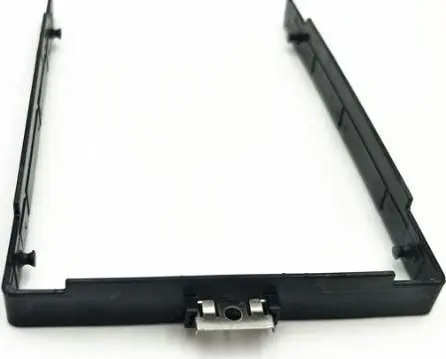
MicroStorage HDD Caddy
New arrival!
Short description

Cheapest delivery:
Unisend LV
Product information
Description
The MicroStorage HDD Caddy is a practical storage accessory designed for installing an additional hard drive or solid-state drive into a laptop. This reliable mounting solution allows users to expand their internal notebook storage capacity efficiently, making it an ideal component for various computer upgrade scenarios and performance enhancements.
Advantages
This HDD caddy provides a secure and stable mounting mechanism for integrating a second storage drive into your portable computer. It utilizes unused optical drive bay space, allowing you to retain your primary drive while adding substantial extra capacity for files, applications, and backups. The straightforward design ensures broad hardware compatibility and straightforward mechanical installation.
Suitable for
- Expanding internal storage capacity in laptops by adding a second HDD or SSD
- Upgrading older notebook computers with faster solid-state drives
- Creating dual-drive systems for separate operating systems and data storage
- Replacing faulty or damaged optical drive bays with functional storage space
When it may not be suitable
This caddy is not compatible with laptops that lack a standard optical disk drive bay, such as modern ultrabooks and thin-and-light notebooks. Furthermore, it is not designed for external connection and must be installed internally within a compatible computer chassis.
Key specifications
- Compatible device: Laptop computer
- Supported drive types: Hard Disk Drives (HDD) and Solid State Drives (SSD)
- Installation location: Internal optical drive bay
- Brand: MicroStorage
How to use
To use the MicroStorage HDD Caddy, first power off your laptop and disconnect the power supply and battery. Remove the existing optical disk drive from your notebook, then transfer any necessary mounting brackets or faceplates to the HDD caddy. Secure your second hard drive or solid-state drive inside the caddy using the provided screws. Finally, insert the assembled caddy into the optical drive bay and secure it firmly in place before rebooting your computer.
What to consider before purchase
- Verify the physical thickness of your laptop's optical drive bay, as sizes typically vary between standard variants.
- Ensure your laptop has an accessible optical drive slot available for modification.
- Confirm that your second storage drive matches the physical form factor supported by the caddy.
Usage recommendations: Handle internal computer components with care and utilize static discharge prevention measures during installation. Always back up your important data before performing hardware upgrades on your notebook.
Product comparison
The MicroStorage HDD Caddy is compared with several alternative storage installation solutions: CoreParts Laptop HDD/SSD caddy for HP EliteBook 725 G3, 745 G3, 820 G3, 840 G3, 850 G3 Black, Ubiquiti UACC-HDD-Tray 3.5-inch Hard Drive Tray, Autone ATE-HDD-TRAY-T3 Hard Drive Tray, and HP NQ099AA Optical Bay HDD Mounting Bracket for Business. All reviewed items are designed for mounting hard disk drives or solid-state drives, yet they are engineered for entirely different equipment types and use cases. The primary differences lie in their form factor, intended purpose, and compatibility with specific devices such as standard laptops, specialized business notebook models, network storage systems, or server and desktop hardware.
⚙️ Below is a comparison of the technical characteristics and application features of each product, including their intended purpose, equipment compatibility, and design specifics.
| Parameter | MicroStorage HDD Caddy | CoreParts Laptop HDD/SSD caddy for HP EliteBook... | Ubiquiti UACC-HDD-Tray 3.5-inch Hard Drive Tray | Autone ATE-HDD-TRAY-T3 Hard Drive Tray | HP NQ099AA Optical Bay HDD Mounting Bracket for Business | Practical significance |
|---|---|---|---|---|---|---|
| Device type | Adapter for installing an additional drive in a laptop | Drive adapter for HP EliteBook notebooks | 3.5-inch drive tray for network storage systems | Drive mounting accessory for desktops and servers | Optical bay bracket for business environments | Determines compatible equipment type and drive integration scenario. |
| Brand | MicroStorage | CoreParts | UBIQUITI | Autone | HP | Indicates the manufacturer and level of compatibility with specific ecosystems. |
| Application | Universal laptop storage expansion | Upgrade for specific HP EliteBook models | Professional network data storage systems | Hardware expansion in PCs and servers | Business environment and corporate PCs with optical bay | Helps select the accessory tailored to the user's operating environment. |
◎ The table below evaluates the suitability of each product for different use cases to help you choose the most appropriate option for your needs.
| Use case | Recommended product | Why |
|---|---|---|
| Universal laptop upgrade | MicroStorage HDD Caddy | Suitable for various standard computers when installing a second storage drive. |
| HP EliteBook laptop owners | CoreParts Laptop HDD/SSD caddy for HP EliteBook 725 G3, 745 G3, 820 G3, 840 G3, 850 G3 Black | Designed specifically for precise compatibility with specified HP business models. |
| Network storage maintenance | Ubiquiti UACC-HDD-Tray 3.5-inch Hard Drive Tray | Specialized solution for Ubiquiti network equipment supporting 3.5-inch drives. |
| Servers and desktops | Autone ATE-HDD-TRAY-T3 Hard Drive Tray | Ensures secure drive placement in computer chassis and servers. |
| Corporate HP PCs with optical drive | HP NQ099AA Optical Bay HDD Mounting Bracket for Business | Targeted at business environments and installing a drive in place of an optical drive. |
The MicroStorage HDD Caddy serves as a versatile tool for expanding internal storage in general-purpose laptops. Unlike narrowly specialized alternatives such as the CoreParts model for the HP EliteBook line or HP's business optical bay solution, as well as the Ubiquiti and Autone server and network trays, this product focuses on general notebook upgrade tasks. Choose the MicroStorage HDD Caddy if you need a universal mounting accessory for a standard laptop, whereas specific branded equipment or dedicated server and networking tasks are better served by the respective alternatives.


