Powerful EcoFlow stations for energy anywhere!
In cart {{totalProductsCount}} item(s)
Your cart is empty
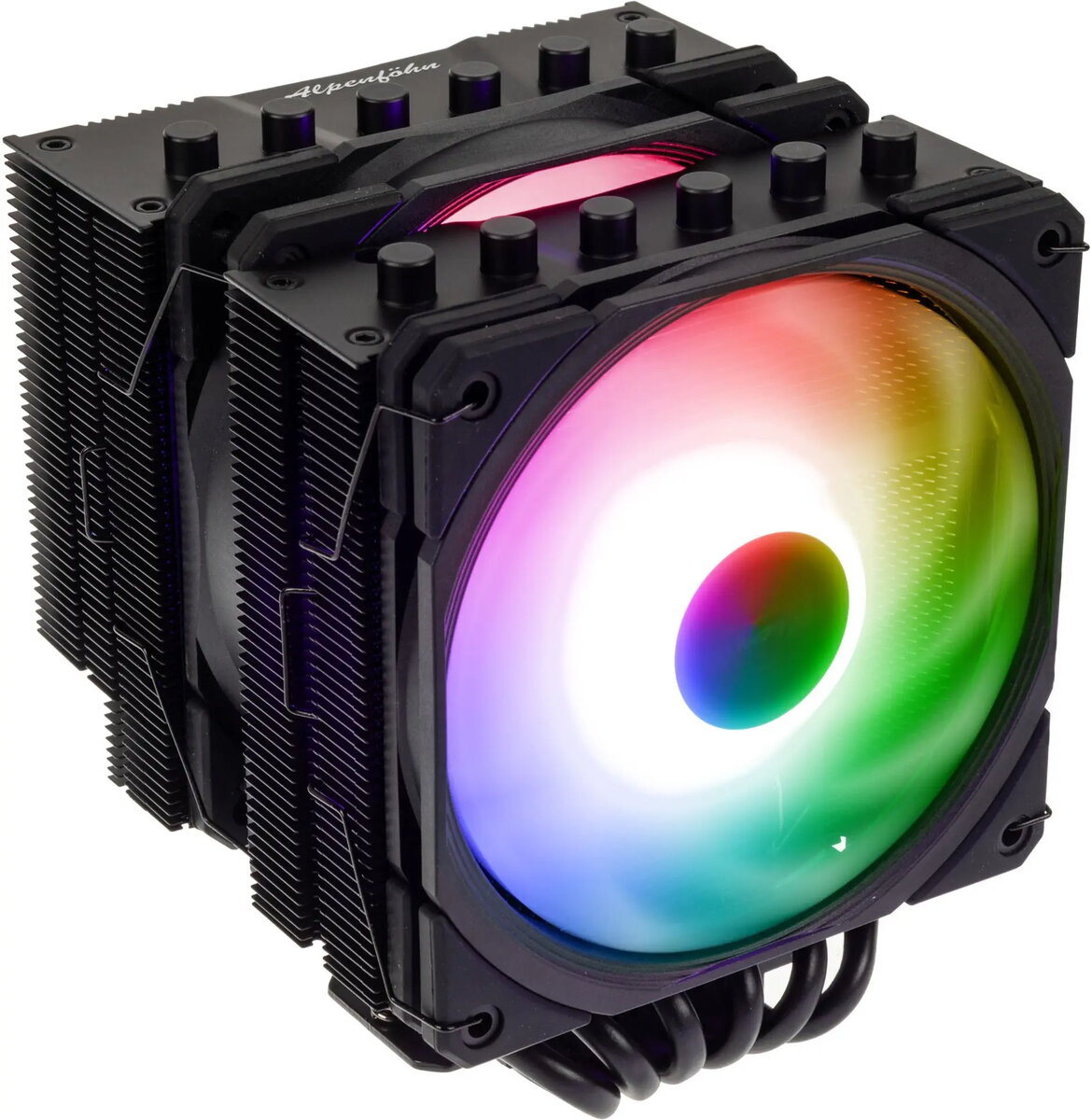
CPU Cooler Alpenföhn Brocken 4 Max ARGB with 2x 120mm Fans
Alpenföhn Brocken 4 Max ARGB with 2x 120mm Fans is an air CPU cooler designed for contemporary desktop processors. Supplied with two 120 mm ARGB fans, the cooler focuses on delivering directed airflow across a dense fin stack while offering addressable RGB lighting integration for compatible motherboards and controllers. The design balances cooling performance and compact tower dimensions to fit many mid-tower and full-tower cases.
The cooler combines a multi-heatpipe tower design with dual 120 mm ARGB fans to increase heat dissipation from the CPU heatspreader to the fin array. The ARGB fans allow synchronized lighting effects and individual LED control via standard 3-pin or 4-pin motherboard headers, while the fan blades and frame are optimized to provide steady airflow with reduced vibration. The mounting hardware supports a range of mainstream CPU sockets and is intended to ensure a secure, low-profile contact between the base plate and the processor.
Install the cooler on a powered-off system by first preparing the motherboard and CPU area: remove any old cooler, clean the CPU heatspreader, and apply a thin, even layer of thermal paste unless a pre-applied pad is provided. Fit the mount brackets to the motherboard according to the supplied instructions, position the cooler so the base plate contacts the CPU, and secure the retention mechanism evenly to ensure flat mounting pressure. Connect the fan PWM cables to the CPU fan header and the ARGB cables to the appropriate LED header or controller. After installation, power on the system and verify fan operation, PWM scaling in BIOS or software, and ARGB lighting behavior.
Position the cooler so airflow aligns with your case ventilation strategy, typically front-to-rear or bottom-to-top. Ensure at least 40–50 mm of clearance from tall memory modules and confirm that the case side panel can close without obstruction. Use motherboard fan curve settings to balance noise and temperature, and periodically check fan mounting and dust buildup to maintain optimal performance.
{{highlightedFeature.featureTitle}}:
{{getProductFeatureValueById(product, highlightedFeature.featureId)}}
{{ productComparisonGenerationError }}