
Save time and money with our discounts!
In cart {{totalProductsCount}} item(s)
Your cart is empty
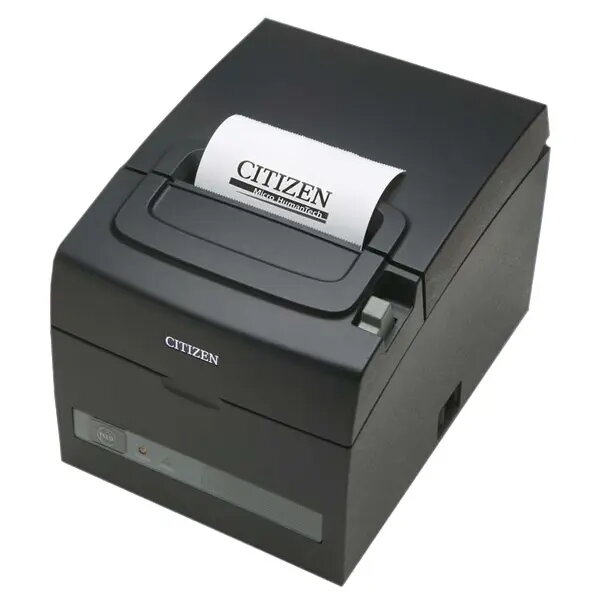
Citizen CT-S310II Thermal POS Printer, Wired, USB and Serial Interface
The Citizen CT-S310II is a high-performance thermal POS printer designed to provide efficient and reliable receipt printing for retail and hospitality businesses. This Energy Star® qualified device focuses on sustainability by reducing power consumption by up to 45% and offering a paper-saving function that minimizes waste. With its compact design and built-in power supply, it helps maintain a clean workspace while delivering professional results at a print speed of 160 mm/sec.
This printer stands out due to its environmentally friendly design, which includes halogen-free housing and packaging made from recycled materials. The inclusion of a long-life print head, capable of reaching up to 300 km, ensures durability and reduces the frequency of maintenance. Users benefit from tool-free maintenance features, such as an easily removable auto-cutter and print head, which allow for quick resolution of paper jams and routine servicing. The dual interface capability, featuring both USB and serial connections, ensures compatibility with a wide range of systems, making it a versatile and future-proof investment for any business.
This printer may not be suitable for environments requiring high-resolution graphic printing or color output, as it is a monochrome thermal device. It is also not intended for heavy-duty industrial label printing that requires specialized adhesive materials or high-durability thermal transfer ribbons.
To use the Citizen CT-S310II, connect the device to your computer or POS terminal using the appropriate USB or serial cable. Ensure the printer is connected to a power source using the built-in power supply. Load the thermal paper roll into the compartment, ensuring the paper width is correctly adjusted to 80 mm or 58 mm. Install the necessary drivers for your operating system, such as Windows, Java POS, OPOS, or CUPS, to enable communication between your software and the printer.
For optimal performance and longevity, utilize the printer's long-life head mode and regularly clear the paper path to prevent debris accumulation. Ensure the device is kept in a dry, dust-free environment to maintain the integrity of the thermal print head.
{{highlightedFeature.featureTitle}}:
{{getProductFeatureValueById(product, highlightedFeature.featureId)}}
{{ productComparisonGenerationError }}