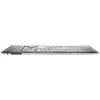
What is this device?
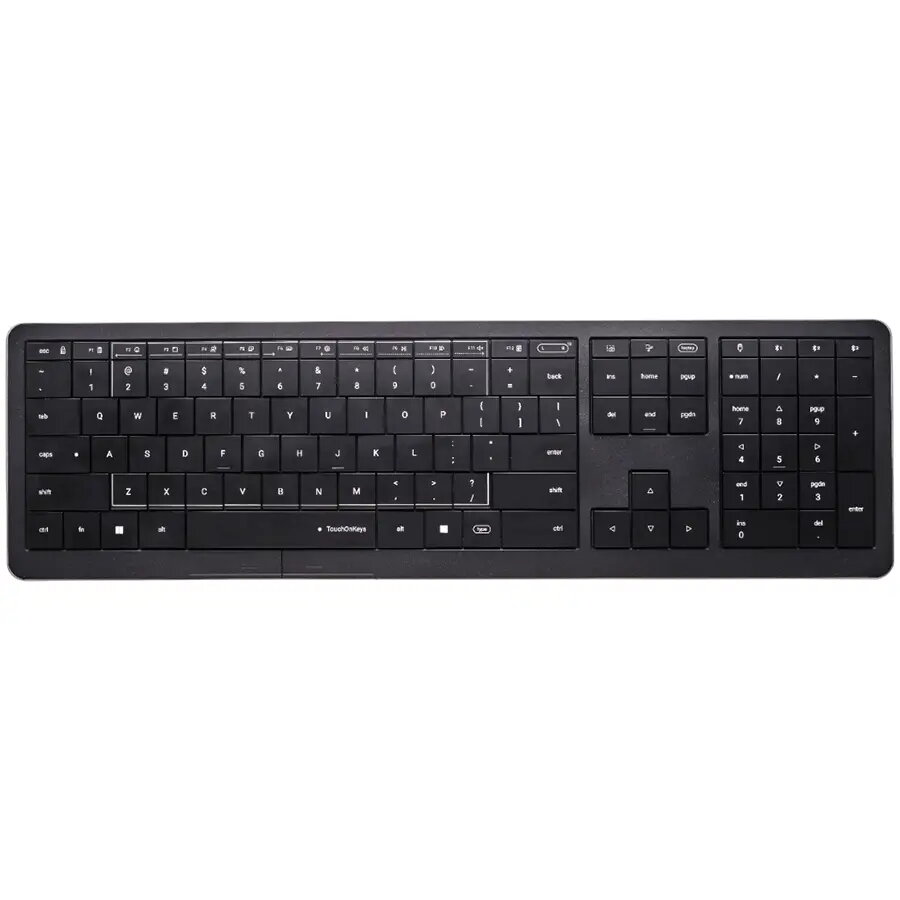
Its main distinction is that it combines a mouse and a keyboard in a single body. And no, it doesn’t require an external module — the module is built into the device itself. The buttons are touch-sensitive: when you need to type, you use it as a regular keyboard, and when you need a mouse, you simply move your finger across the keys, like a laptop touchpad.

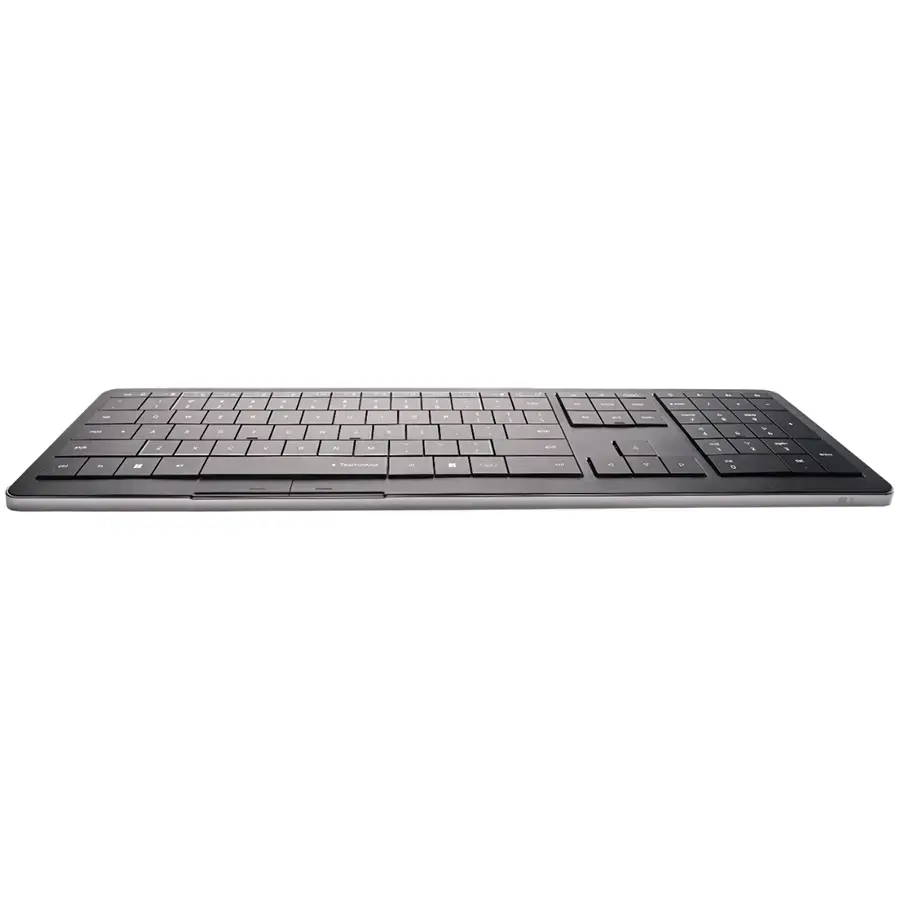
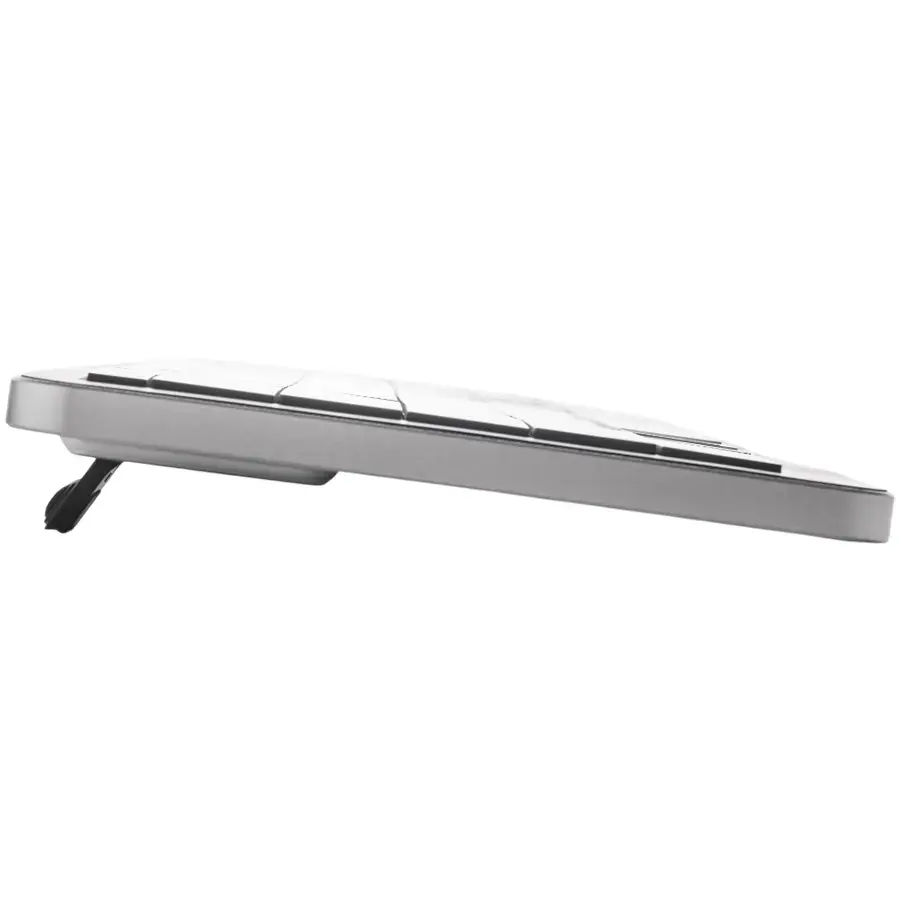
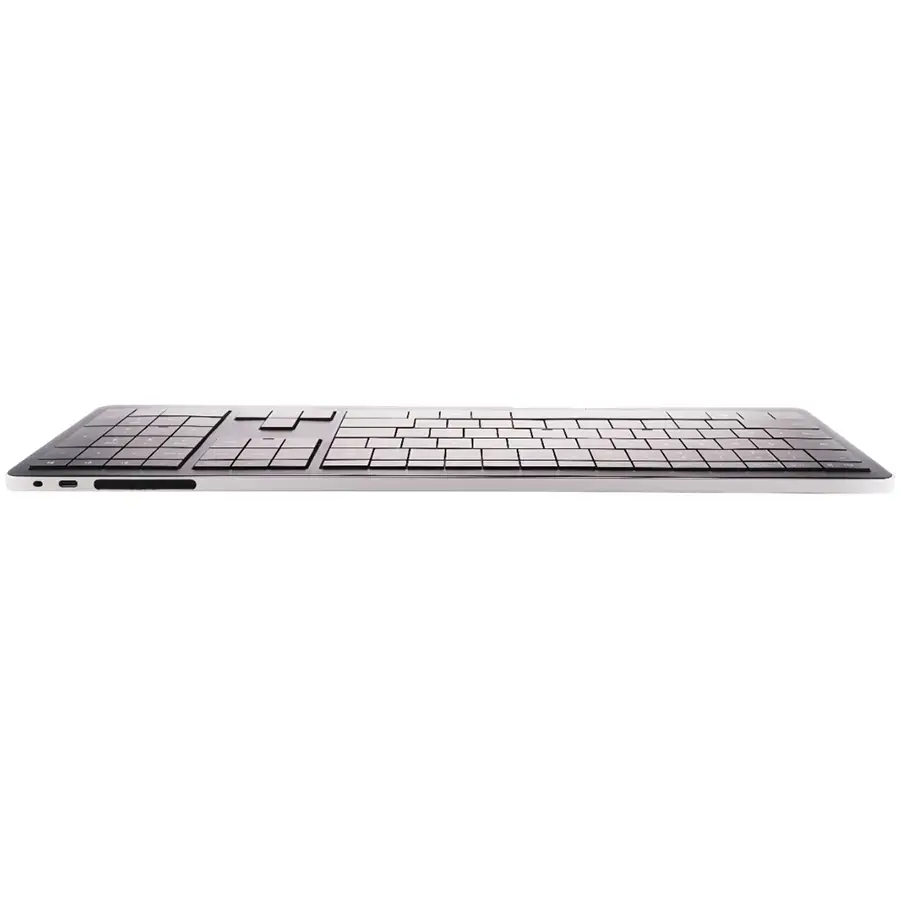
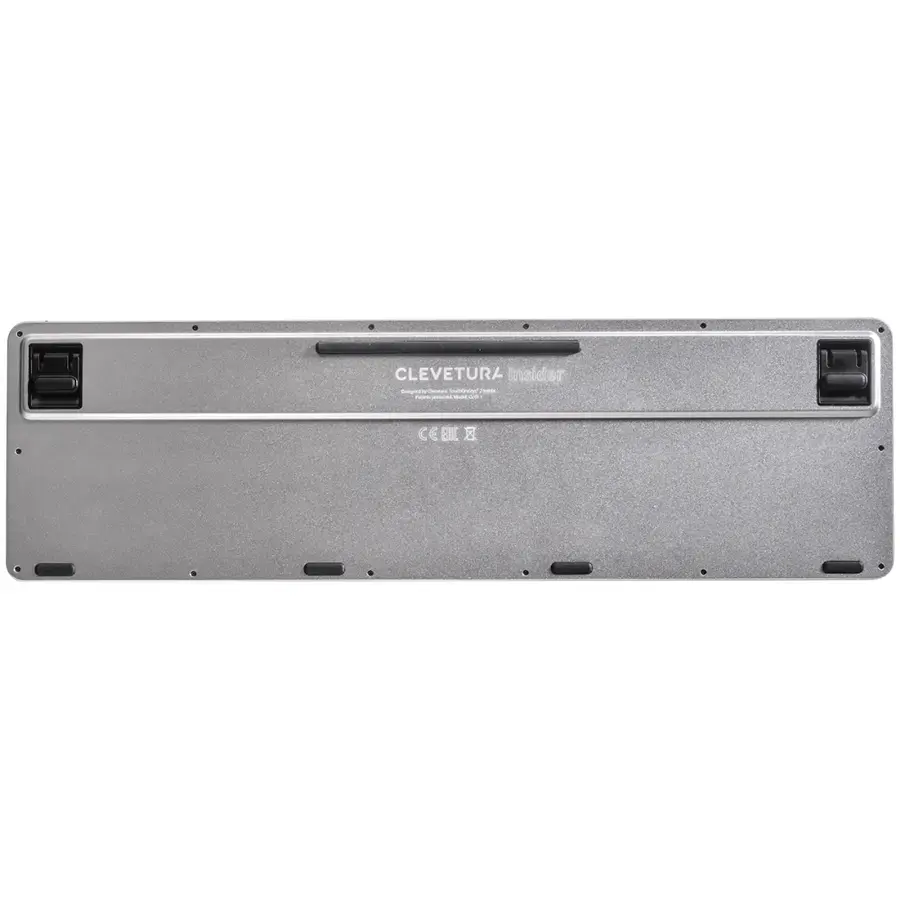
It has 110 keys in total — a full-size keyboard with a minimalist design and a relatively slim body. The case is made of aluminum, so the device is quite sturdy. The keys are made of black polycarbonate. The only drawback is that the keys are glossy rather than matte, so they quickly show fingerprints.
There are some other unusual details. Above the numeric keypad, instead of multimedia keys, there are four special connection buttons for switching between wired mode and Bluetooth 5.1. This is useful for users who control several devices from one keyboard: a desktop PC, a laptop, a phone, etc.
There are also buttons to control the built-in touch panel. This technology appears to be unique — the company highlights it for a reason. The panel has its own name, TouchOnKeys, which turns the keys into a large touchpad with convenient control. It supports cursor movement, single and double taps, press-and-hold, and all the usual Windows gestures. To prevent accidental cursor movement while typing, key sensitivity can be adjusted from 1 to 9 or turned off completely.

There are two dedicated buttons to emulate left and right mouse clicks — located above the spacebar. You can still use regular keys if that is more comfortable. The touch buttons also allow controlling volume, RGB settings of the keyboard, and similar functions.
The backlighting in this unusual keyboard is notable as well. For example, you can enable a light trail: when using the touch function, the keys under your finger change color to green. The function keys are illuminated too, creating an attractive look.
Regarding wireless operation, the keyboard lasts about 80 hours on battery with the backlight turned off. Runtime with RGB enabled is not specified.
How convenient is it to work with this accessory?
According to users who have already bought the device, there are no major issues. If any difficulties arise, adjusting sensitivity solves them. The touch sensor, click emulation, and regular typing all work well. Different users may need different configurations, but that’s common for most devices.
It’s very convenient that you don’t need to reach for a mouse — after a couple of days of practice you can work with the keyboard as quickly as with a separate mouse. The accessory recognizes gestures, which further increases productivity. If desired, you can still keep a mouse on the desk — many people prefer dedicated ergonomic mice they are used to.

Currently, the keyboard makers plan to add a software feature for custom gestures. That means you will be able to assign a gesture to a specific function, and the device will remember it.
Since the switches are scissor-type, you need to get used to a lower key travel compared with mechanical switches. That difference is a matter of personal preference.
Conclusions:
Clevetura CLVX 1 is an unusual keyboard that will appeal to many users — first because of its unique features described above, and second because of its attractive design.
Main specifications: