
Hurry and order now – up to 50% off!
In cart {{totalProductsCount}} item(s)
Your cart is empty
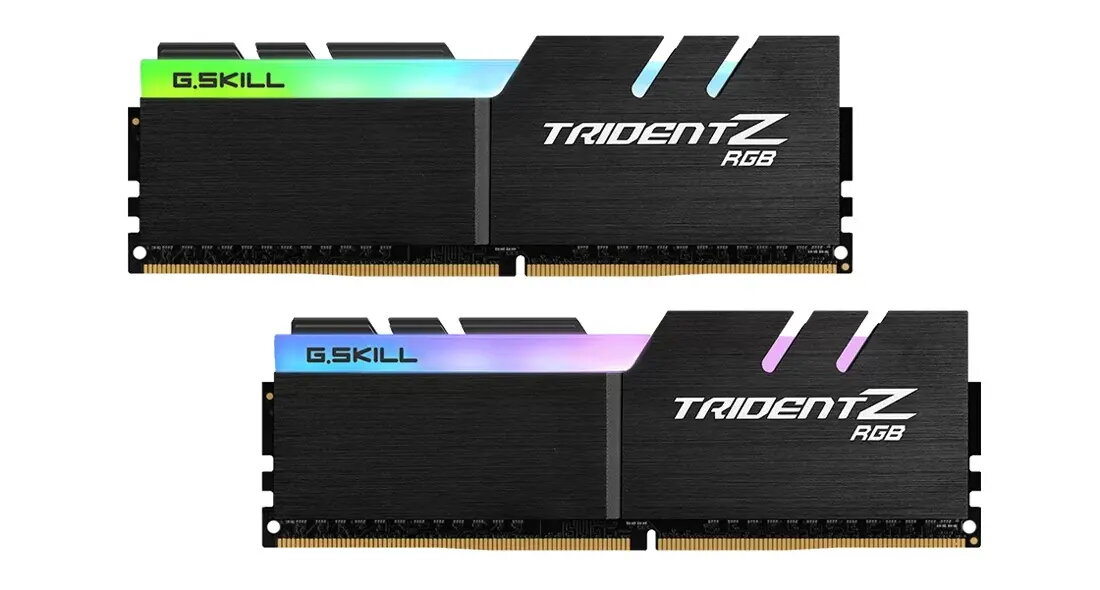
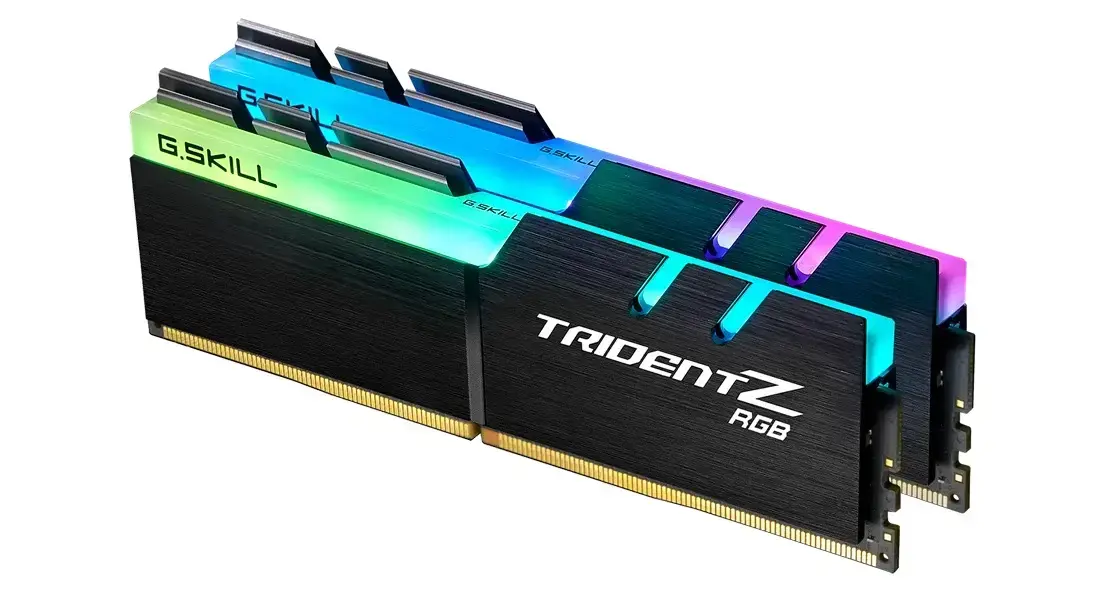
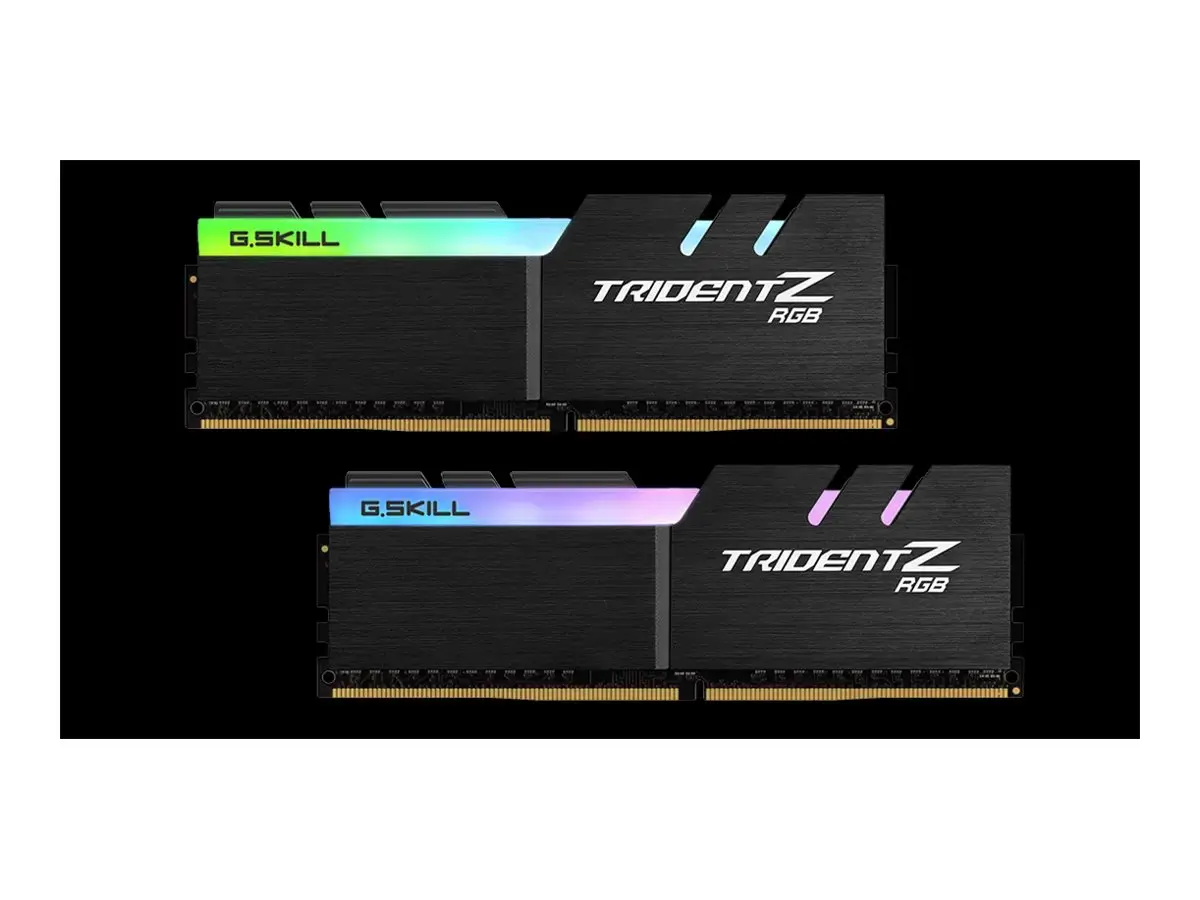
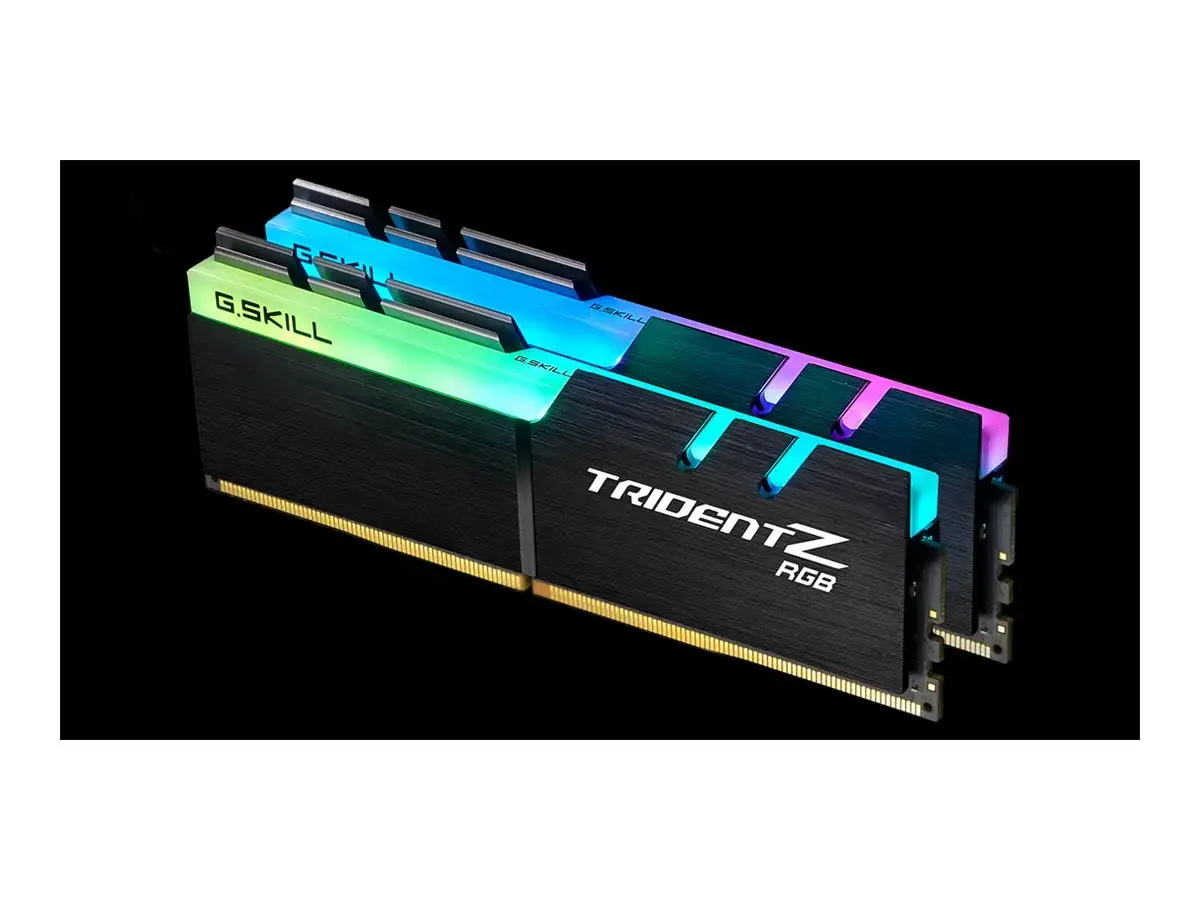
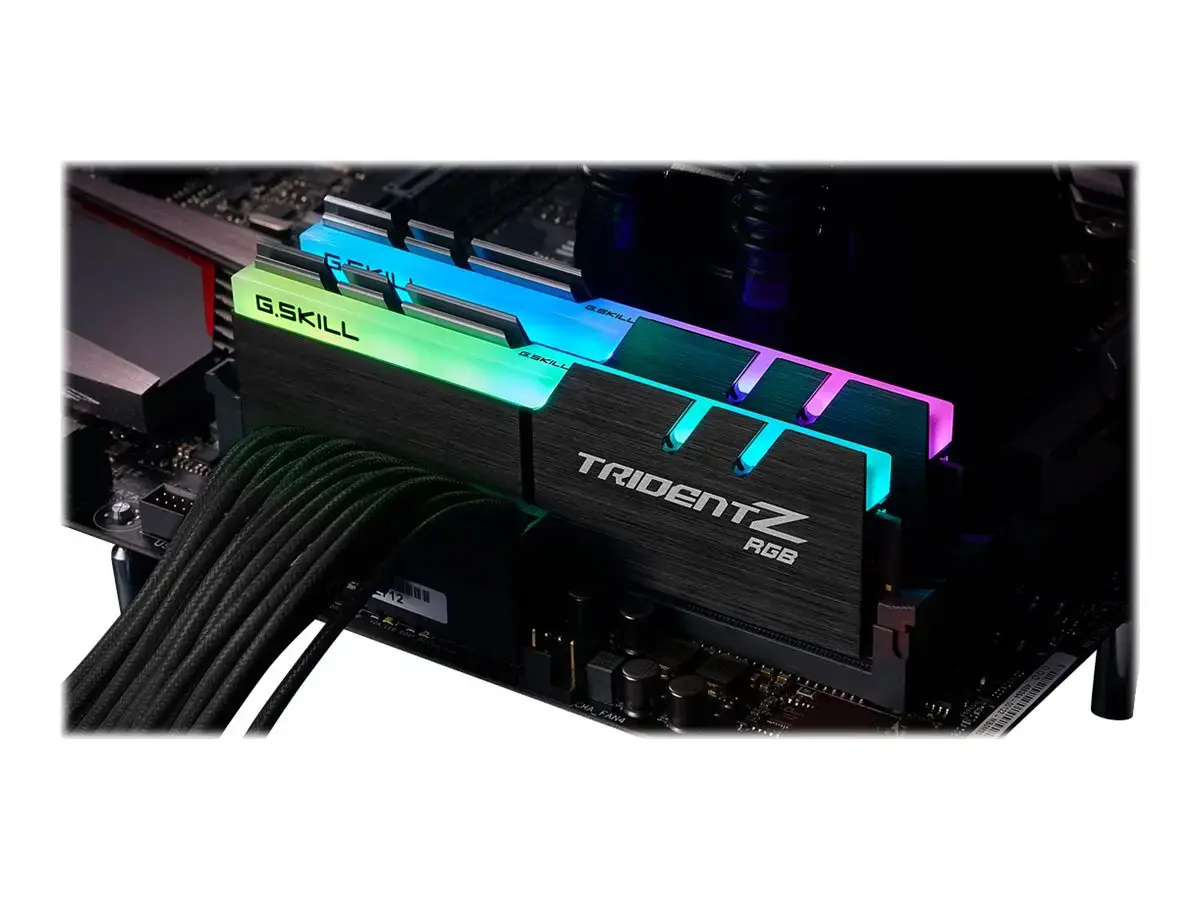
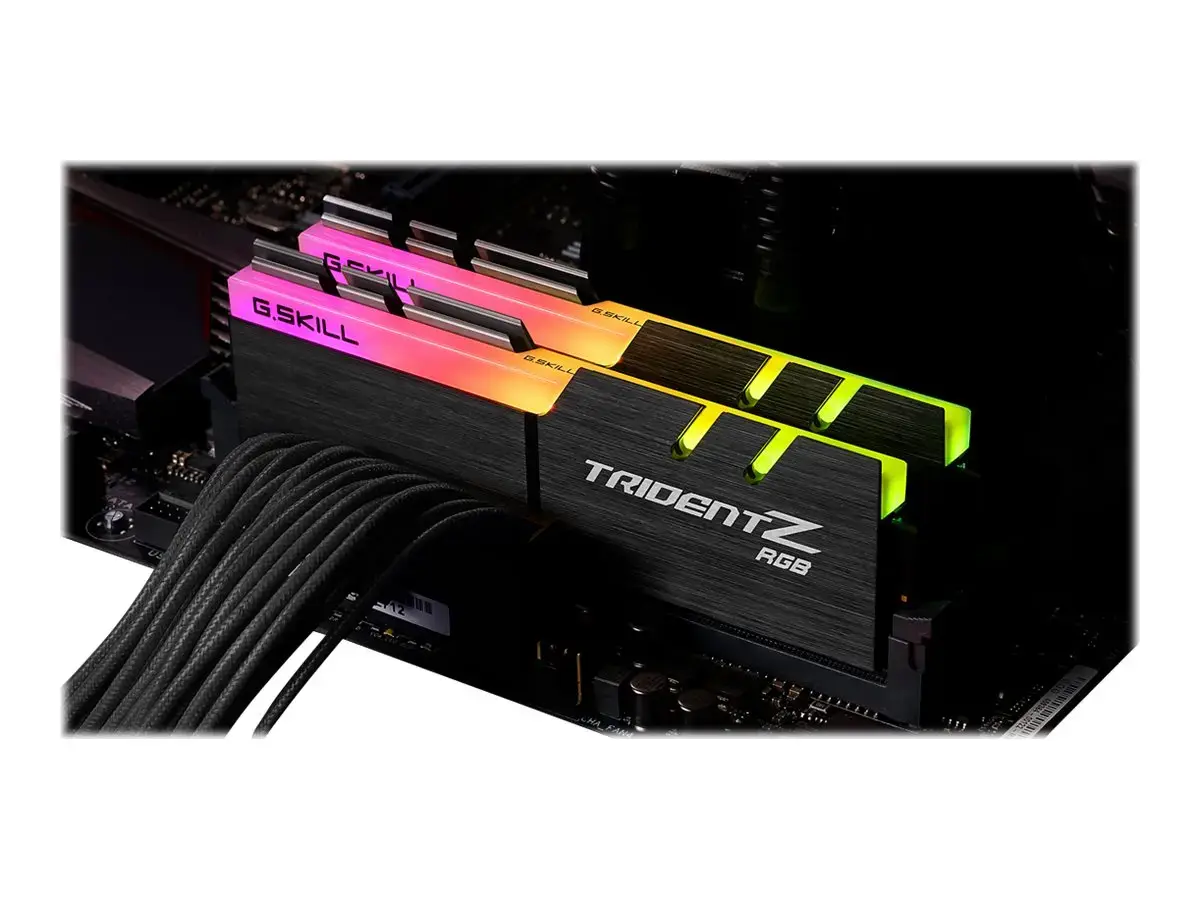
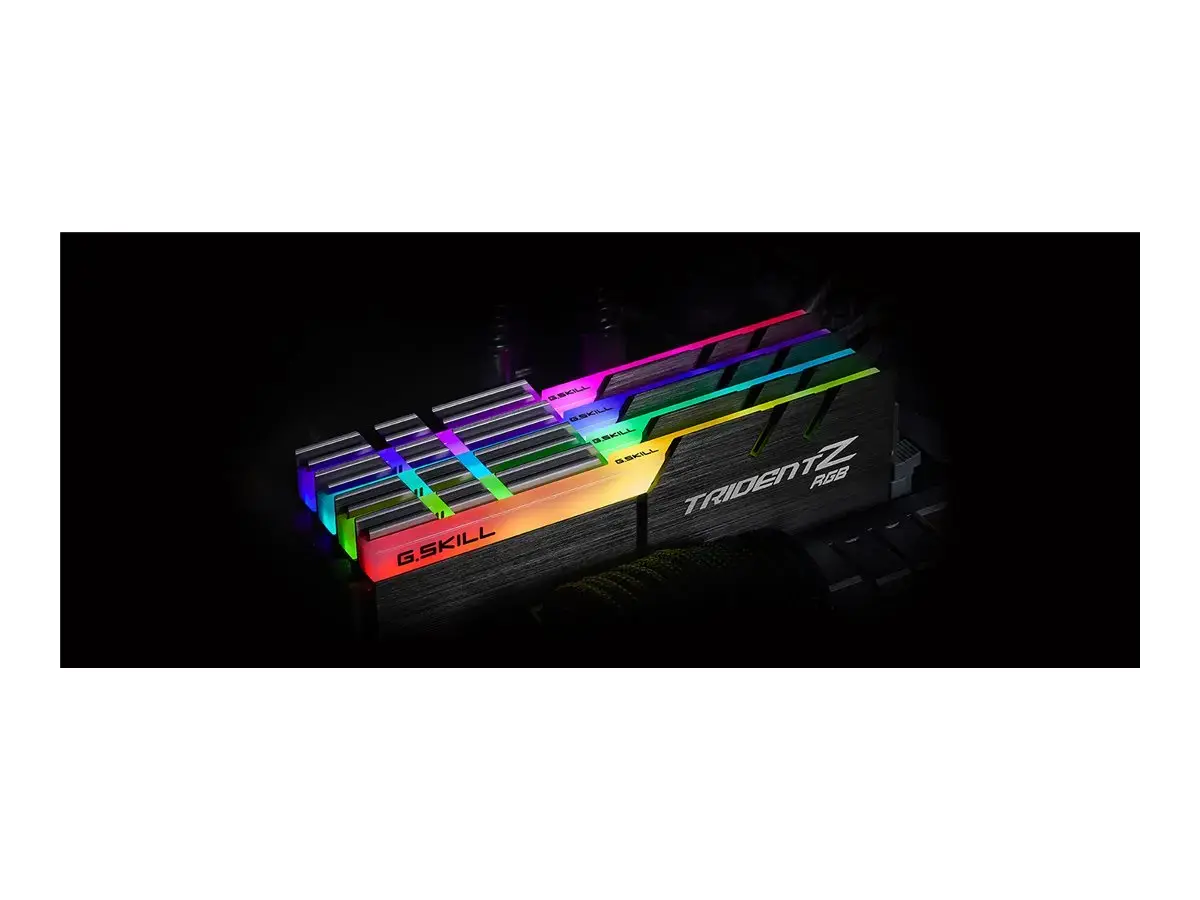
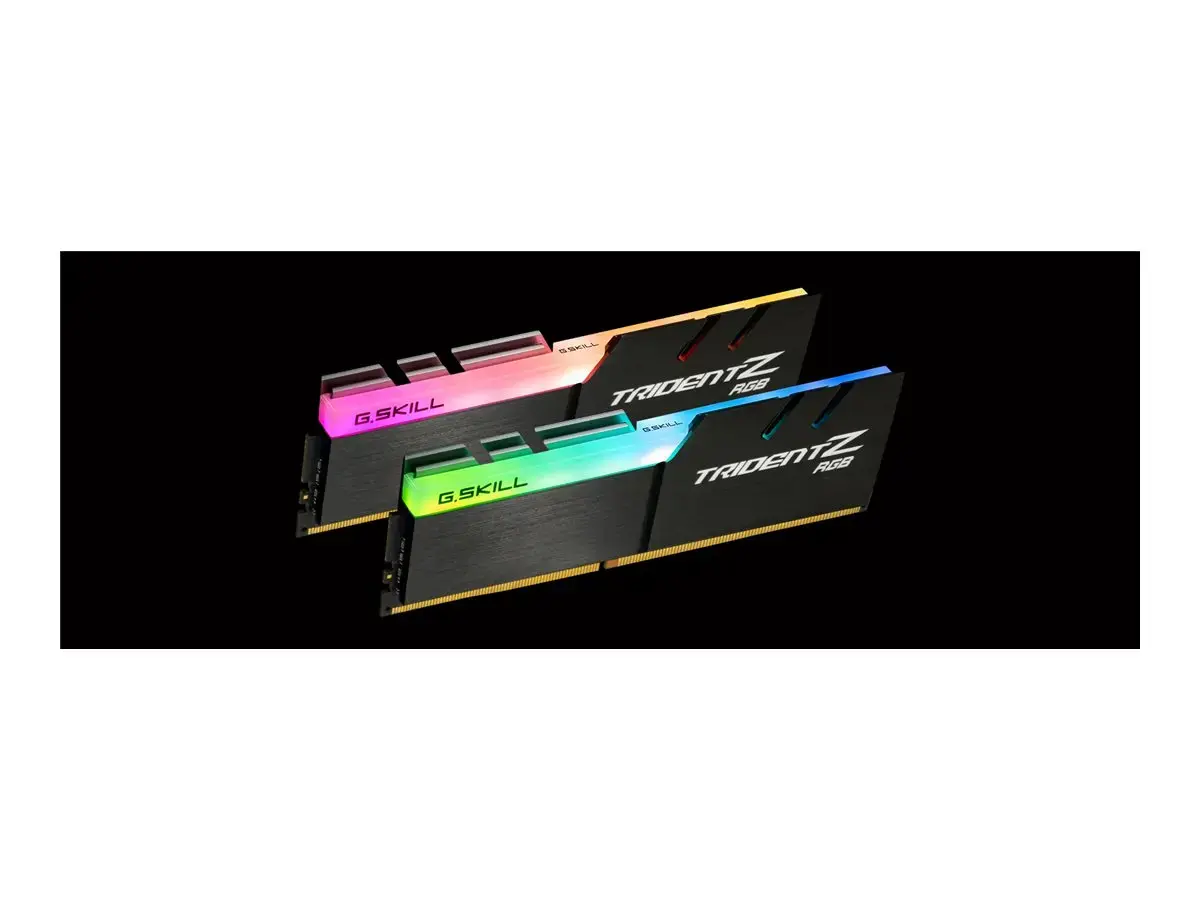
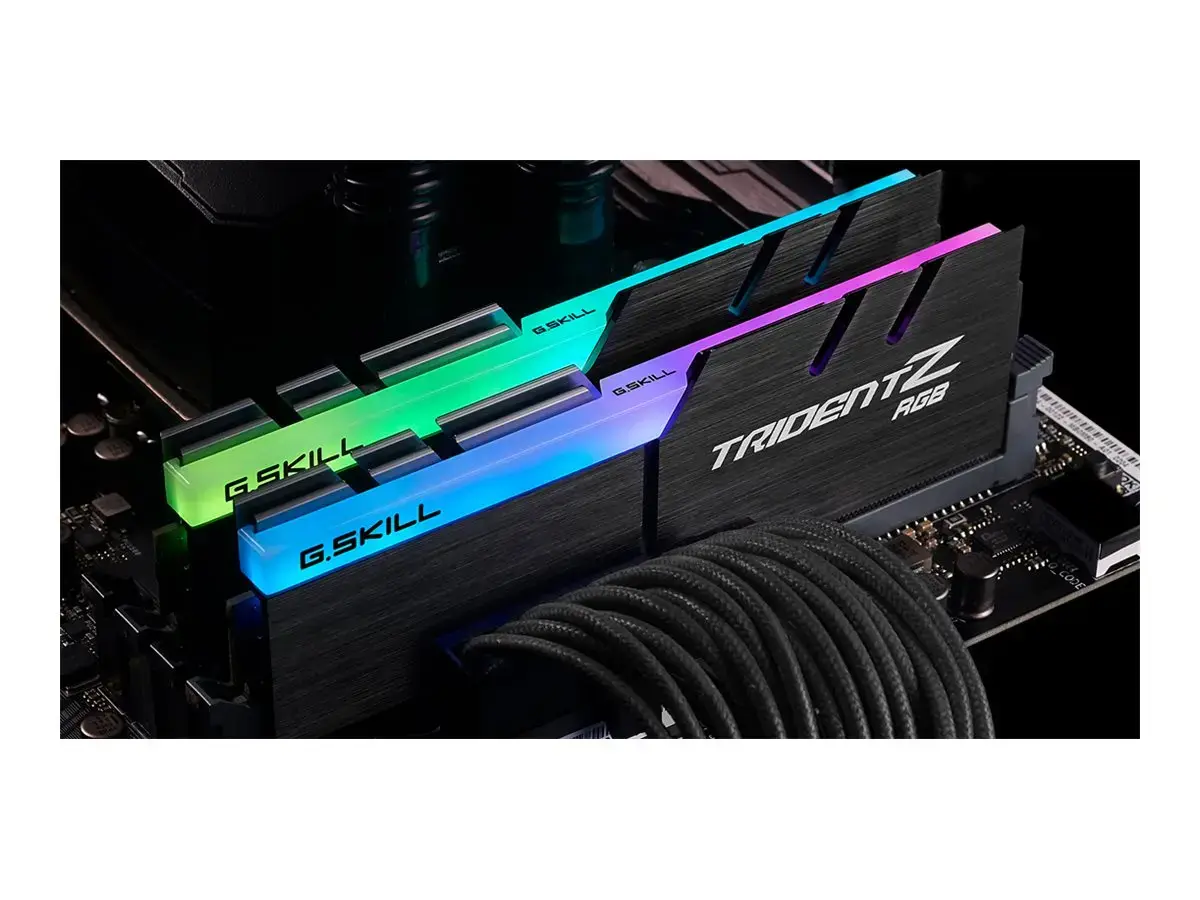
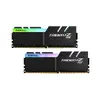
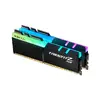
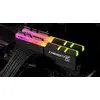
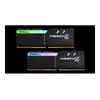
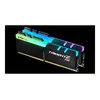
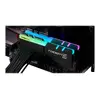
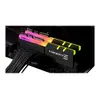
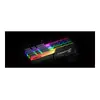
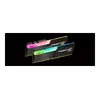
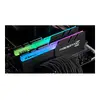
G.SKILL Trident Z RGB 32GB (2x16GB) DDR4 4000MHz CL18 Desktop Memory Kit
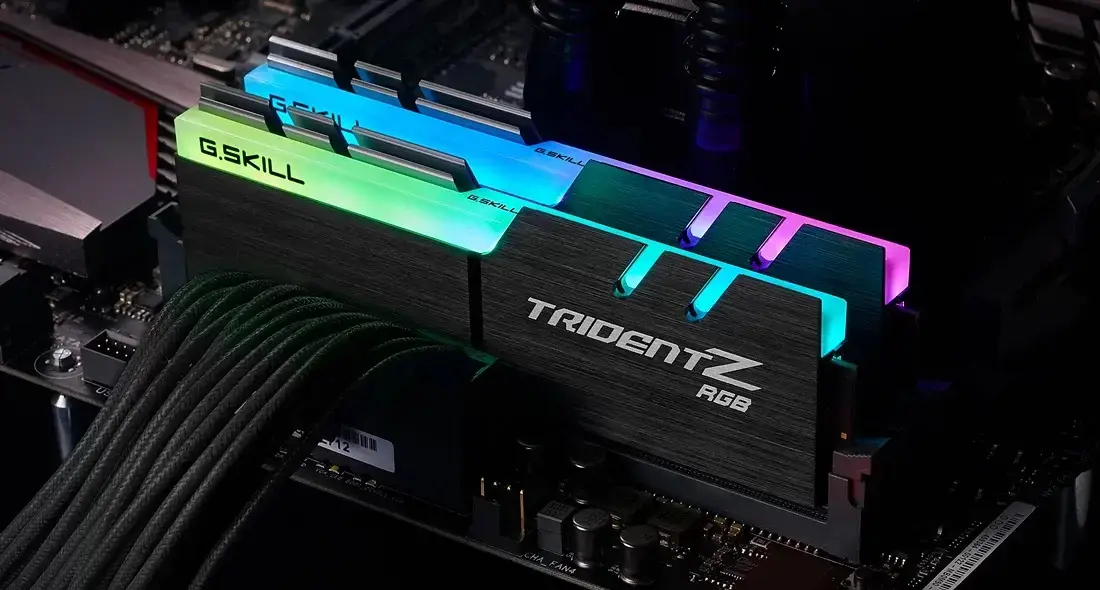
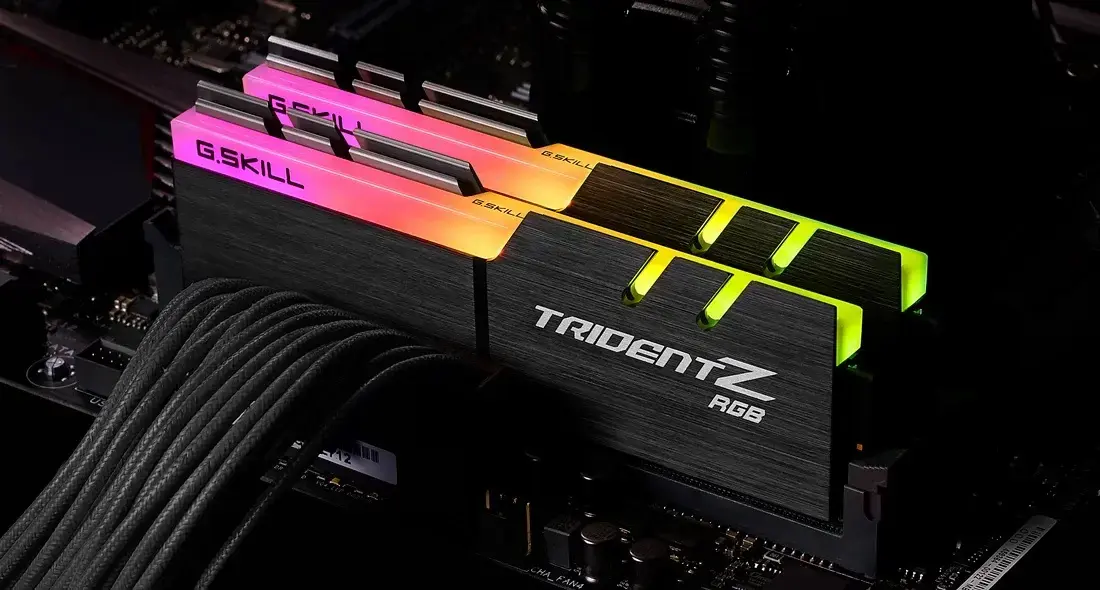
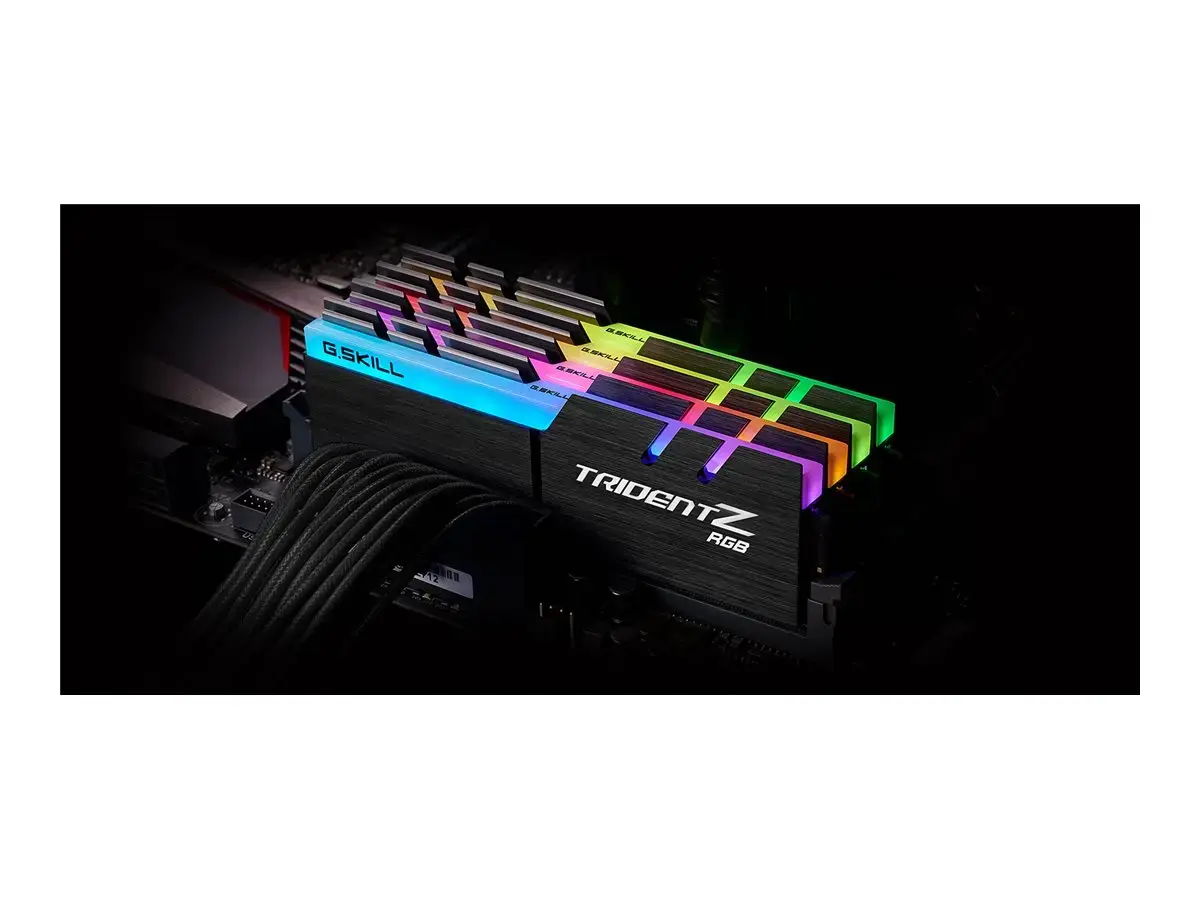
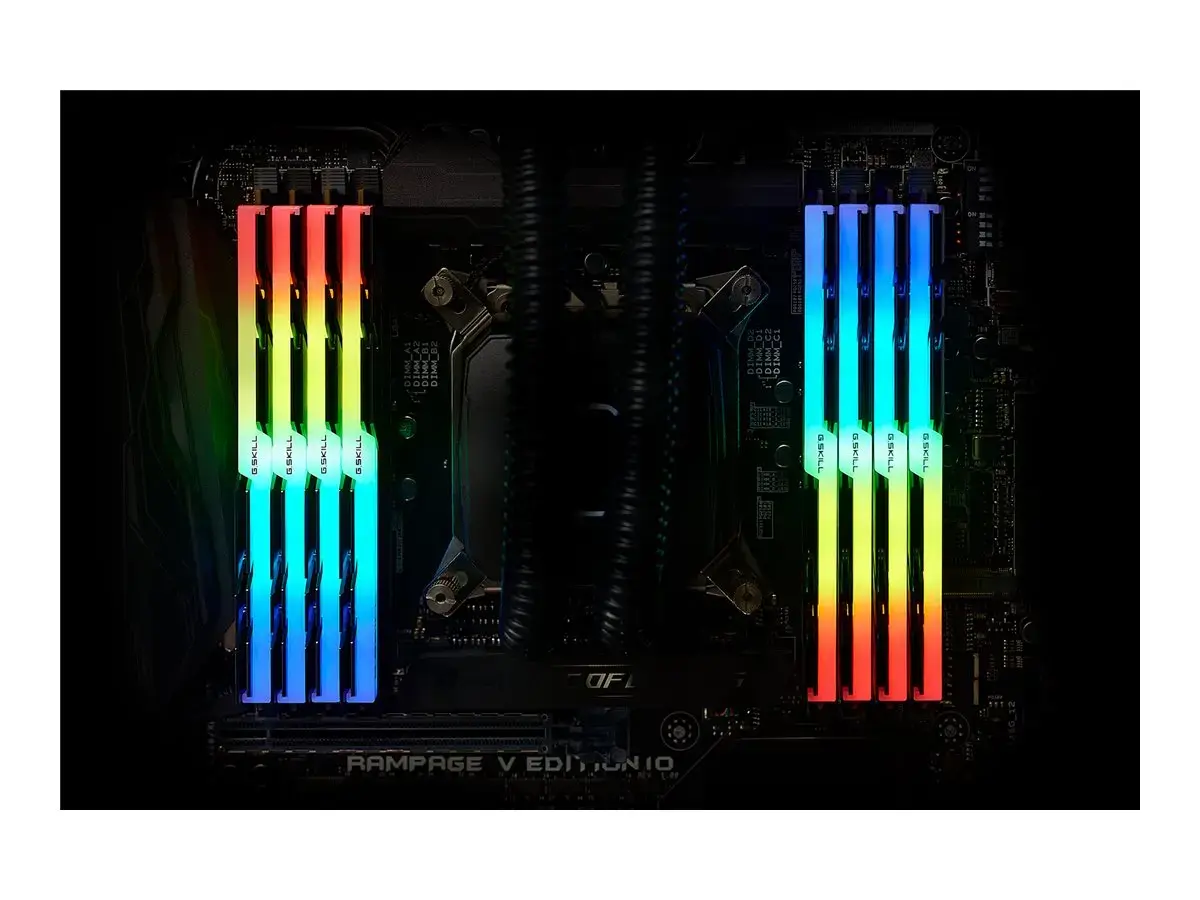
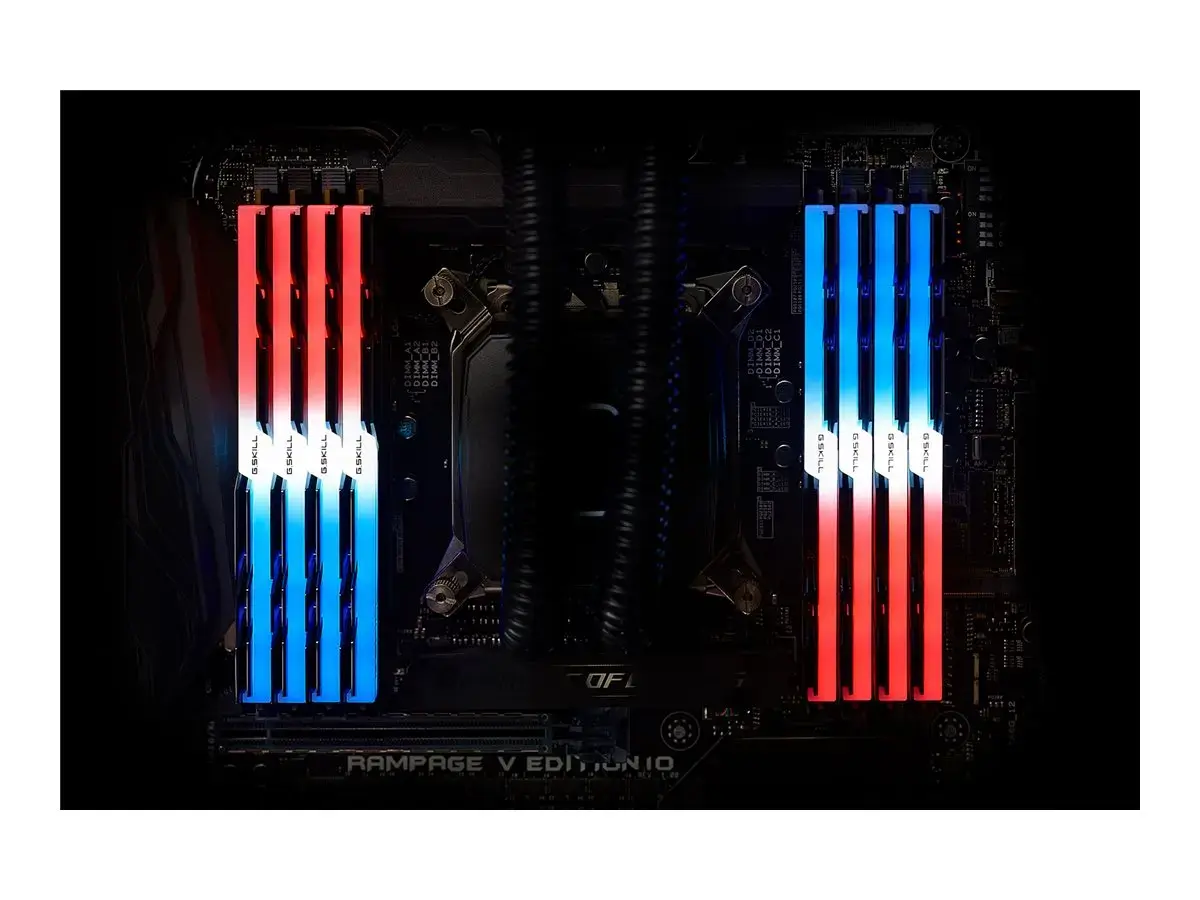
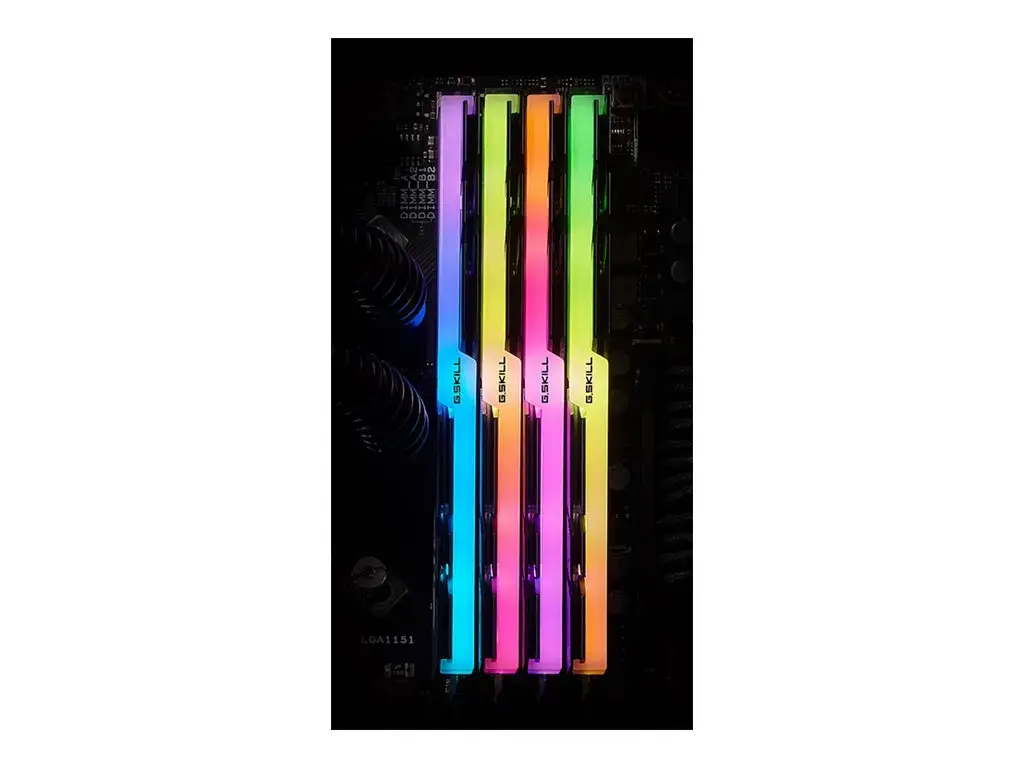
The G.SKILL Trident Z RGB 32GB DDR4 memory kit is a high-performance solution designed to elevate the speed and responsiveness of modern desktop computers. Comprising two 16GB modules, this kit offers a total capacity of 32GB, operating at a frequency of 4000MHz with a CAS latency of CL18. The modules are engineered with a sophisticated heat spreader that ensures optimal thermal dissipation even during intensive computing tasks, while the integrated, customizable RGB lighting adds a distinct aesthetic appeal to any PC build.
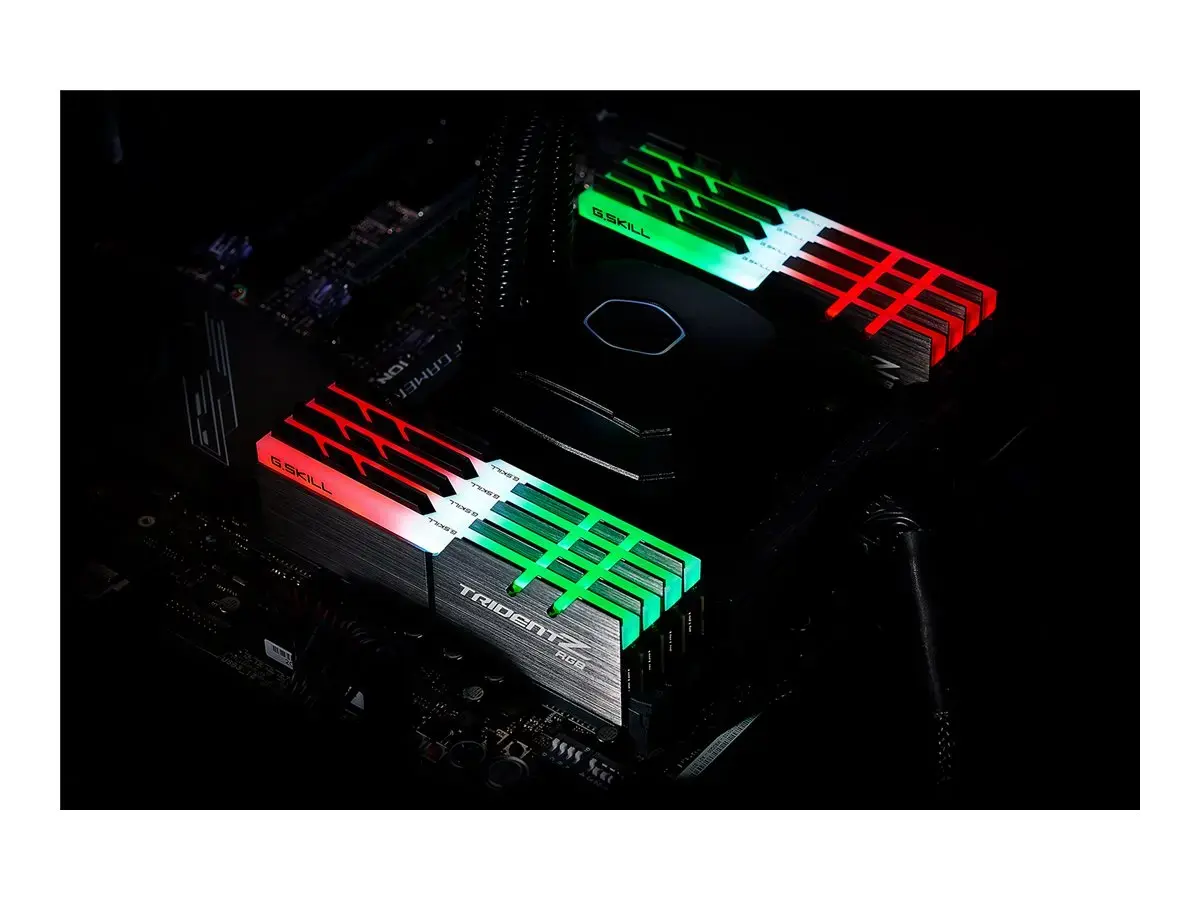
This memory kit provides a significant boost to system performance, enabling smoother multitasking and faster data processing for demanding applications. The high-frequency operation combined with optimized latency ensures that the system handles complex workloads with ease. Furthermore, the robust heat spreader design maintains stability under heavy loads, preventing thermal throttling. The fully customizable RGB lighting allows users to synchronize the memory modules with their existing system lighting schemes, providing a cohesive and professional look for high-end desktop setups.
This memory kit may not be suitable for users with older motherboards or processors that do not support DDR4 memory or high-frequency profiles like 4000MHz. Additionally, it is not intended for low-profile computer cases where the height of the heat spreader might cause clearance issues with large CPU air coolers.
To use this memory kit, ensure that your motherboard has available DDR4 DIMM slots and that your BIOS is updated to support the high-frequency XMP profiles. Simply insert the modules into the appropriate slots on your motherboard, ensuring they are fully seated and locked into place. Once installed, enter the system BIOS to enable the XMP profile to ensure the memory operates at its rated speed of 4000MHz.
For optimal performance and stability, always ensure that the memory modules are installed in the correct dual-channel slots as specified in your motherboard manual and enable the XMP profile in the BIOS settings.
{{highlightedFeature.featureTitle}}:
{{getProductFeatureValueById(product, highlightedFeature.featureId)}}
{{ productComparisonGenerationError }}