JBL speakers and headphones for pure and deep sound!
In cart {{totalProductsCount}} item(s)
Your cart is empty
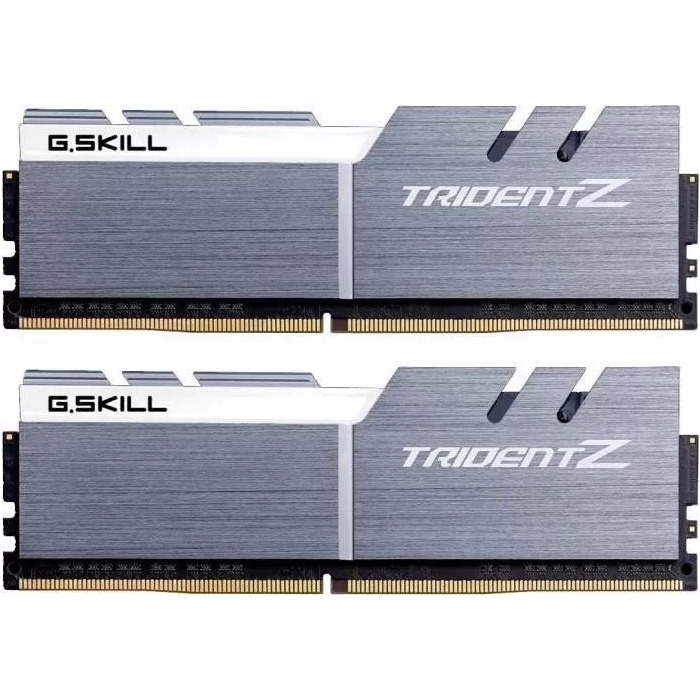
Memory Module G.Skill DDR4 32GB 3600MHz 2x16GB
The G.Skill Trident Z 32GB DDR4-3600 memory kit is a high-performance solution designed for users who demand speed and reliability. This dual-channel kit consists of two 16GB modules, providing a total capacity of 32GB to handle intensive multitasking, gaming, and professional workloads. Engineered with premium components and a sophisticated aesthetic, this memory module ensures stable operation at high frequencies.
This memory kit offers exceptional performance through its high clock speed of 3600 MHz, which significantly reduces latency and improves system responsiveness. The inclusion of high-quality aluminum heat spreaders with a hair-line finish provides efficient thermal management, ensuring the modules remain cool even during demanding tasks or overclocking sessions. Its dual-channel configuration is optimized for modern motherboards, allowing for seamless data transfer and improved overall system bandwidth.
This memory module may not be suitable for older computer systems that only support DDR3 or earlier memory standards. Additionally, users with compact small-form-factor cases should verify that the height of the Trident Z heat spreaders does not interfere with their CPU cooler clearance.
To install the memory, ensure your computer is powered off and disconnected from the power source. Open your computer case and locate the DIMM slots on your motherboard. Carefully align the notch on the memory module with the key in the slot and press down firmly until the side clips snap into place. Once both modules are installed in the correct dual-channel slots as specified by your motherboard manual, power on your system and enter the BIOS to enable the XMP profile to ensure the memory runs at its rated 3600 MHz speed.
For optimal stability and performance, always install the modules in the recommended dual-channel slots indicated by your motherboard manufacturer and enable the XMP profile in the BIOS settings to achieve the advertised frequency.
{{highlightedFeature.featureTitle}}:
{{getProductFeatureValueById(product, highlightedFeature.featureId)}}
{{ productComparisonGenerationError }}