
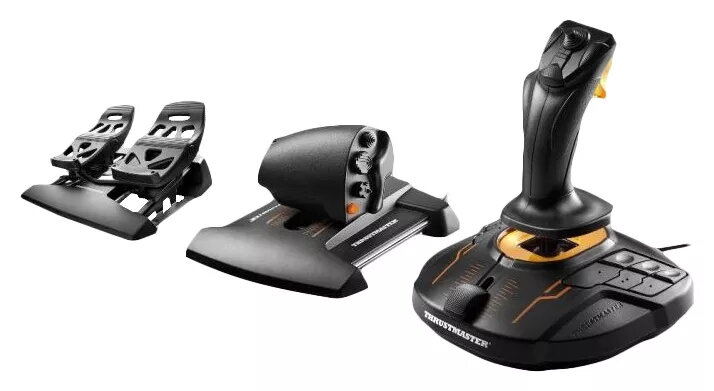
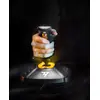
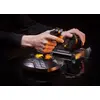
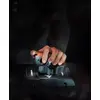
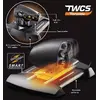
Joystick Thrustmaster T-16000M FCS Flight Pack
{{selectedOffer && selectedOffer.price | formatAmount}}
{{selectedOffer && selectedOffer.price | formatAmount}}
Offer for legal entity, cashless payment.
Why is an item available only for a legal entity?
This is due to long delivery times and limited product warranties.
This is due to long delivery times and limited product warranties.
Short description
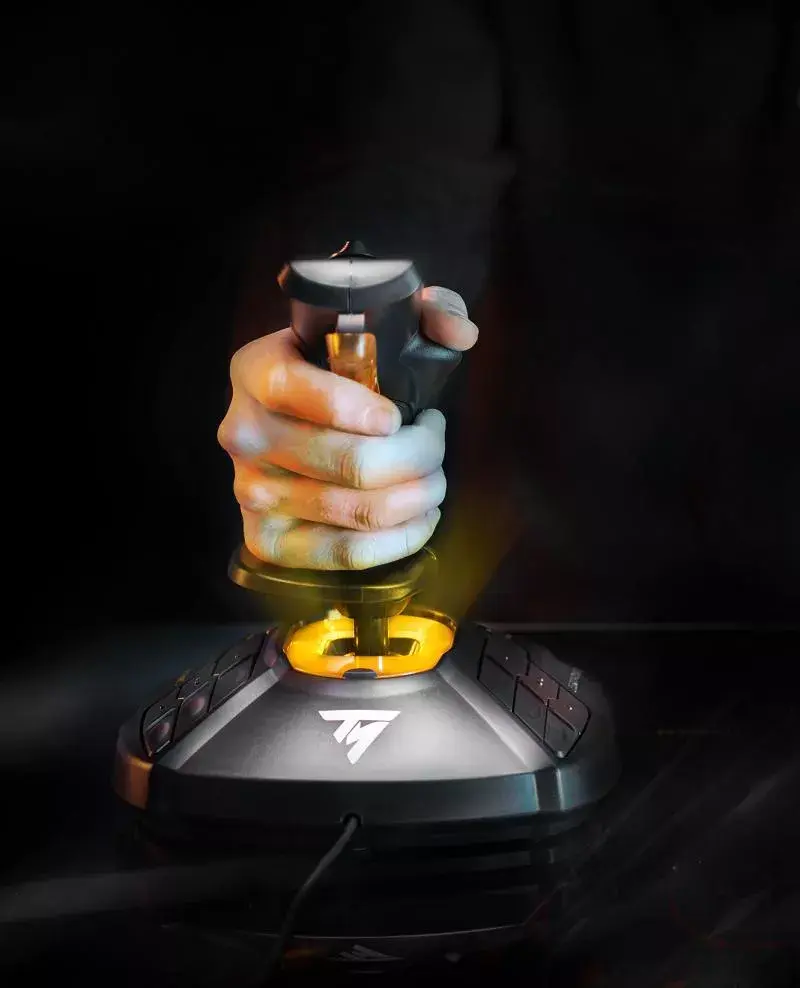
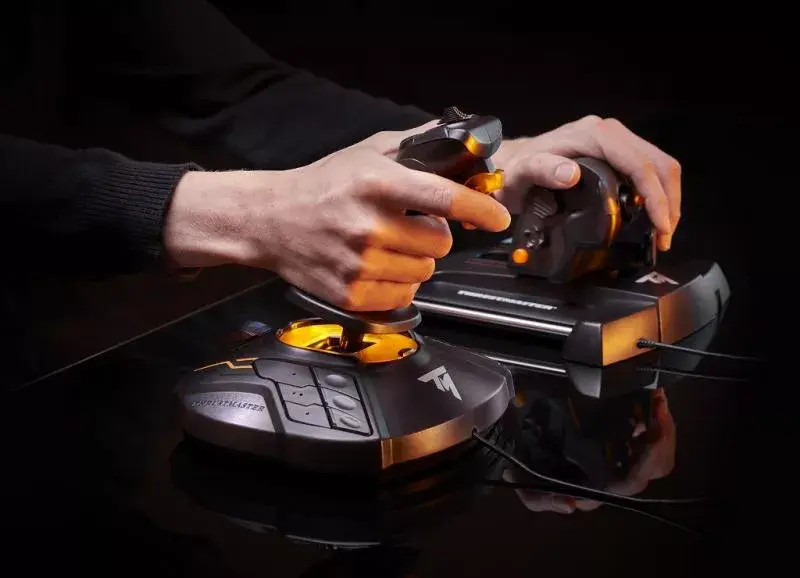
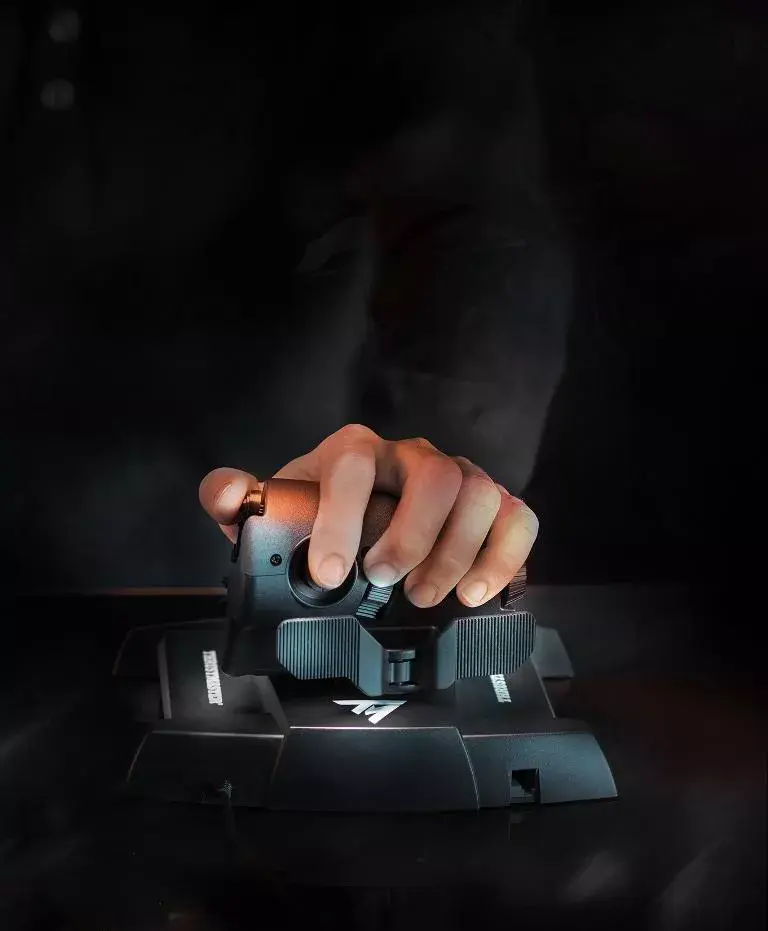
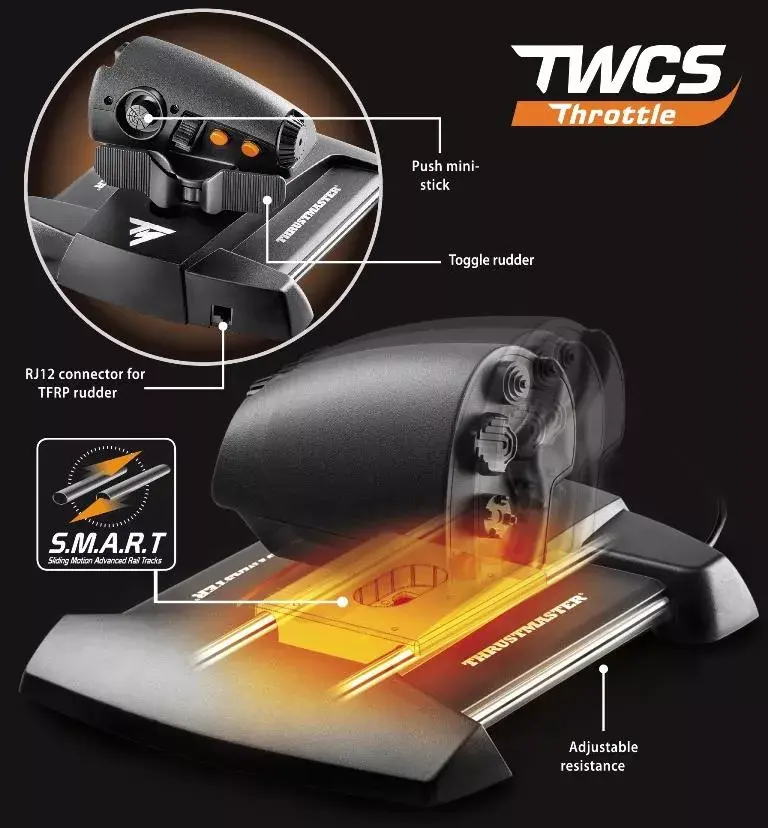
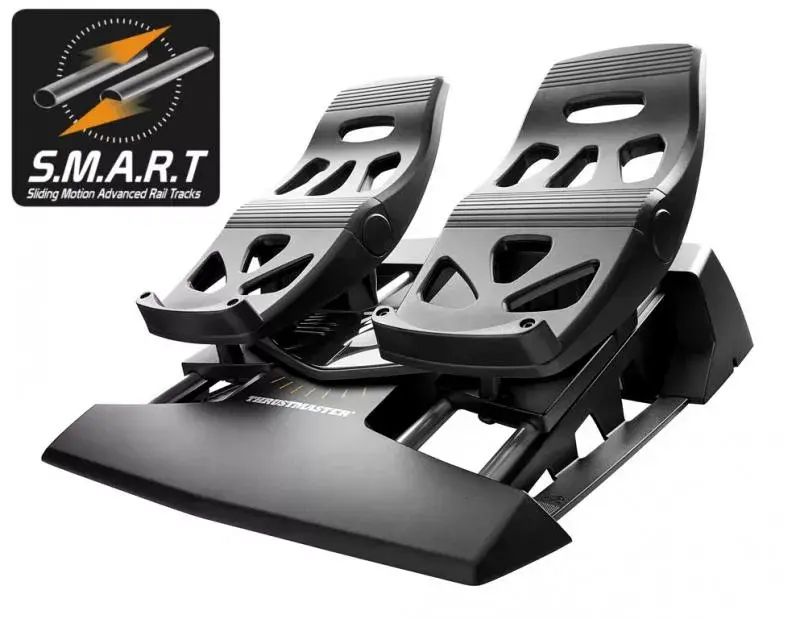
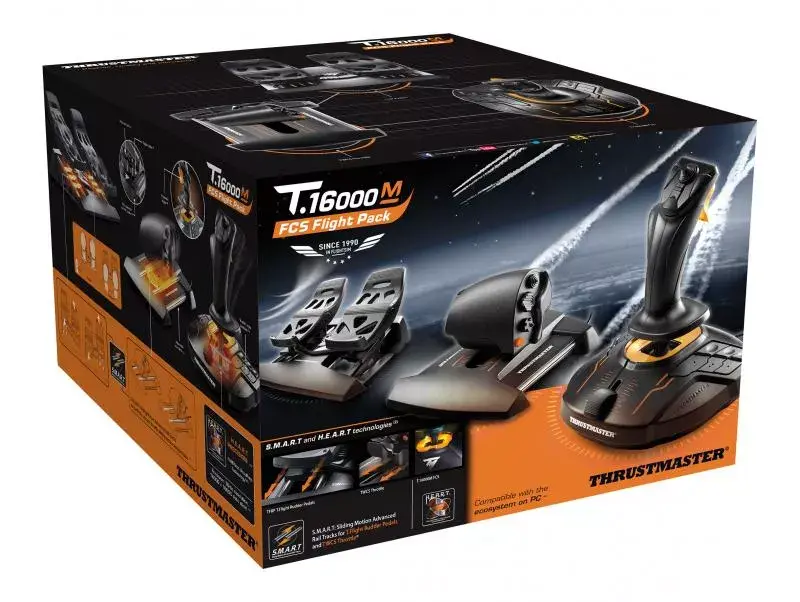
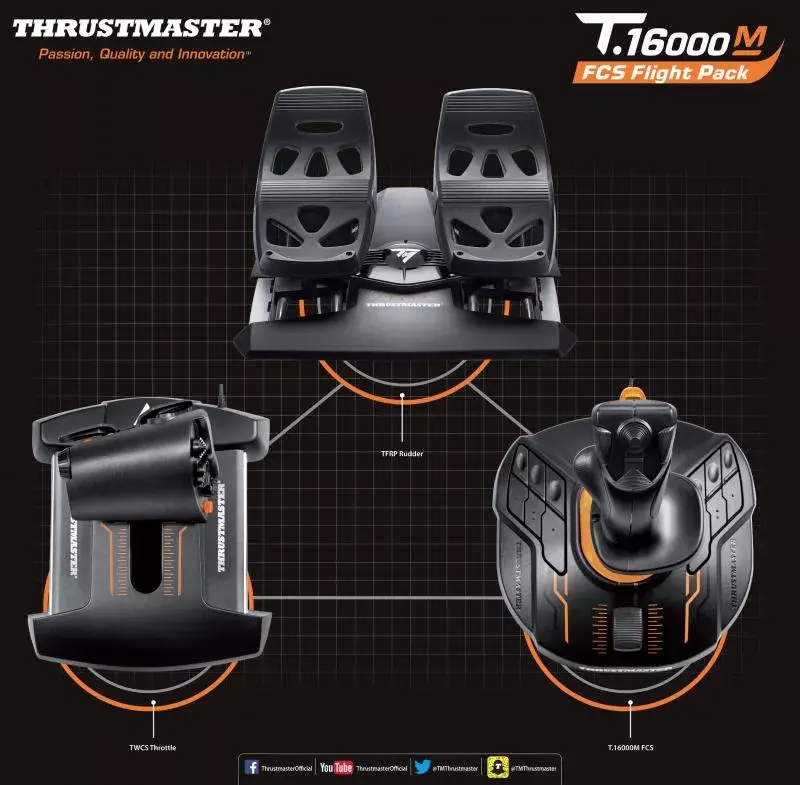
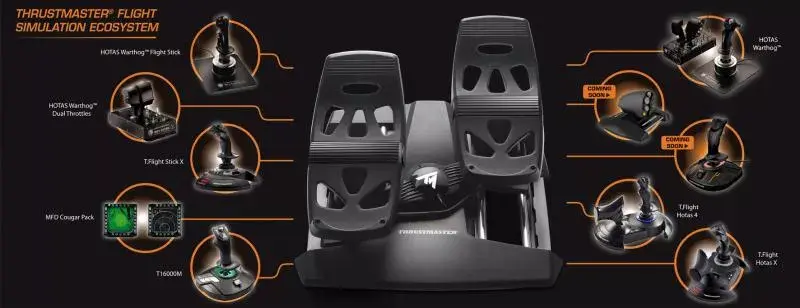
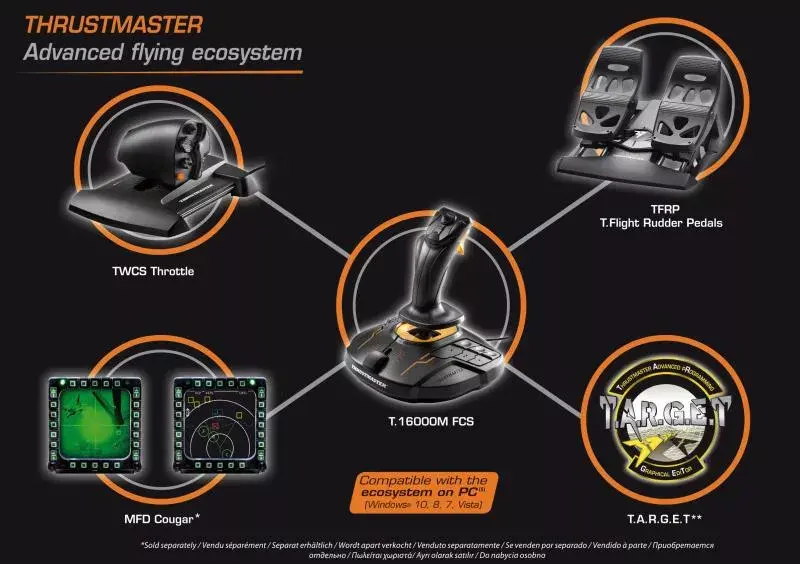
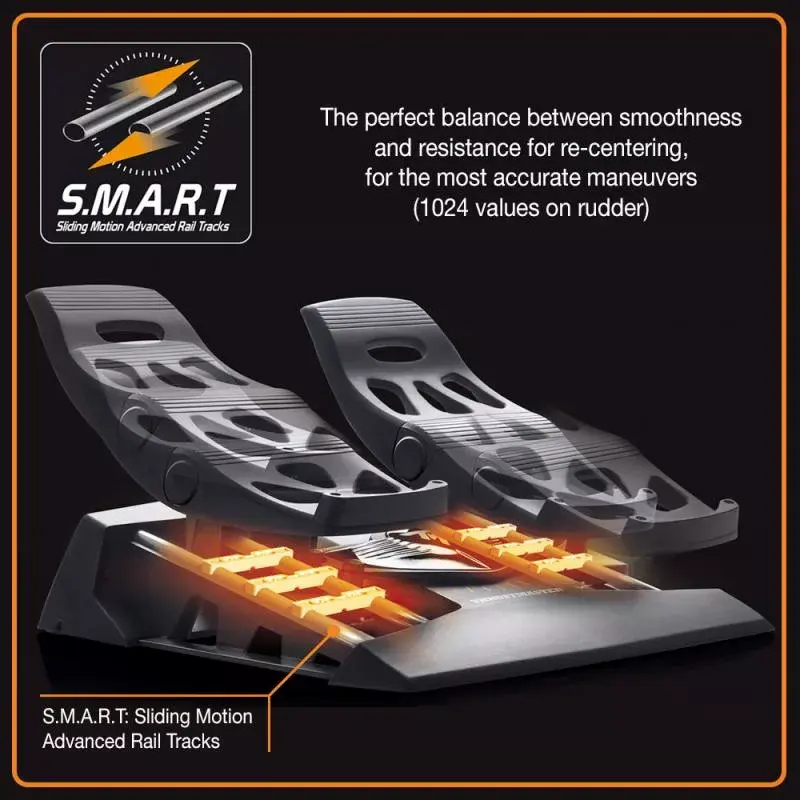
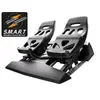
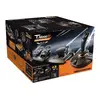
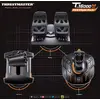
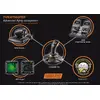
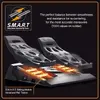
The Thrustmaster T-16000M FCS Flight Pack is a versatile joystick designed for both MAC and PC gaming. It features a wired USB connection, a D-pad for gaming control, and is made from durable plastic and rubber materials. With dimensions of 422 mm width, 407 mm depth, and 287 mm height, it fits comfortably on your desk. Compatible with Windows 10 Education and Enterprise, this joystick offers precise control for an immersive flight simulation experience.
Available for order:
6 pcs.
Warranty:
2 Years
SKU:
1074955


Cheapest delivery:
Unisend LV
Pick-up points
Unisend LV
Cost
1.99 €
Deliver
{{selectedOffer.parcelStationDeliveryString}}
Customer service center
2b. Kengaraga str., Riga, Latvia, LV-1063
02.11.2026
{{selectedOffer.officeDeliveryString}}
free
Courier Delivery
Please note that in case of a large parcel additional delivery costs may apply!
From 5.53 € (Weight: 5.77 kg)
Parcel couriers
Unisend LV / Venipak Locker LV / DPD Paku skapis / Latvijas Pasts nodaļa
05.11.2026
{{selectedOffer.parcelStationDeliveryString}}
From 1.99 €

Payment Methods:
Bank transfer


