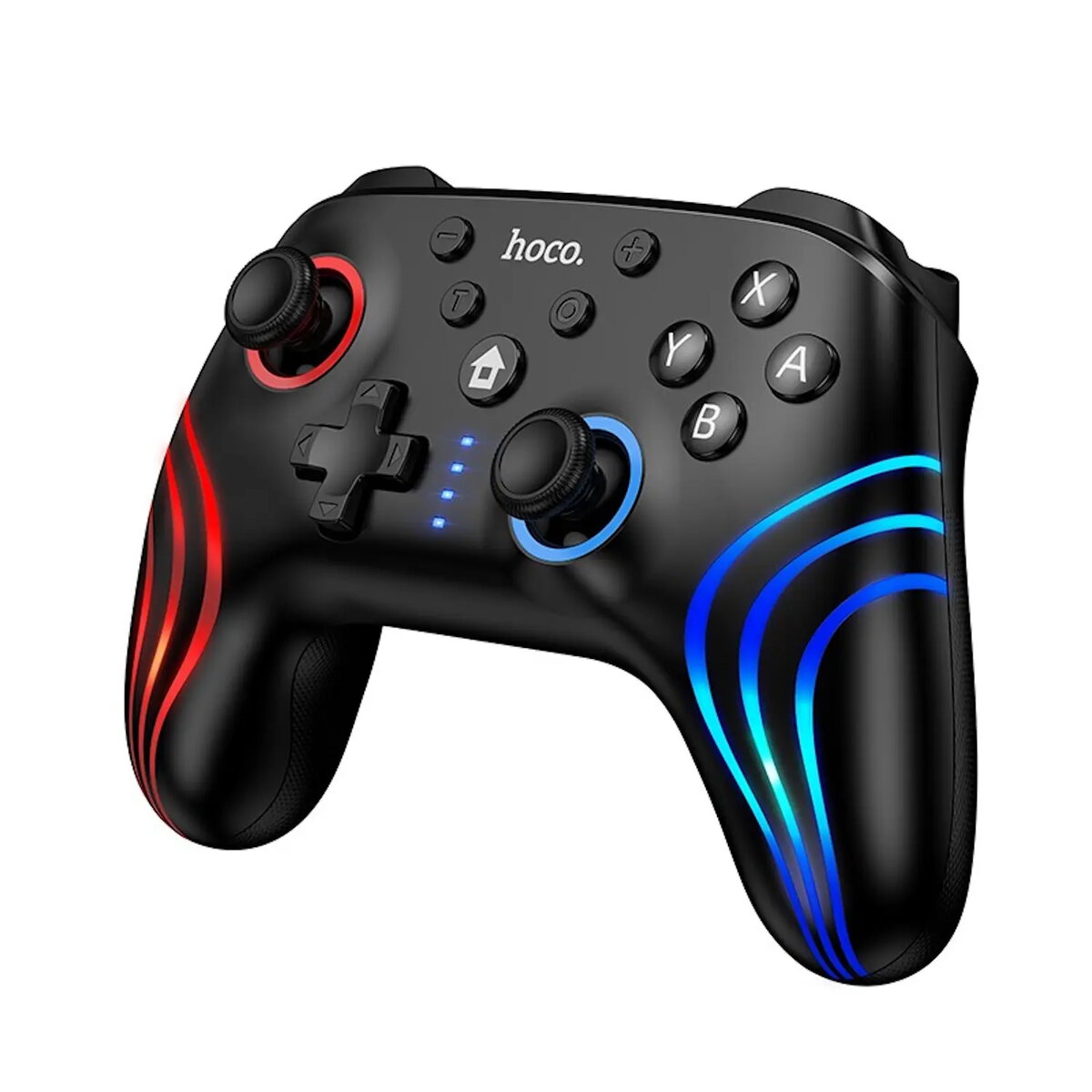
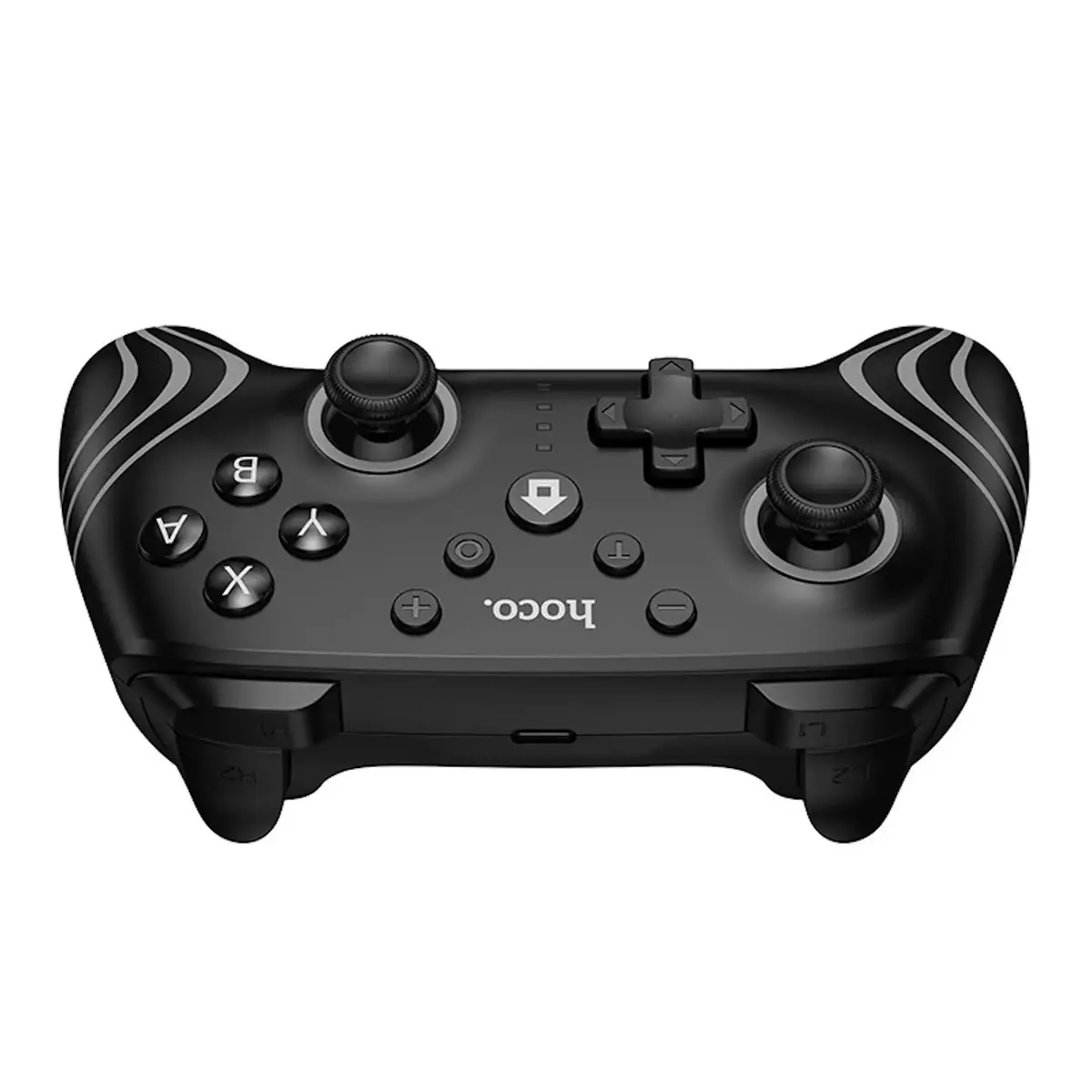
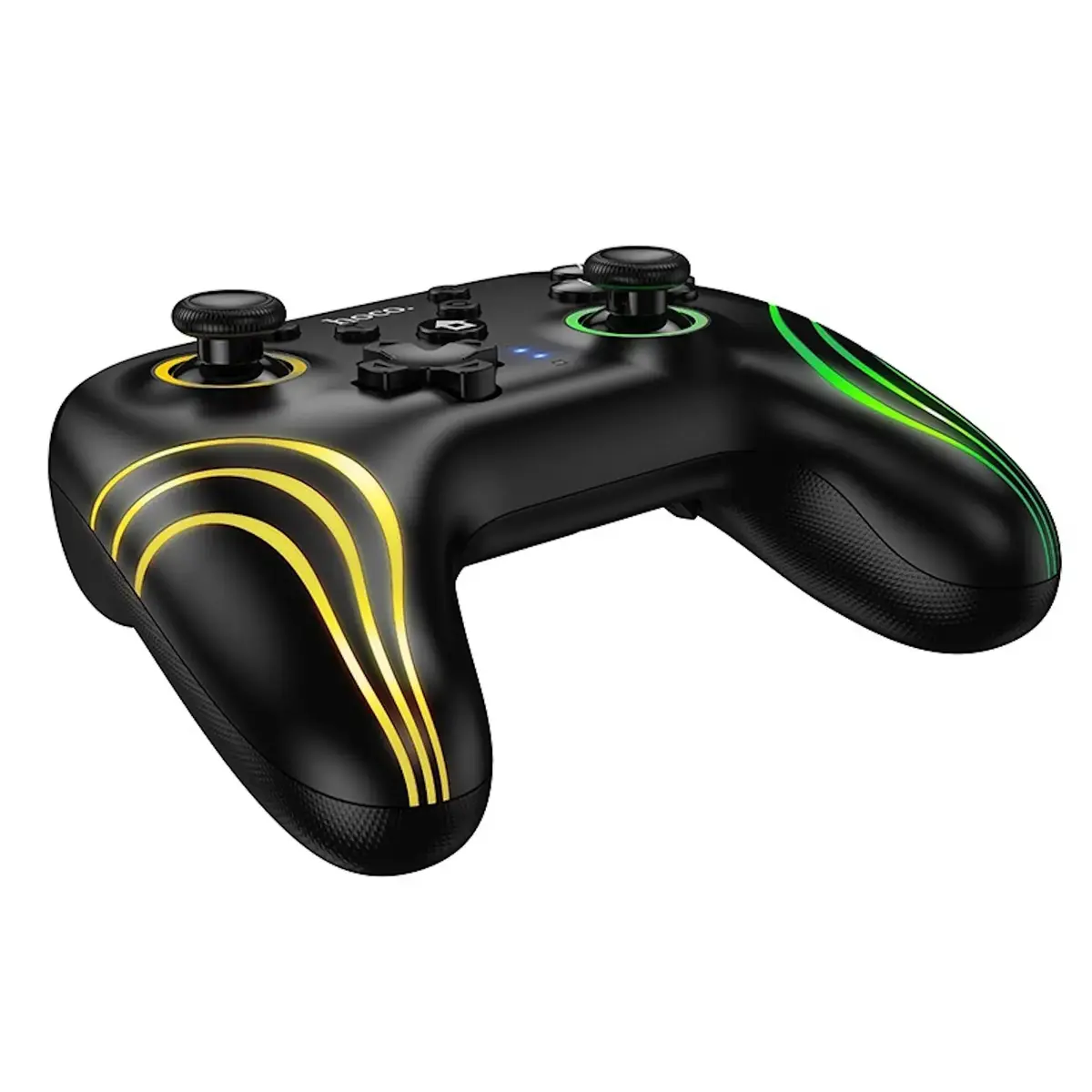
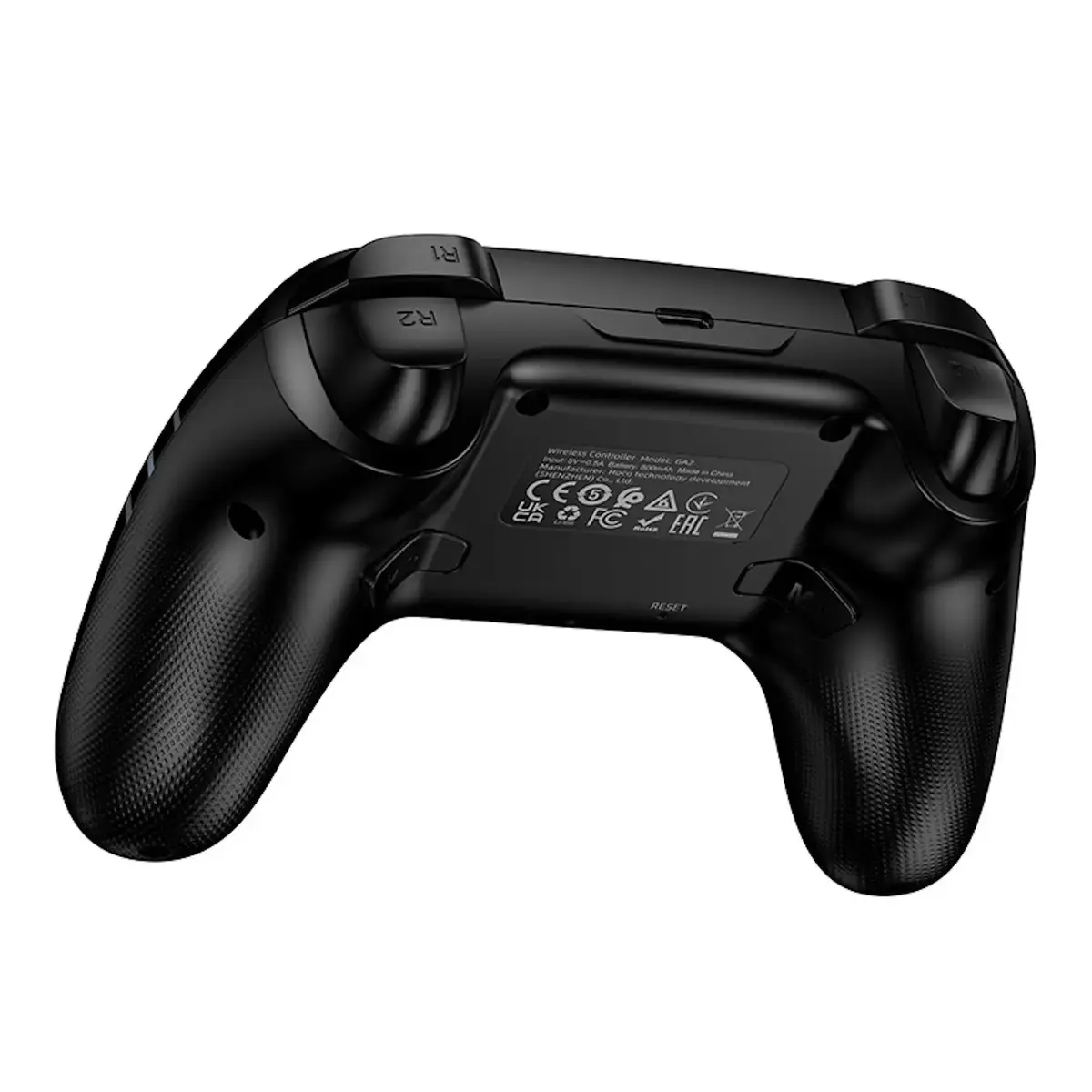
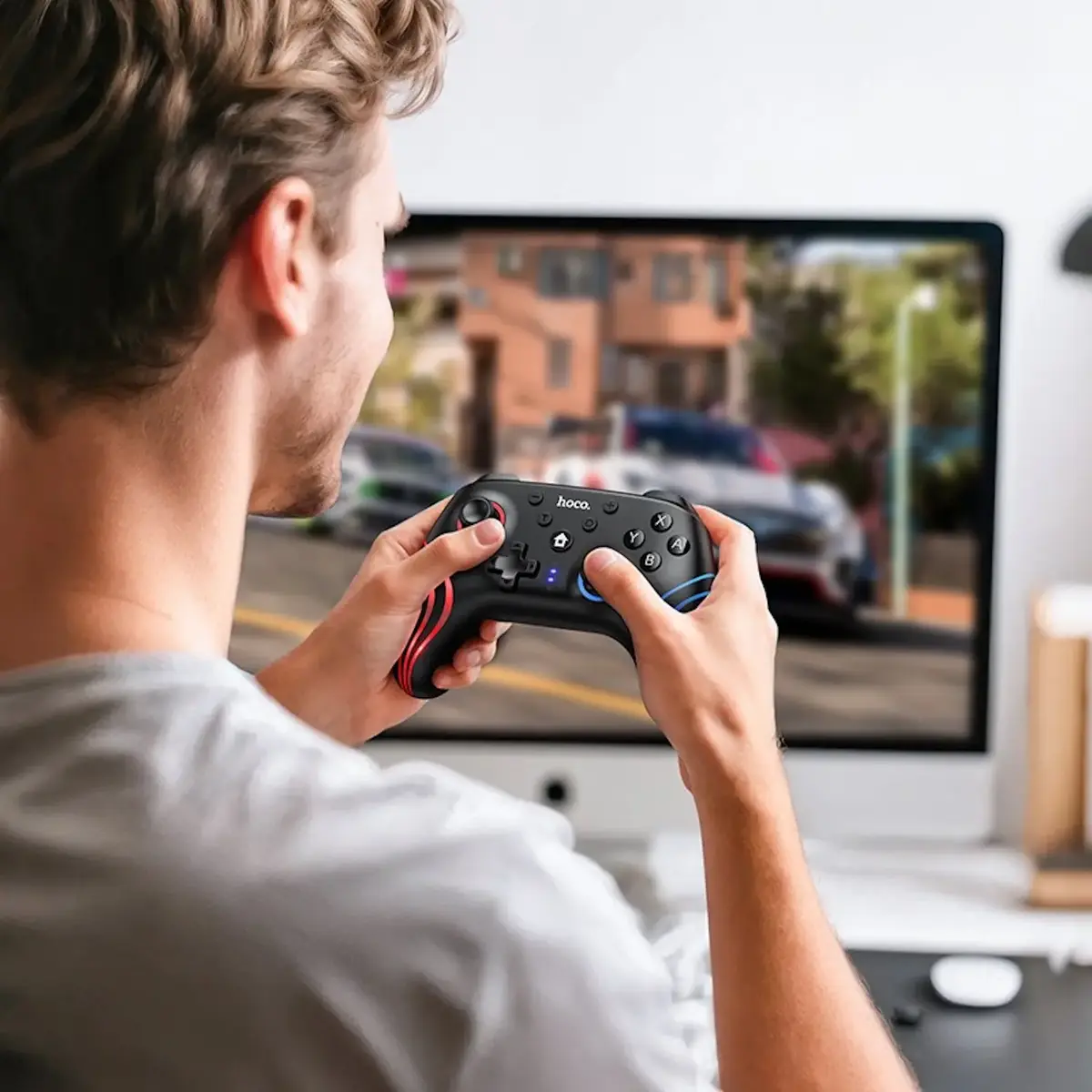
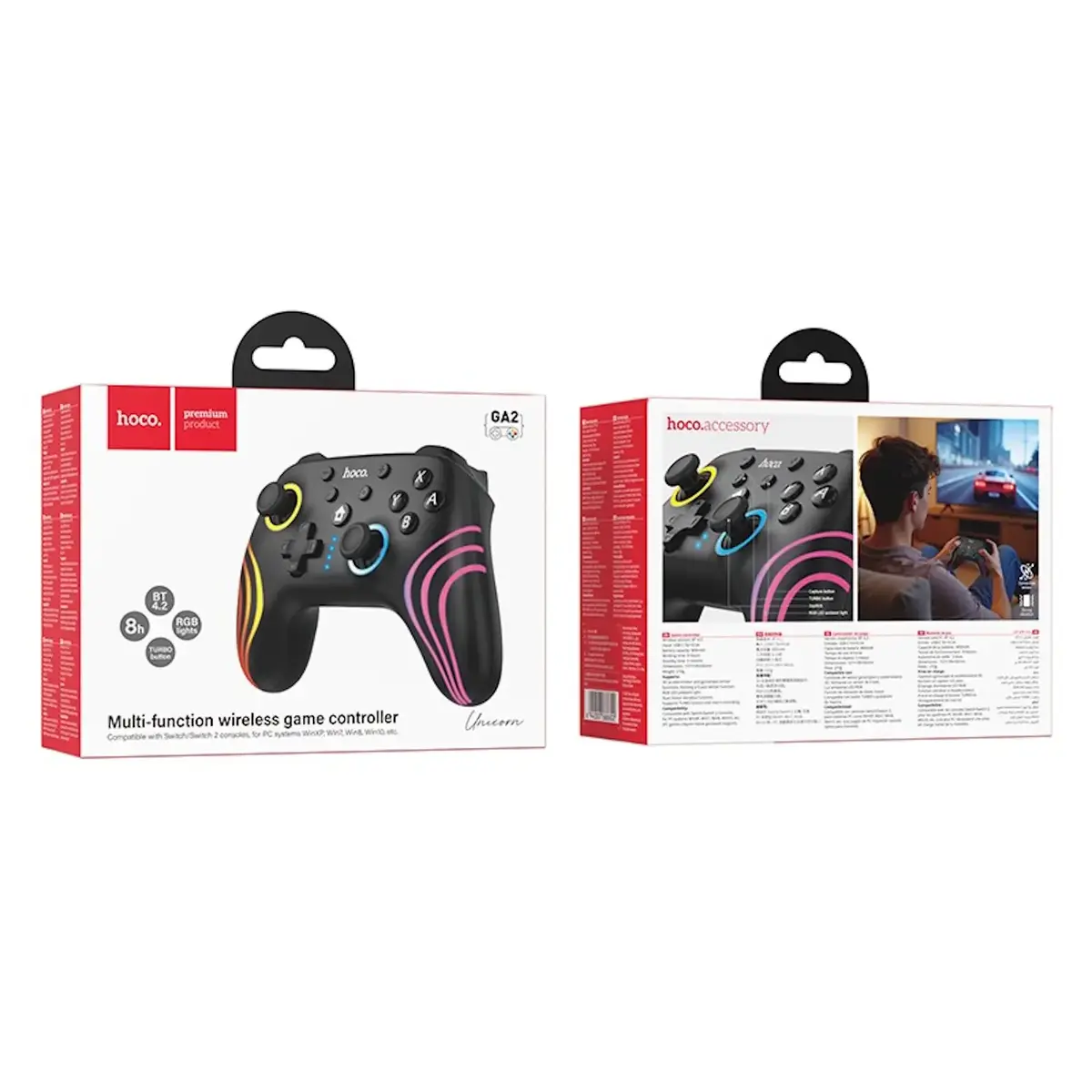
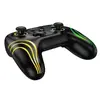
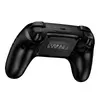
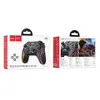
The Hoco GA2 wireless game controller is compared with several alternative gamepads: EasySMX D10, EasySMX S10, PDP Afterglow Wave, GameSir G8+ MFi, and 8BitDo Ultimate 2C. All products belong to the game controller category and are designed for interactive gaming. The main practical differences lie in supported platforms, connectivity options, battery life, and overall design, making each model suitable for specific gaming environments.
⚙️ The table below compares key product characteristics: supported gaming platforms, wireless connectivity types, design features, and the practical application of each model across different systems.
| Parameter | Hoco GA2 | EasySMX D10 | EasySMX S10 | PDP Afterglow Wave | GameSir G8+ MFi | 8BitDo Ultimate 2C | Practical conclusion |
|---|
| Device type | Wireless gamepad | Wireless gamepad | Wireless gamepad | Wireless gamepad | Bluetooth/USB gamepad | Wireless gamepad | All options follow a standard ergonomic gamepad layout for familiar and comfortable control. |
| Supported platforms | PC, Nintendo Switch | PC, Nintendo Switch, iOS, Android, Steam Deck | Nintendo Switch | Nintendo Switch, Nintendo Switch OLED | Android, PC, Nintendo Switch, iOS | PC, Nintendo Switch, Switch 2 | Hoco GA2 targets PC and Nintendo Switch users, whereas competitors often provide extended support for mobile devices and newer consoles. |
| Power source | Not specified | Not specified | Not specified | Battery | Battery | Not specified | PDP Afterglow Wave stands out with a high-capacity built-in battery supporting extended gameplay sessions. |
◎ The table below evaluates how well each controller fits different user needs, use cases, and gaming setups.
| Use case | Recommended product | Why |
|---|
| Standard PC and Nintendo Switch gaming | Hoco GA2 | Provides reliable dual-platform compatibility for players focusing strictly on PC and Nintendo consoles. |
| Multi-platform mobile and desktop gaming | EasySMX D10 or GameSir G8+ MFi | Offers broad compatibility across mobile operating systems, handheld PCs, and desktop computers. |
| Dedicated Nintendo Switch play | EasySMX S10 or PDP Afterglow Wave | Tailored specifically for Nintendo console owners looking for optimized platform integration. |
| Cross-platform sessions on PC and Nintendo systems | 8BitDo Ultimate 2C | Suits users who need reliable connectivity across desktop and multiple generations of Nintendo hardware. |
The Hoco GA2 controller is a straightforward and dependable choice for gamers who primarily use a PC or Nintendo Switch and want a hassle-free setup without extra features they do not need. If your gaming habits are strictly tied to these two platforms, Hoco GA2 offers a focused and practical solution. Buyers looking for mobile device compatibility, advanced battery specs, or support for additional platforms should consider the respective alternative models.