
Hurry and order now – up to 50% off!
In cart {{totalProductsCount}} item(s)
Your cart is empty
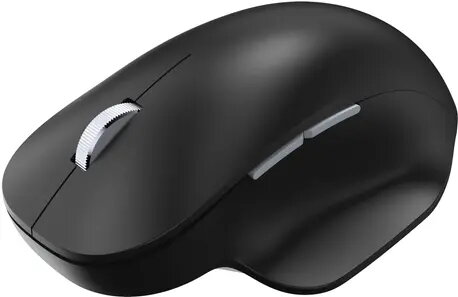
Ergonomic Mouse Incase 222-00004 Bluetooth
The Incase 222-00004 Bluetooth Ergonomic Mouse is a precision-engineered peripheral designed to enhance comfort and efficiency during daily computer tasks. Its sophisticated black finish and contoured shape are specifically crafted to support the natural alignment of the hand and wrist, effectively minimizing fatigue during prolonged work sessions. By utilizing reliable Bluetooth wireless technology, this mouse eliminates the need for cumbersome cables, helping to maintain a clean and organized workspace while providing consistent connectivity across various devices.
This ergonomic mouse offers significant benefits for users who spend long hours at a computer. The thoughtful design promotes a neutral wrist posture, which helps reduce physical strain and discomfort. The wireless Bluetooth interface ensures a seamless setup process and broad compatibility with modern laptops and desktop computers. Furthermore, the high-precision tracking sensor provides smooth and accurate cursor movement, while the durable construction ensures long-term reliability for both professional and personal use.
This device may not be the optimal choice for professional competitive gaming, where specialized high-polling rate sensors or wired connections are often preferred. Additionally, users who require a large number of programmable side buttons for complex macros or specific software workflows might find the standard button configuration insufficient.
To begin using the mouse, ensure your computer's Bluetooth functionality is enabled. Insert the required batteries into the mouse and switch it to the pairing mode as indicated by the device's LED indicator. Open the Bluetooth settings on your computer, search for available devices, and select the Incase mouse from the list to establish the connection. Once paired, the mouse is ready for immediate use without the need for additional software drivers.
For optimal performance, use the mouse on a flat, non-reflective surface. If you experience connectivity issues, ensure that the device is within the recommended range of your computer and that no significant physical obstructions are blocking the signal.
{{highlightedFeature.featureTitle}}:
{{getProductFeatureValueById(product, highlightedFeature.featureId)}}
{{ productComparisonGenerationError }}