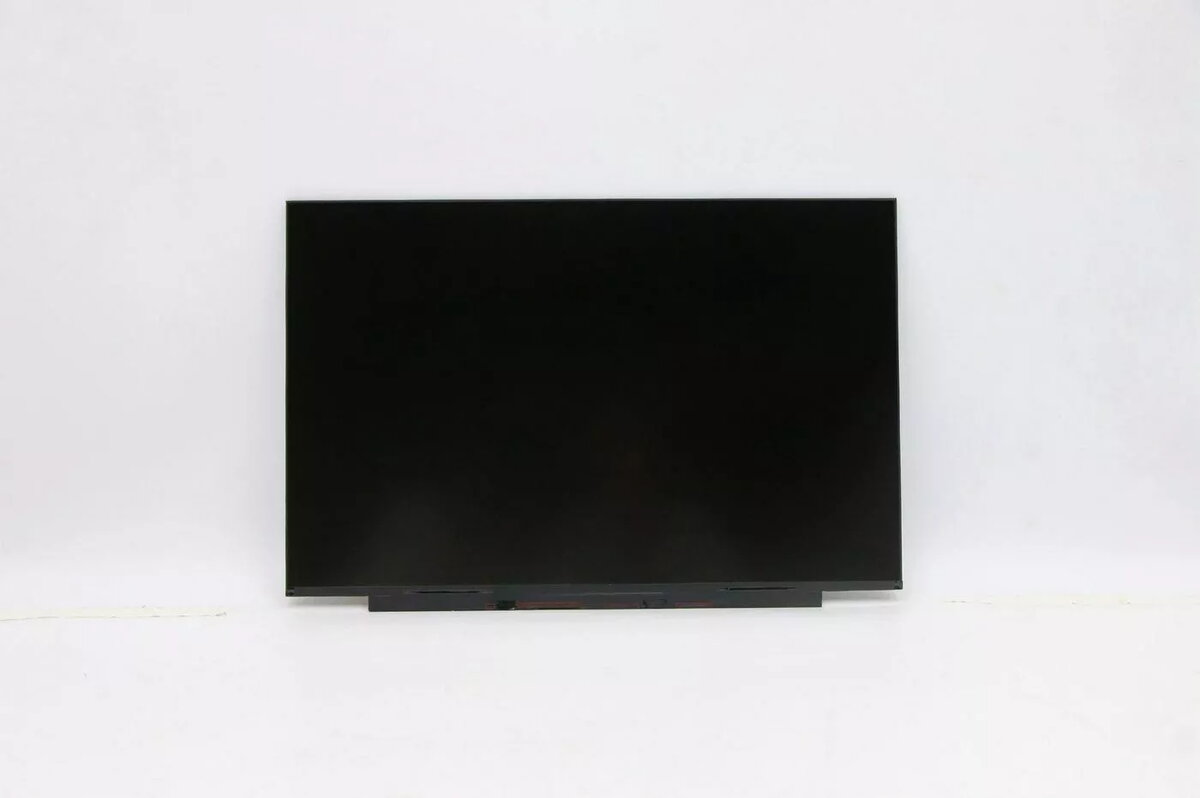
Lenovo 14-inch IPS model 5D10Z52010 is a replacement laptop display panel designed to restore or upgrade screen performance in compatible Lenovo notebooks. This 14-inch IPS panel provides consistent color reproduction and wide viewing angles typical of IPS technology, making it suitable for everyday computing, office work and multimedia playback. The panel is intended as a direct replacement component for models that accept this exact physical size and connector type.
Advantages
The IPS technology delivers stable colors and broad viewing angles so image quality remains consistent when the screen is viewed from off-center positions. As a manufacturer-grade replacement panel, it matches the physical dimensions and mounting points required for direct installation in compatible Lenovo laptops. This panel supports clear text rendering and accurate color for typical productivity tasks and media, and its factory calibration ensures uniform backlight and minimal color shift across the display area.
Suitable for
- Repairing a damaged or non-functional laptop screen on supported Lenovo 14-inch models
- Refurbishment projects that require original-form-factor IPS panels
- Replacing a scratched, cracked or dim display to restore readability and color accuracy
- Workstations where wide viewing angles and consistent colors are important
Key specifications
- Screen size: 14 inches diagonal
- Panel type: IPS (In-Plane Switching) for wide viewing angles and stable colors
- Aspect ratio and resolution: matches original Lenovo 14-inch notebook specification (fits compatible models)
- Surface finish: factory glass/plastic surface as supplied by the manufacturer
- Connector type and pinout: compatible with the original laptop wiring harness (ensure matching connector prior to installation)
- Mounting: original form-factor mounting points for direct replacement in supported chassis
How to use
Before installation, verify that the panel's physical dimensions, connector type and pin count match the replacement requirements of your Lenovo laptop model. Power down the laptop, remove the battery if possible, and discharge residual power by holding the power button for a few seconds. Carefully remove the bezel and any retaining screws, detach the old panel's cable from the motherboard connector, and transfer any necessary brackets or mounting clips to the new panel. Connect the display cable firmly to the new panel, position the panel in the frame, secure mounting screws and reattach the bezel. Reinstall the battery and power on the laptop to confirm display functionality and correct image alignment.
Usage recommendations
Handle the display panel using an anti-static wrist strap or by touching grounded metal to avoid electrostatic damage. Avoid flexing the panel or applying pressure to the visible area during installation. If the screen shows no image or artifacts after installation, recheck the connector seating and inspect cable orientation; consult a professional technician if problems persist.