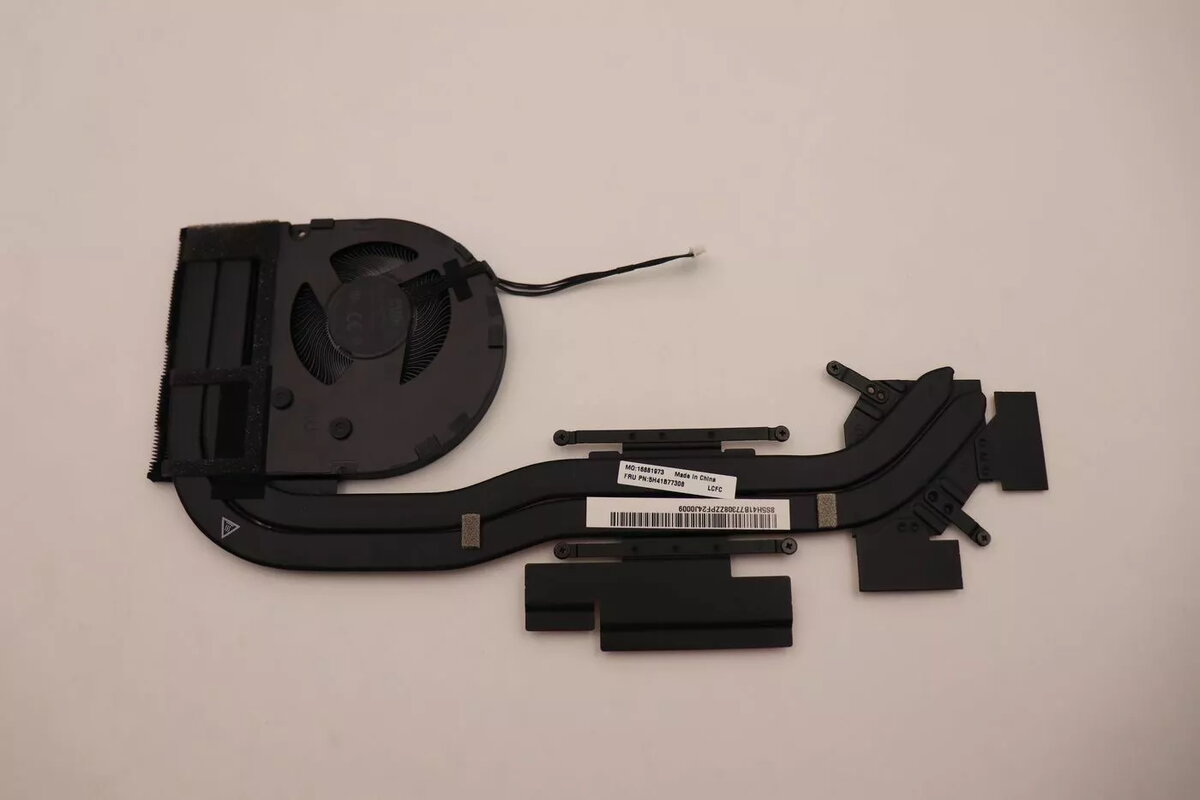
The Lenovo HEATSINK JP6A0_DIS_THM_ASSY is a high-quality, genuine thermal module engineered specifically for Lenovo laptop systems. This assembly plays a critical role in managing internal temperatures by efficiently dissipating heat generated by the processor and graphics components. By maintaining optimal thermal conditions, this module helps prevent performance throttling and protects sensitive hardware from damage caused by excessive heat, ensuring your laptop operates reliably under various workloads.
Advantages
This thermal module offers precise compatibility with designated Lenovo laptop models, ensuring a perfect fit and seamless integration with the existing cooling architecture. Its robust construction facilitates effective heat transfer, which is essential for maintaining system stability during intensive tasks. By replacing a worn or malfunctioning heatsink with this genuine component, users can restore the original cooling efficiency of their device, thereby extending the overall lifespan of the internal hardware and preventing unexpected system shutdowns due to thermal issues.
Suitable for
- Replacing a damaged or clogged thermal module in compatible Lenovo laptops
- Restoring optimal cooling performance to prevent system overheating
- Maintaining hardware stability during demanding computing tasks
- Repairing laptops that exhibit signs of thermal throttling or excessive fan noise
When it may not be suitable
This thermal module is not a universal part and is only compatible with specific Lenovo laptop models designed for this exact assembly. It will not fit or function correctly in systems that require a different thermal configuration or cooling layout.
Furthermore, this component is intended for users with technical experience in laptop disassembly and hardware repair. If you are not comfortable opening your device, professional installation is recommended to avoid accidental damage to internal components.
Key specifications
- Genuine Lenovo thermal assembly
- Designed for efficient heat dissipation
- Compatible with specific Lenovo laptop cooling systems
- Engineered for precise component alignment
How to use
To install the Lenovo HEATSINK JP6A0_DIS_THM_ASSY, first ensure the laptop is completely powered off and disconnected from any power source. Remove the bottom cover of the laptop and disconnect the battery to prevent electrical shorts. Locate the existing thermal module, carefully unscrew the mounting fasteners, and disconnect the cooling fan if necessary. Clean the processor surfaces of any old thermal paste using high-purity isopropyl alcohol. Apply a thin, even layer of new high-quality thermal compound to the processor dies before positioning the new heatsink. Secure the module by tightening the screws in the manufacturer-specified order to ensure even pressure, then reconnect the fan and reassemble the laptop.
What to consider before purchase
- Verify your laptop model number matches the compatibility list for this specific thermal module
- Ensure you have the necessary tools for laptop disassembly
- Check if your current cooling fan is still functional or if it should be replaced alongside the heatsink
- Confirm that you have fresh thermal paste available for the installation process
Usage recommendations
For the best results, always ensure that the cooling fan is free of dust and debris before installing the new thermal module. Regularly cleaning the air vents of your laptop will help maintain the efficiency of the new heatsink and prevent future overheating.