
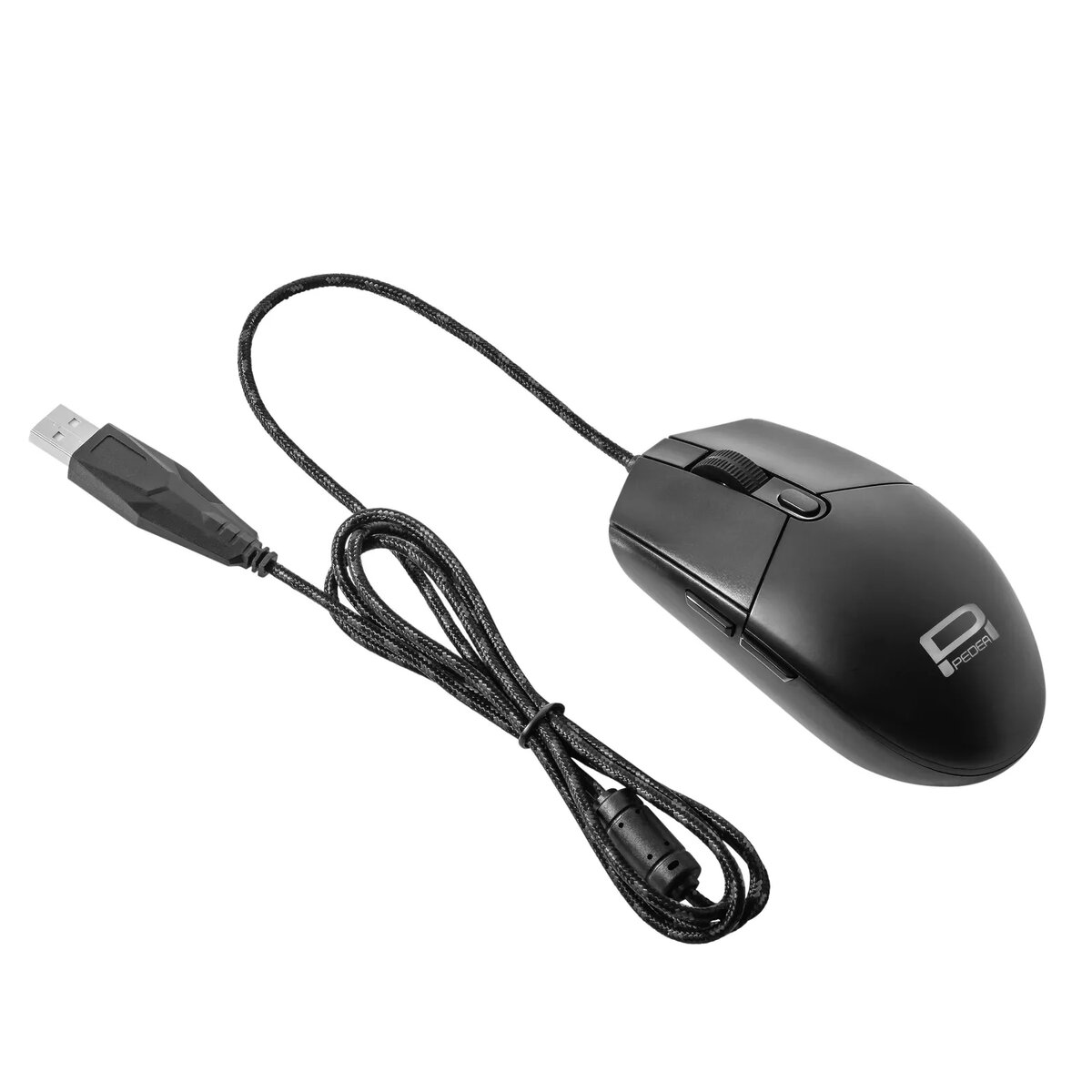
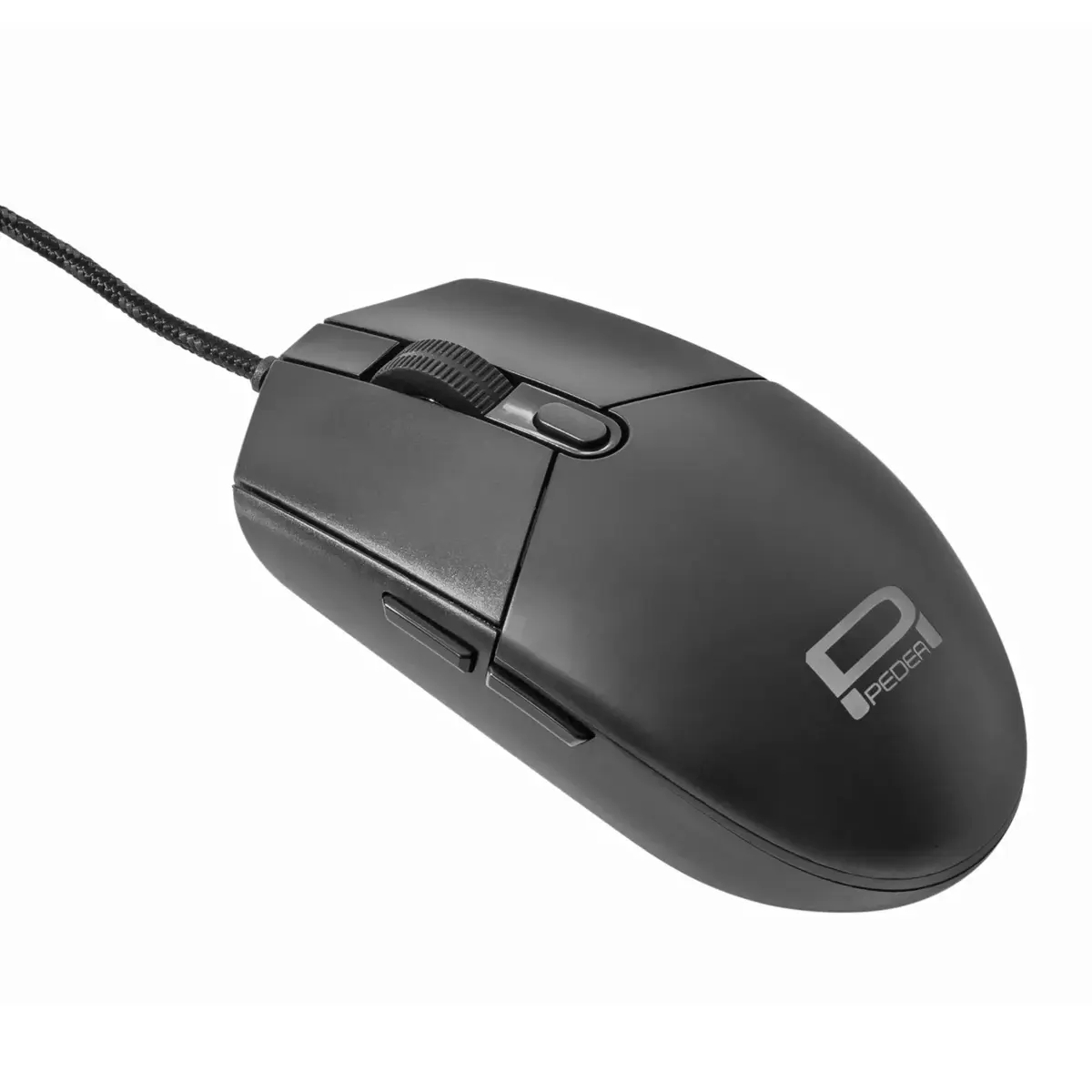
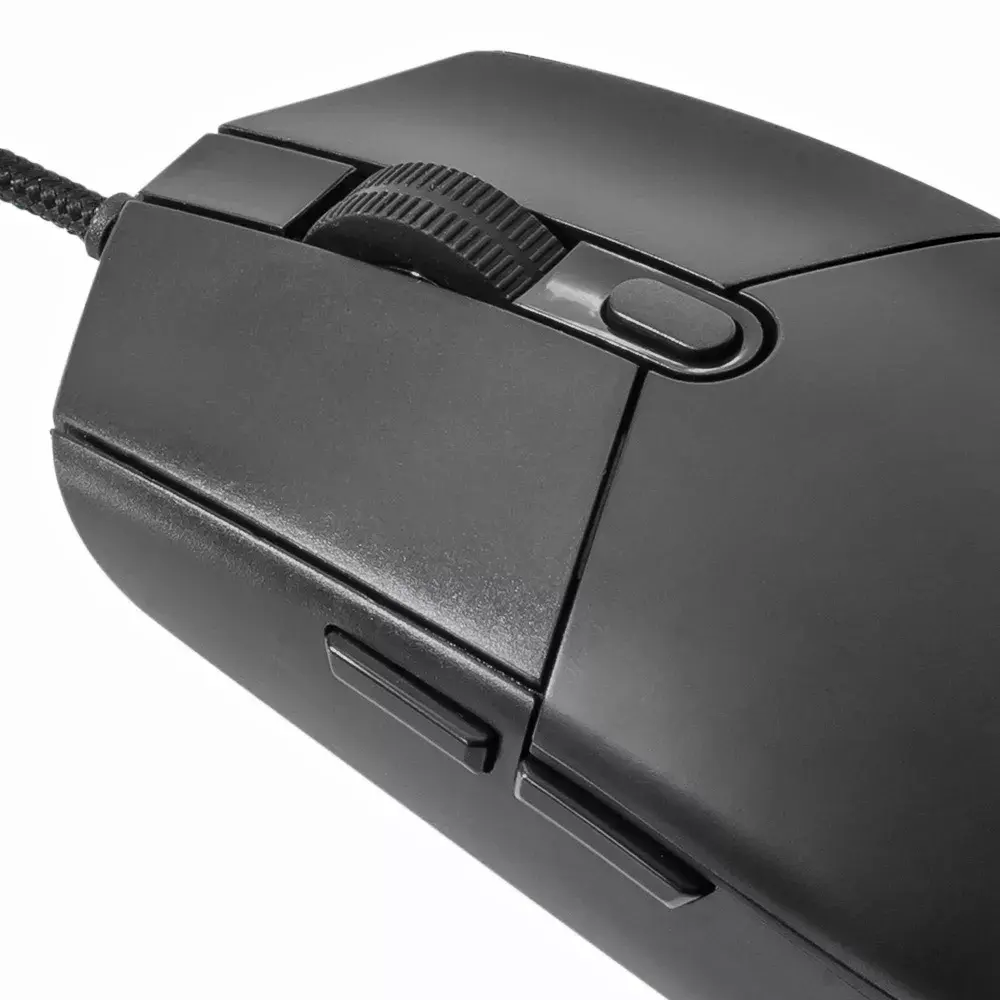
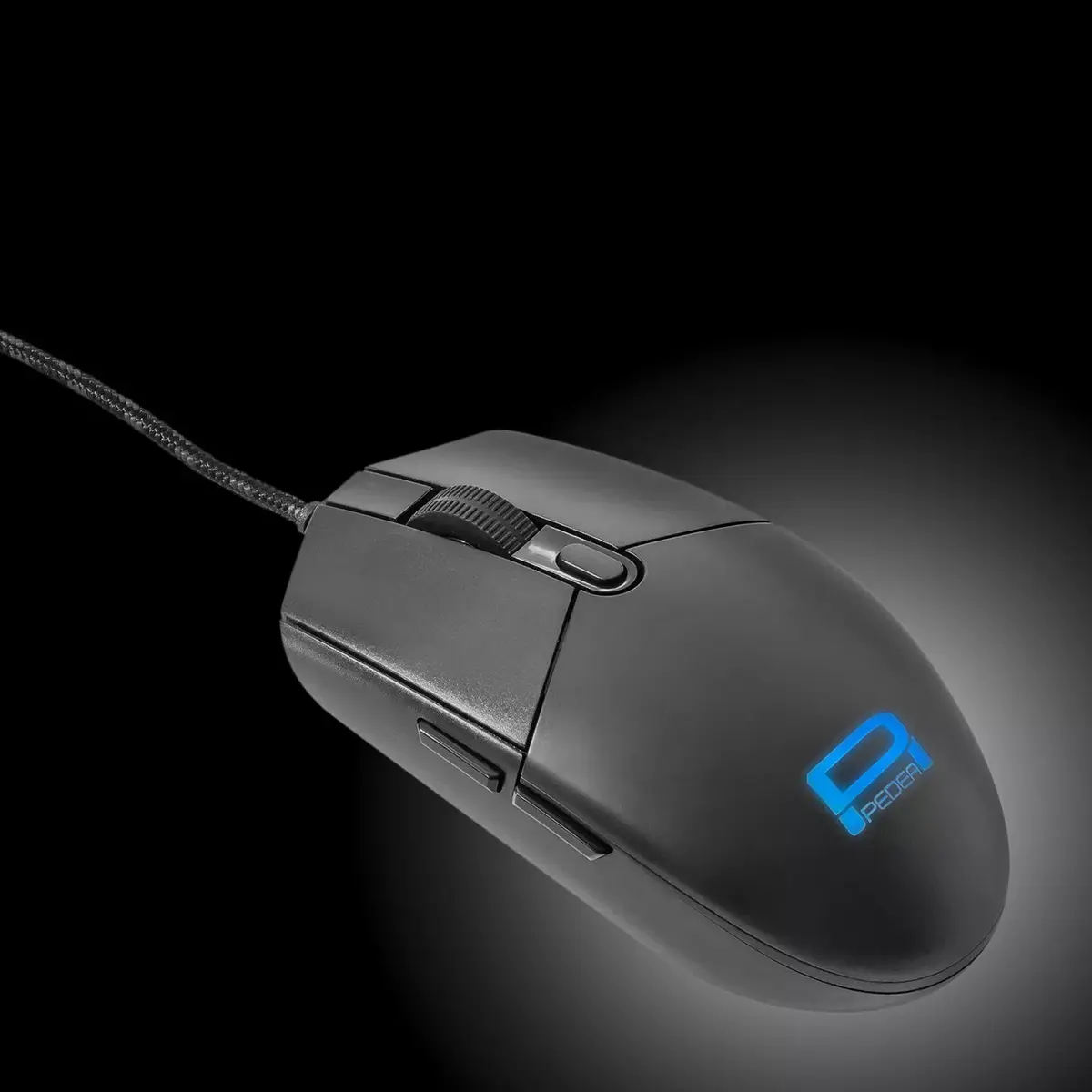
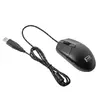
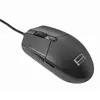
Mouse PEDEA FirstOne Ambidextrous USB Type-A Optical 2400 DPI
13.99 €
Keep track of price changes
You keep track of price changes
Watch the price drop
Leave your address - as soon as the price of the product goes down, you'll know about it right away
You keep track of price changes
Mouse PEDEA FirstOne Ambidextrous USB Type-A Optical 2400 DPI
{{email}}
You keep track of price changes
Mouse PEDEA FirstOne Ambidextrous USB Type-A Optical 2400 DPI
{{email}}
{{selectedOffer && selectedOffer.price | formatAmount}}
Short description
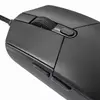
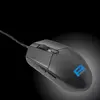
The PEDEA FirstOne mouse features an ambidextrous design, making it suitable for both left and right-handed users. With a high precision optical sensor offering a resolution of 2400 DPI, it ensures smooth and accurate tracking. The mouse connects via USB Type-A and includes 5 pressed buttons for enhanced functionality. Its ergonomic shape and comfortable grip make it ideal for long hours of use. The cable power source ensures a reliable connection without the need for batteries.
Deliver the order:
to the Customer Service Center at Kengaraga 2b, Riga
03.07.2026
{{selectedOffer.officeDeliveryString}}
free
Customer service center
2b. Kengaraga str., Riga, Latvia, LV-1063
03.07.2026
{{selectedOffer.officeDeliveryString}}
free
Courier Delivery
Please note that in case of a large parcel additional delivery costs may apply!
From 4.99 € (Weight: 1.00 kg)
Parcel couriers
Latvijas Pasts pakomāts / Unisend / DPD Paku skapis / Omniva / Venipak Pickup / Venipak Locker / Latvijas Pasts nodaļa
08.07.2026
{{selectedOffer.parcelStationDeliveryString}}
From 1.99 €

Payment Methods:
Bank transfer, Bank cards on-line, Apple Pay, Google Pay


