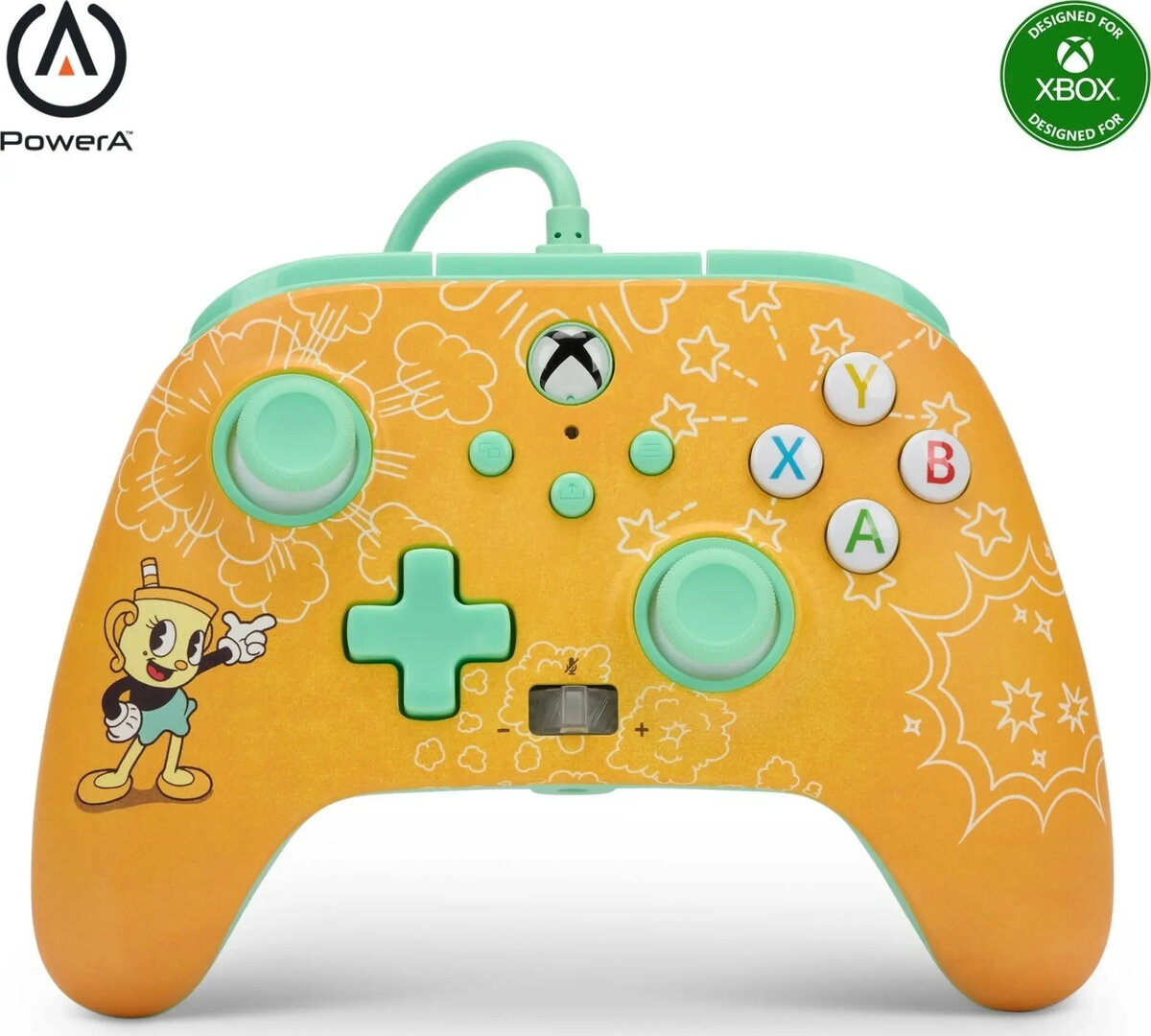
The Wired Gamepad PowerA for Xbox Series / PC Enhanced — Cuphead Ms. Chalice Edition is a licensed wired controller featuring a Cuphead-themed Ms. Chalice design. It connects via USB for a stable, low-latency link to Xbox Series consoles and Windows PCs in Enhanced mode, and uses a familiar button layout and ergonomic shape to support extended play sessions. The controller is intended to provide reliable, plug-and-play input for a range of casual and competitive games.
Advantages
This wired PowerA gamepad offers a stable USB connection that minimizes input lag, a comfortable ergonomic form factor for longer play, and a standard control layout compatible with most Xbox Series and PC games in Enhanced mode. The licensed Cuphead Ms. Chalice design provides authentic themed aesthetics while maintaining functional controls. Plug-and-play operation requires no additional drivers on supported systems, simplifying setup.
Suitable for
- Casual single-player and multiplayer gaming on Xbox Series consoles
- PC gaming in Enhanced mode where a wired Xbox-compatible controller is supported
- Retro and platforming titles that benefit from precise directional and button input
- Players seeking a themed, licensed controller with straightforward connectivity
When it may not be suitable
The wired PowerA controller may not be suitable for users who require wireless freedom or for setups that cannot accommodate a USB cable between player and console. It does not include removable or rechargeable internal batteries since it is a wired device, and it may lack some advanced features present in premium first-party controllers such as built-in wireless pairing or haptic feedback features.
Key specifications
- Connection: Wired USB (plug-and-play)
- Compatibility: Xbox Series consoles and Windows PC (Enhanced mode)
- Layout: Standard Xbox button layout with D-pad, thumbsticks, face buttons, bumpers, and triggers
- Design: Licensed Cuphead — Ms. Chalice themed artwork on the controller housing
- Form factor: Ergonomic shape for extended use
How to use
Connect the controller to an available USB port on an Xbox Series console or a Windows PC. The system should recognize the device automatically in Enhanced mode, allowing immediate use in compatible games. Use the standard face buttons and triggers for game controls; adjust in-game settings or controller mapping on PC if needed. When finished, simply unplug the USB cable. No additional software is generally required for basic functionality on supported systems.
What to consider before purchase
- Confirm your console or PC supports Xbox-compatible wired controllers in Enhanced mode
- Decide whether a wired connection fits your play environment and cable length needs
- Check for desired features such as wireless capability or advanced haptics if those are important to you
Usage recommendations
Use the controller with a direct USB connection to avoid intermediate hubs that can introduce latency. For PC users, verify controller mappings in Steam or the game’s settings to ensure buttons correspond as expected. Clean the controller housing and buttons periodically with a dry cloth; avoid liquids near ports and connectors.