
Dreame vacuums for fast and efficient cleaning!
In cart {{totalProductsCount}} item(s)
Your cart is empty
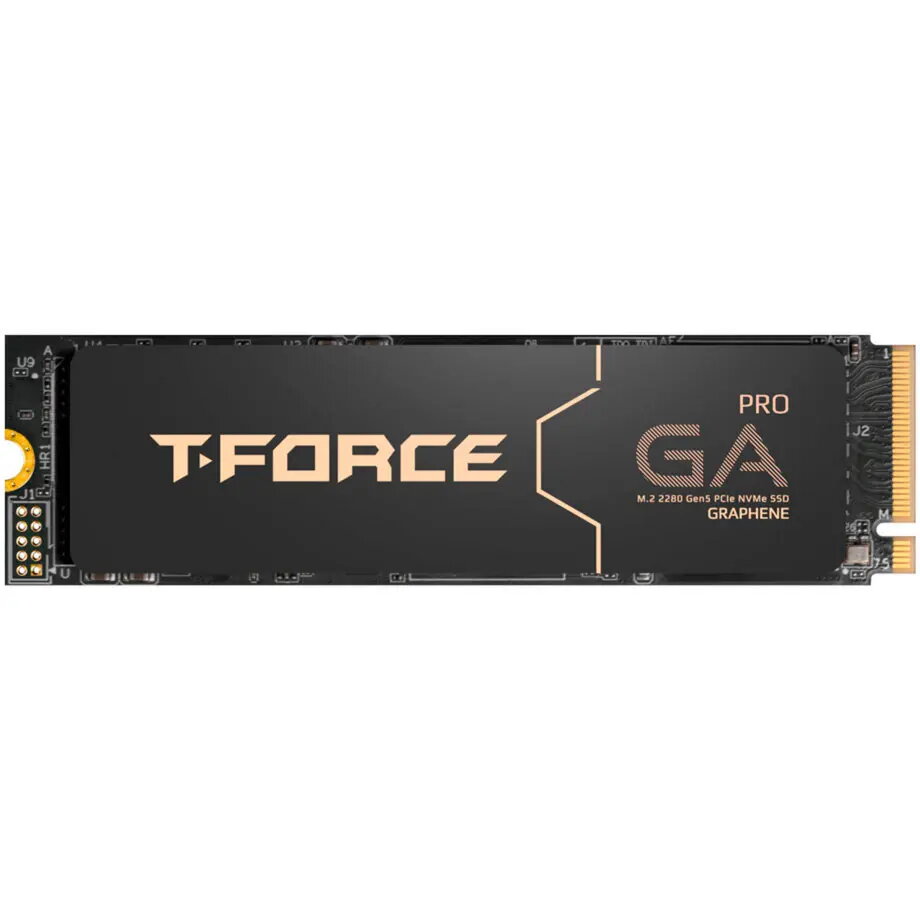
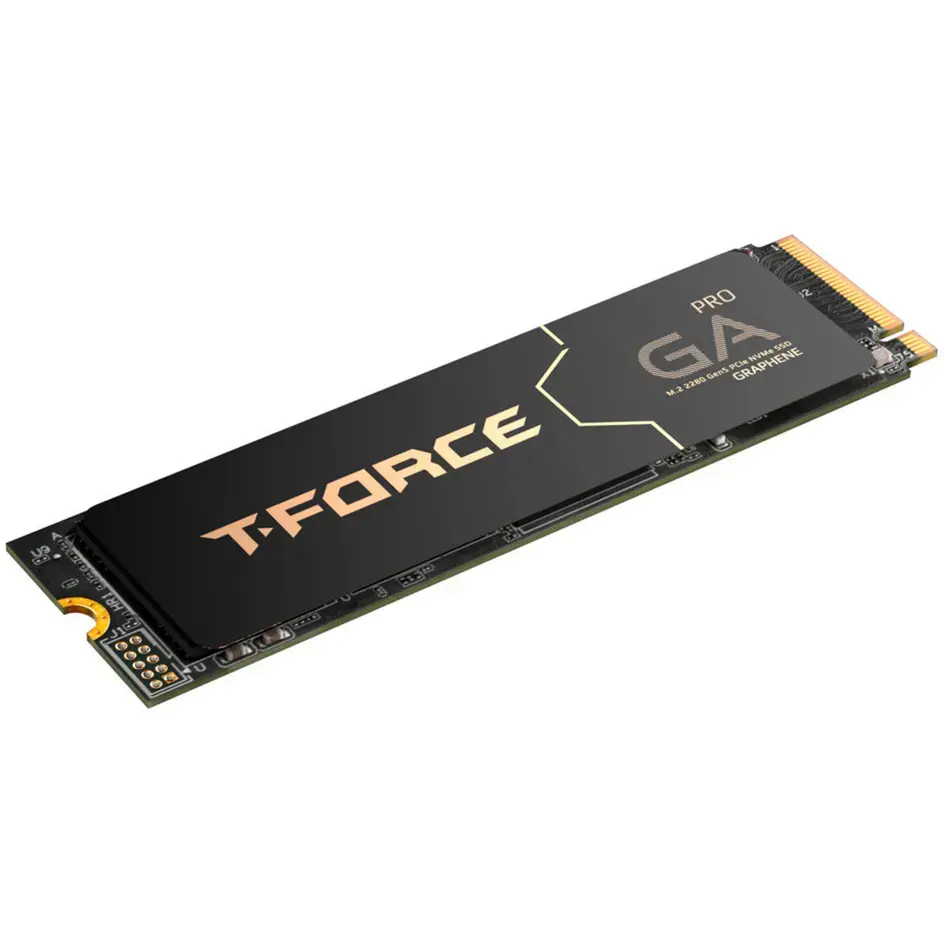
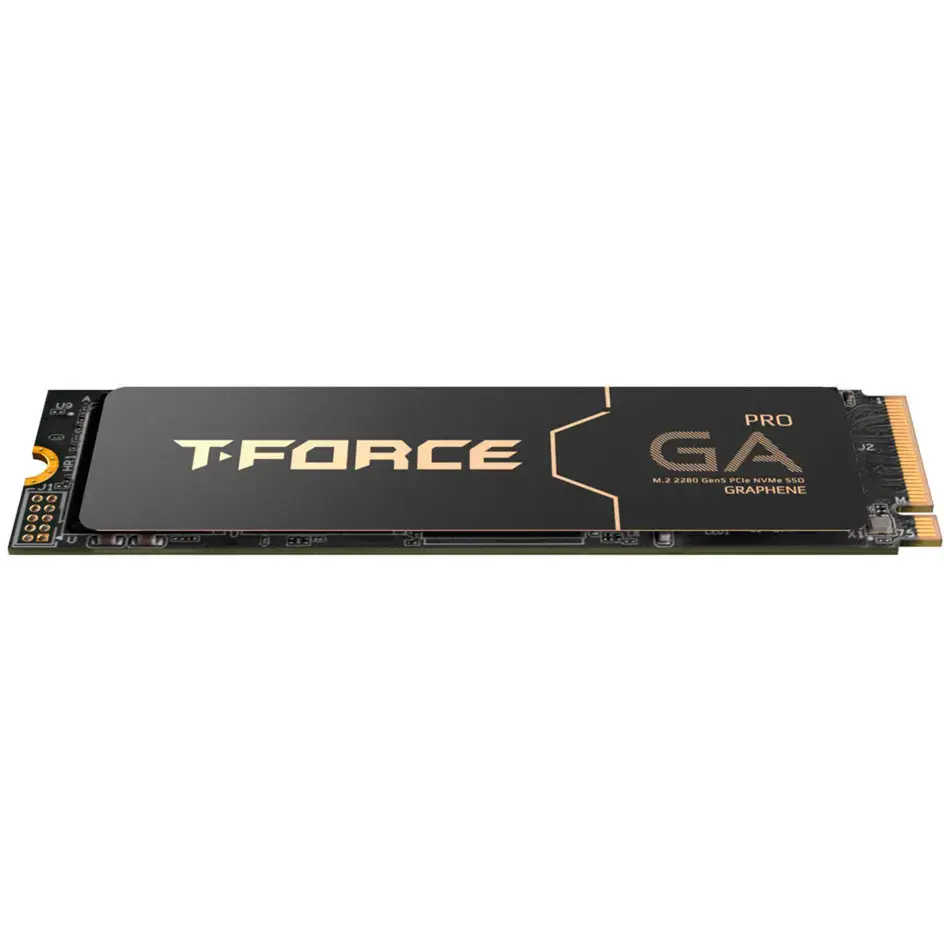
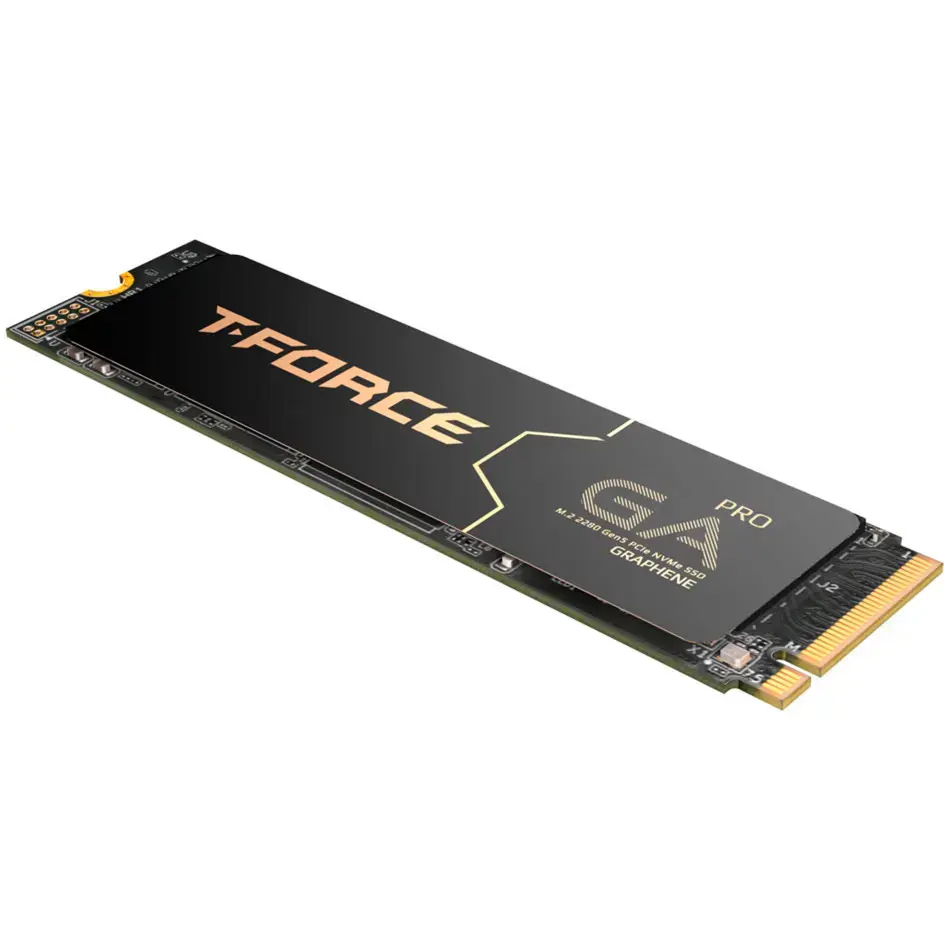
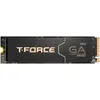
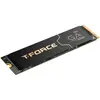
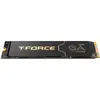
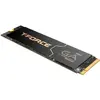
Team Group T-Force GA PRO 4 TB SSD, PCIe 5.0 x4, M.2 2280, Graphene Heatsink
The Team Group T-Force GA PRO 4 TB SSD is a high-performance storage solution engineered for users who demand extreme speed and reliability. Utilizing the cutting-edge PCIe 5.0 x4 interface, this M.2 2280 drive delivers rapid data transfer rates that significantly reduce loading times and improve system responsiveness. The inclusion of an integrated graphene heatsink ensures that the drive maintains optimal operating temperatures even during intensive workloads, preventing thermal throttling and extending the lifespan of the hardware.
The primary benefit of the T-Force GA PRO is its exceptional throughput, which leverages the full potential of the PCIe 5.0 standard to handle massive files and complex applications with ease. The ultra-thin graphene heatsink provides efficient heat dissipation without adding unnecessary bulk, making it compatible with a wide range of motherboards and compact builds. With a generous 4 TB capacity, it offers ample space for extensive game libraries, high-resolution video projects, and professional software suites, ensuring that users do not have to compromise on storage volume for the sake of speed.
This SSD may not be suitable for older systems that do not support the PCIe 5.0 interface, as the drive will be limited to the speed of the older generation slot. Additionally, it is not intended for devices that lack an M.2 2280 slot or have extremely restricted physical space for cooling components.
To install the Team Group T-Force GA PRO, insert the drive into an available M.2 slot on your motherboard and secure it with the appropriate screw or locking mechanism. Ensure that your motherboard BIOS is updated to the latest version to support PCIe 5.0 functionality. Once installed, initialize the drive through your operating system's disk management utility to format it and make it available for file storage.
For the best performance, ensure the drive is installed in the primary M.2 slot connected directly to the CPU. Regularly monitor drive health using manufacturer-provided software to maintain peak efficiency.
{{highlightedFeature.featureTitle}}:
{{getProductFeatureValueById(product, highlightedFeature.featureId)}}
{{ productComparisonGenerationError }}