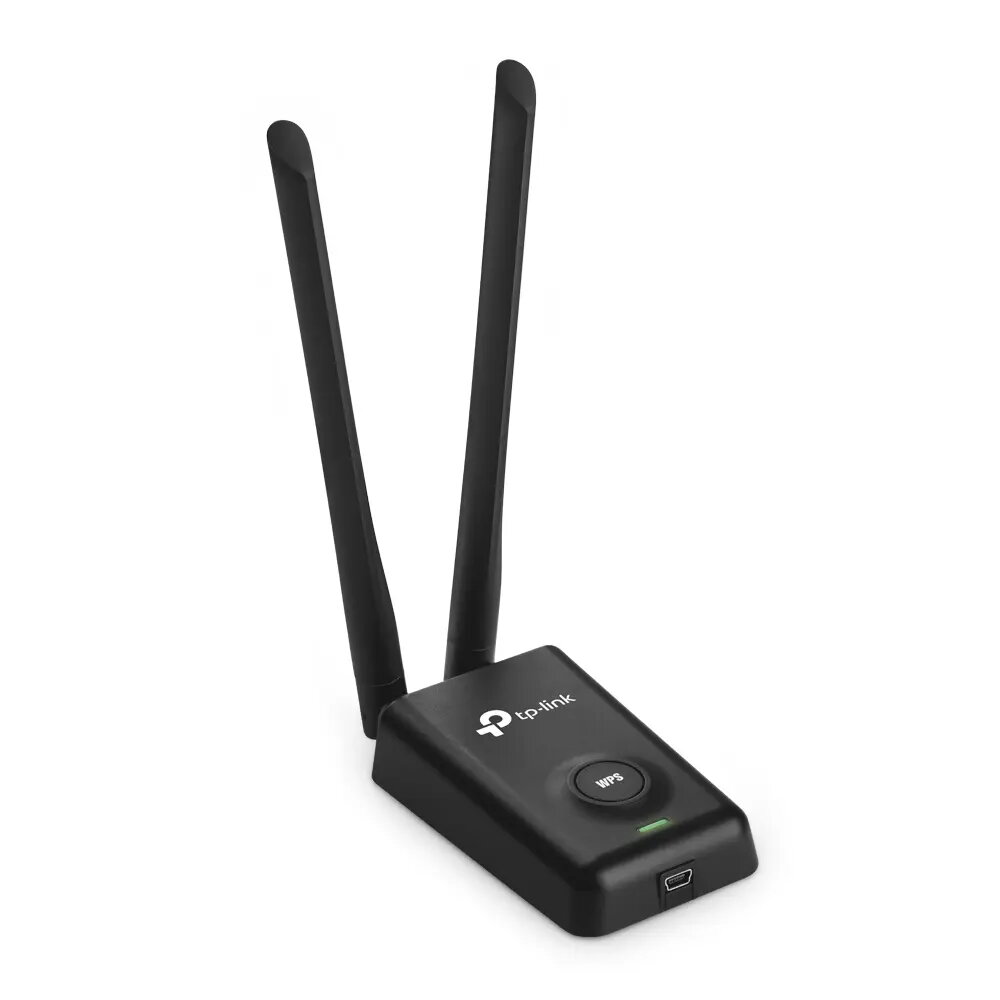
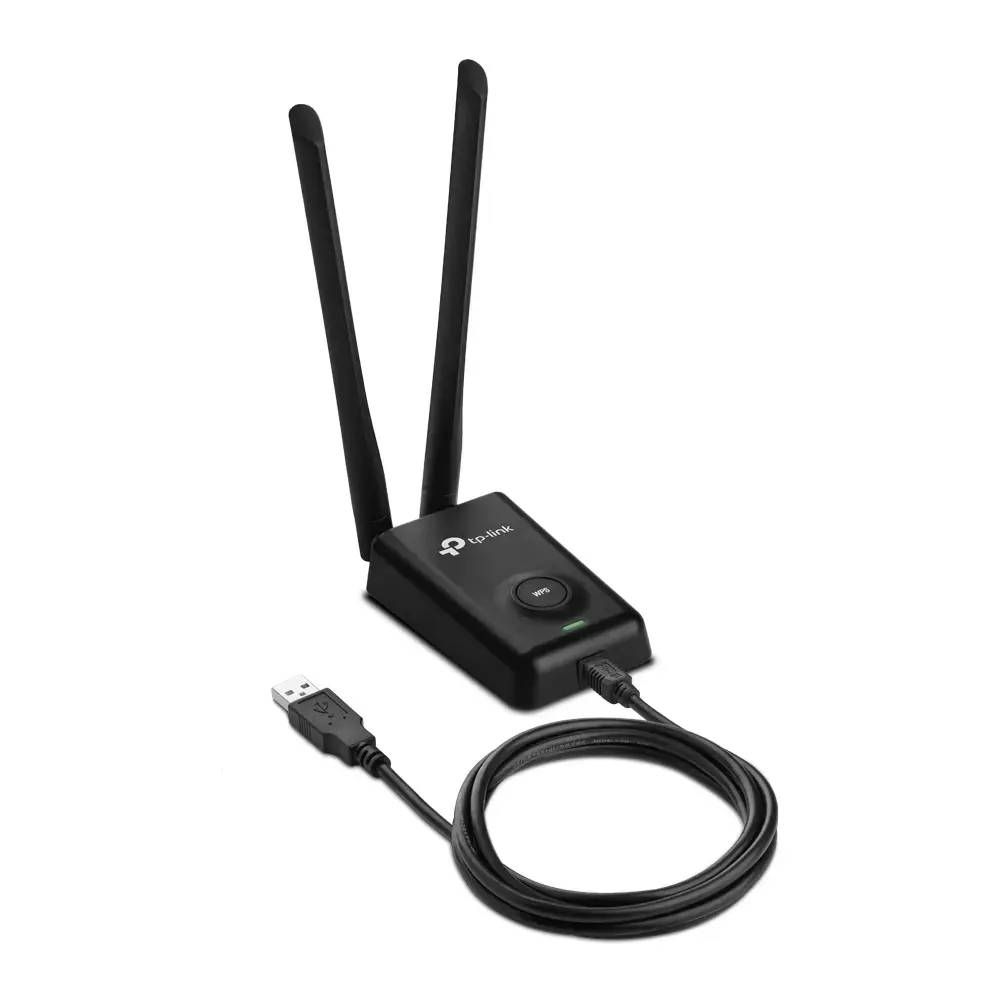
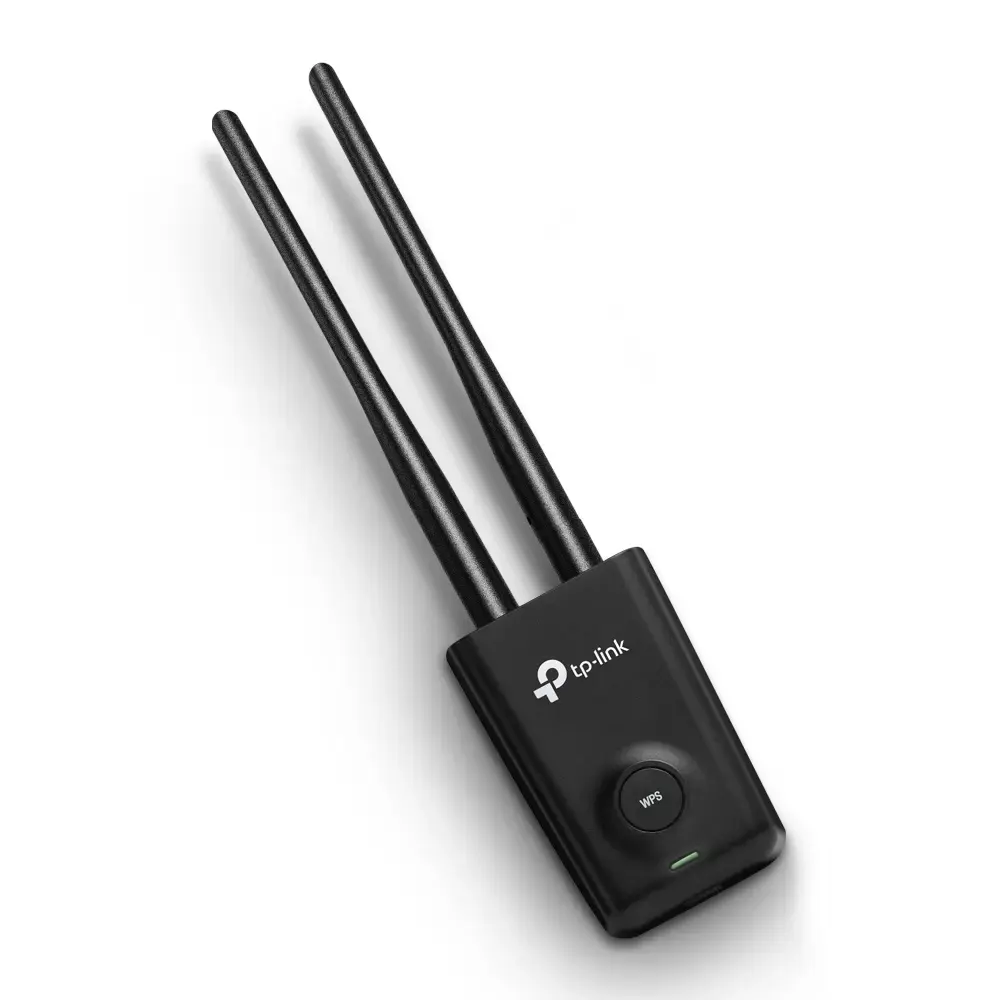
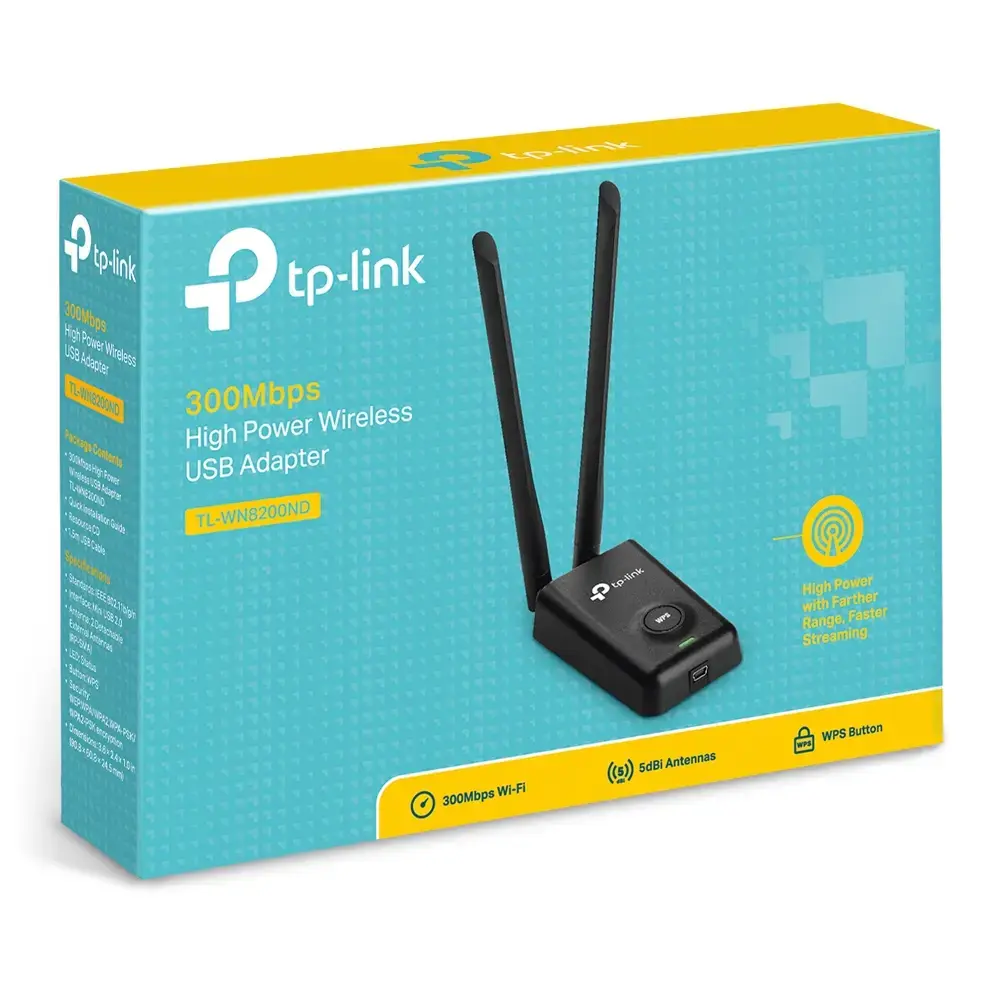
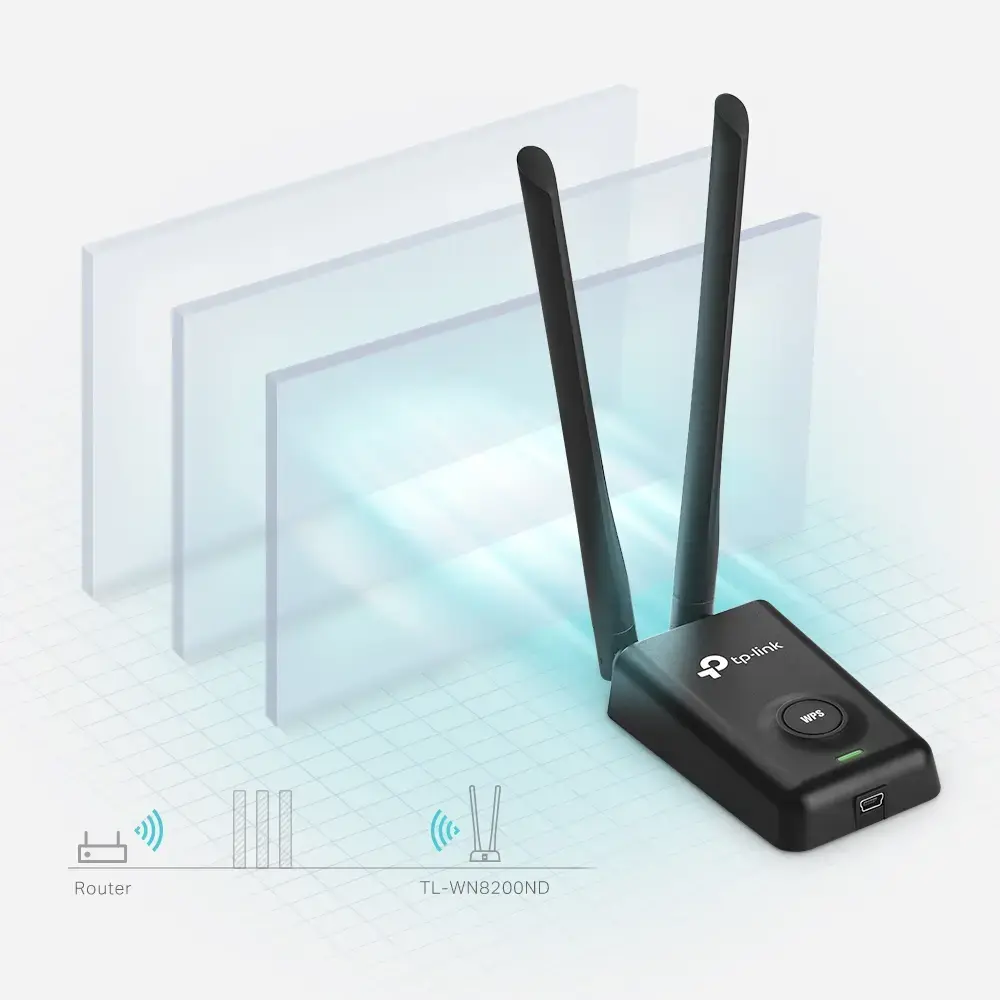
-
Interface:
Interface ports to connect pieces of equipment. USB (Universal Serial Bus) has become the most popular wired interface to connect peripherals. USB 2.0 supports speeds up to 480 Mbit/s (USB 1: 12 Mbit/s). The interface FireWire is also known as the IEEE 1394 standard. Enhanced IDE (EIDE)is sometimes referred to as Fast ATA, Fast IDE or ATA-2.
-
WLAN
-
Internal:
The product is built in.
-
No
-
Wi-Fi standards:
The type of wireless local area network (LAN). It can be ad-hoc, where units in a network communicate peer-to-peer, or Infrastructure, where units communicate with each other via an access point A LAN interconnects computers in a small area e.g. home, school or office.
-
802.11b, 802.11g, Wi-Fi 4 (802.11n)
-
Security algorithms:
Security algorithms are used to provide authentication, cipher key generation, integrity and radio link privacy to users on mobile networks. The security algorithms supported are the ones that can be used with this product.
-
128-bit WEP, 64-bit WEP, WPA, WPA-PSK, WPA2, WPA2-PSK, WPS
-
Operating relative humidity (H-H):
-
10 - 90
-
Storage temperature (T-T):
The minimum and maximum temperatures at which the product can be safely stored.
-
-40 - 70
-
Package weight:
Weight of the packaged product.
-
250 g
-
Operating temperature (T-T):
The minimum and maximum temperatures at which the product can be safely operated.
-
0 - 40
-
Maximum data transfer rate:
The maximum speed with which data can be transmitted from one device to another.
-
300 Mbit/s
-
Storage relative humidity (H-H):
-
5 - 90
-
Height:
The measurement of the product from head to foot or from base to top.
-
24.5 mm
-
LED indicators:
-
Y
-
Width:
The measurement or extent of something from side to side.
-
90.8 mm
-
Depth:
The distance from the front to the back of something.
-
60.8 mm
-
Connectivity technology:
The technology that enables connectivity of the device, e.g. wired or wireless.
-
Wireless
-
Product colour:
The colour e.g. red, blue, green, black, white.
-
Black
-
Networking standards:
The way in which the network is working, e.g. IEEE 802.11a, IEEE 802.11b, IEEE 802.11g.
-
IEEE 802.11b, IEEE 802.11g, IEEE 802.11n
-
Antenna gain level (max):
Antenna gain is the measurement of an antenna's ability to amplify the incoming microwave signals in a particular direction, compared with the sensitivity of an isotropic antenna in any direction, or a dipole antenna in the equatorial direction.
-
5 dBi
-
Cables included:
-
USB
-
Host interface:
Interface that enables a host controller to communicate with a driver.
-
USB
-
Antenna connector type:
The way in which the antenna is connected to the device e.g. coaxial.
-
RP-SMA
-
Wi-Fi:
Popular technology that allows an electronic device to exchange data or connect to the internet wirelessly using radio waves.
-
Yes
-
WLAN data transfer rates supported:
-
150, 300
-
Package depth:
The distance from the front to the back of the packaging.
-
150 mm
-
Package height:
The distance from the top to the bottom of the packaging.
-
39 mm
-
Package width:
The distance from one side of the packaging to the other.
-
200 mm
-
Antenna:
-
Yes
-
Quick installation guide:
-
Yes
-
Frequency range:
-
2.4 - 2.4835
-
Windows operating systems supported:
Windows vesions wich can be used with the device.
-
Windows 10, Windows 10 Education, Windows 10 Education x64, Windows 10 Enterprise, Windows 10 Enterprise x64, Windows 10 Home, Windows 10 Home x64, Windows 10 IOT Core, Windows 10 IoT Enterprise, Windows 10 Pro, Windows 10 Pro x64, Windows 10 x64, Windows 7 Home Basic, Windows 7 Home Basic x64, Windows 7 Home Premium, Windows 7 Home Premium x64, Windows 7 Professional, Windows 7 Professional x64, Windows 7 Starter, Windows 7 Starter x64, Windows 7 Ultimate, Windows 7 Ultimate x64, Windows 7 x64, Windows 8, Windows 8 Enterprise, Windows 8 Enterprise x64, Windows 8 Pro, Windows 8 Pro x64, Windows 8 x64, Windows 8.1, Windows 8.1 Enterprise, Windows 8.1 Enterprise x64, Windows 8.1 Pro, Windows 8.1 Pro x64, Windows 8.1 x64, Windows Vista Business, Windows Vista Business x64, Windows Vista Enterprise, Windows Vista Enterprise x64, Windows Vista Home Basic, Windows Vista Home Basic x64, Windows Vista Home Premium, Windows Vista Home Premium x64, Windows Vista Ultimate, Windows Vista Ultimate x64, Windows Vista x64, Windows XP, Windows XP Home, Windows XP Home x64, Windows XP Professional, Windows XP Professional x64
-
Mac operating systems supported:
Mac operating systems e.g. OS X can be used with the device.
-
Mac OS X 10.10 Yosemite, Mac OS X 10.11 El Capitan, Mac OS X 10.12 Sierra, Mac OS X 10.13 High Sierra, Mac OS X 10.9 Mavericks
-
Linux operating systems supported:
8 RT. Linux (9.4, 9.5), Red Hat Enterprise Linux 5.0 (supported with a pre-built package); SUSE Linux (10.3, 11.0, 11, 11.1, 11.2), Fedora (9, 9.0, 10, 10.0, 11.0, 11, 12, 12.0), Ubuntu (8.04, 8.04.1, 8.04.2, 8.10, 9.04, 9.10, 10.04), Debian (5.0, 5.0.1, 5.0.2, 5.0.3)
-
Yes
-
WPS push button:
-
Yes
-
Operating modes:
-
Infrastructure mode
-
Resource CD:
-
Yes
-
Wi-Fi band:
The frequency bands the product features.
-
Single-band (2.4 GHz)
-
Harmonized System (HS) code:
-
85176990
-
Top Wi-Fi standard:
Connection of this device is done via Wi-Fi in a high standard.
-
Wi-Fi 4 (802.11n)
-
Antenna direction type:
-
Omni-directional
-
Transmitting power (FCC):
-
27
-
Transmitting power (CE):
-
20
-
Sustainability compliance:
-
Yes
-
Antenna design:
-
External
-
Compliance certificates:
Indicates which regulatory, safety, and environmental standards the product complies with, as verified by recognized authorities or certification bodies.
-
CE, Federal Communications Commission (FCC), RoHS