
Filters you can trust. Pure water every day.
In cart {{totalProductsCount}} item(s)
Your cart is empty
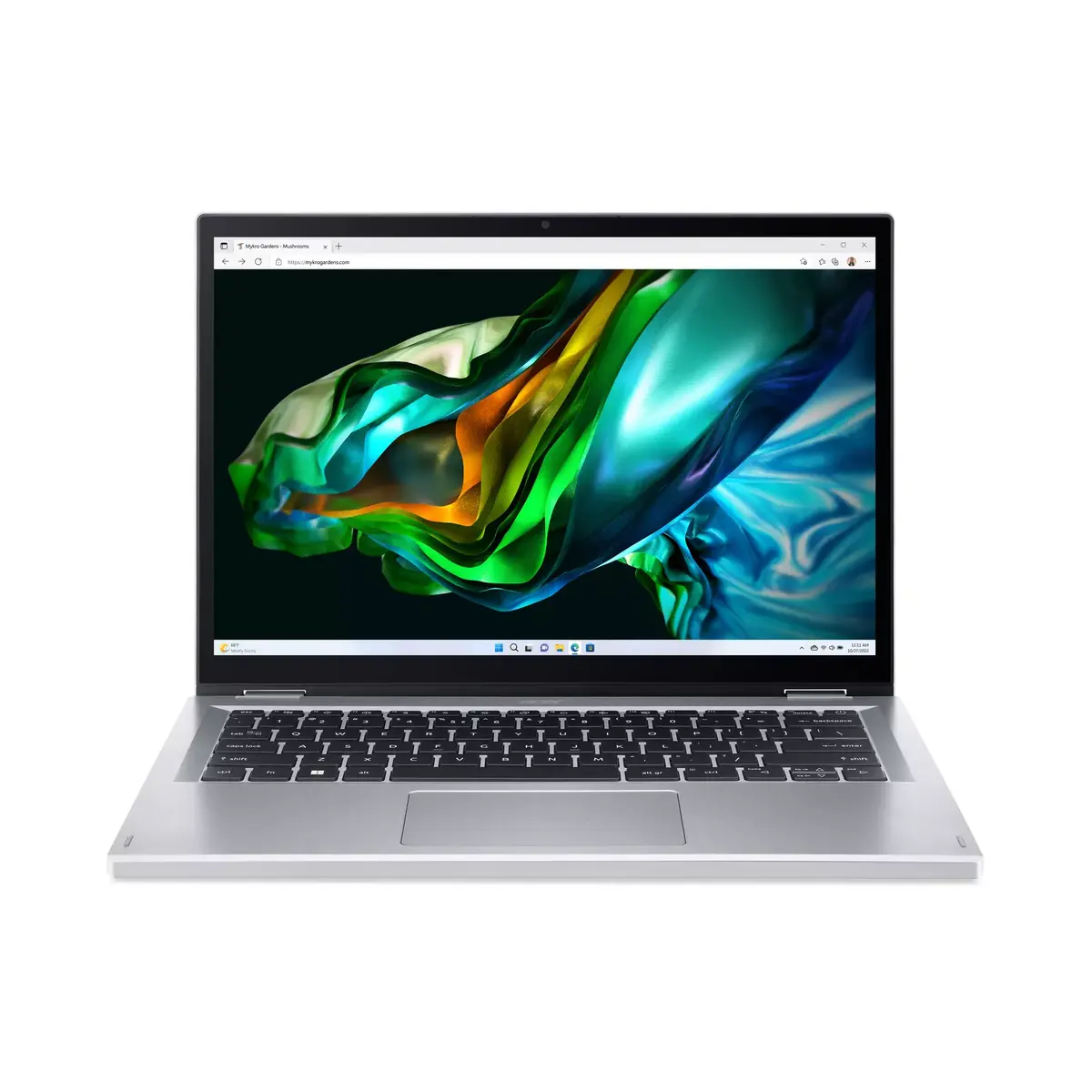
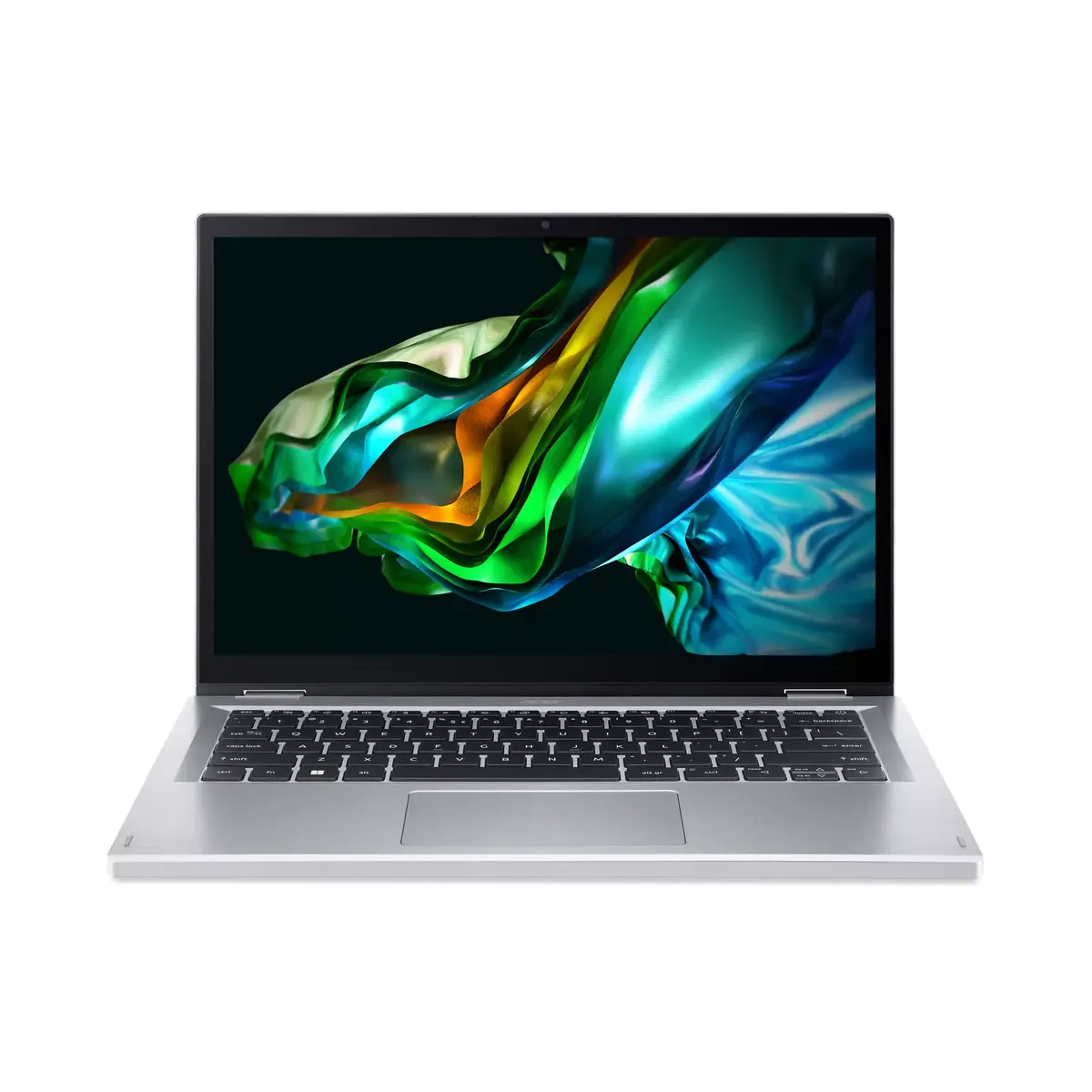
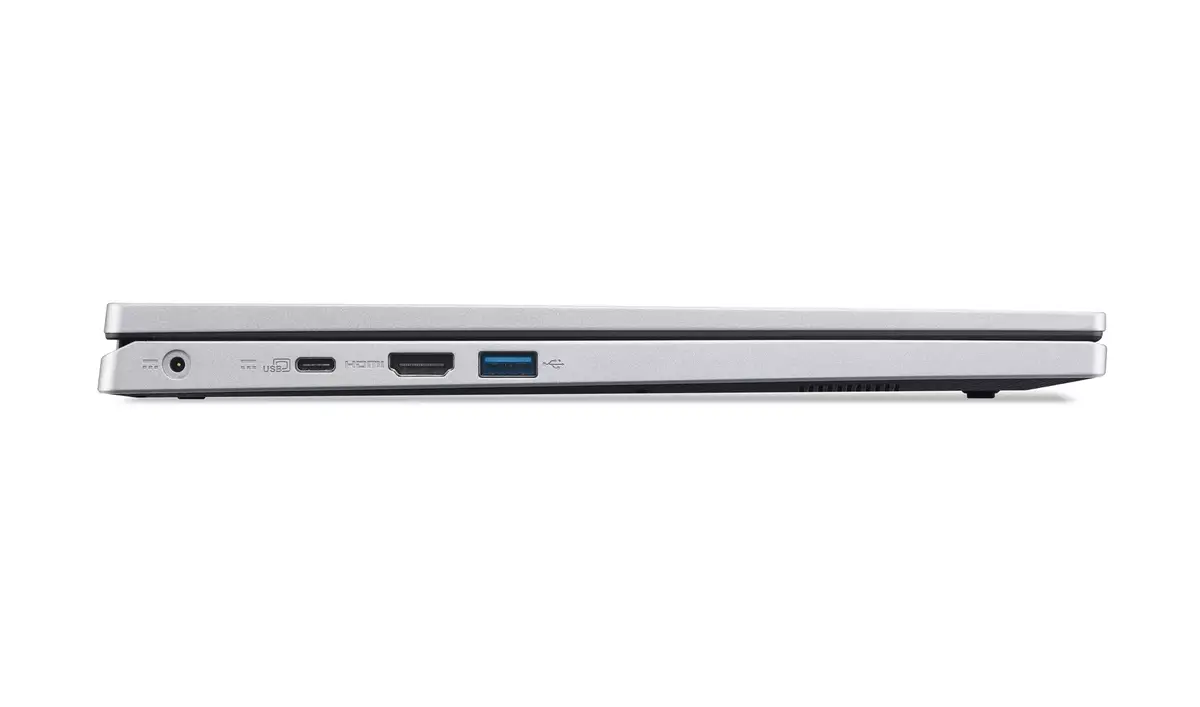
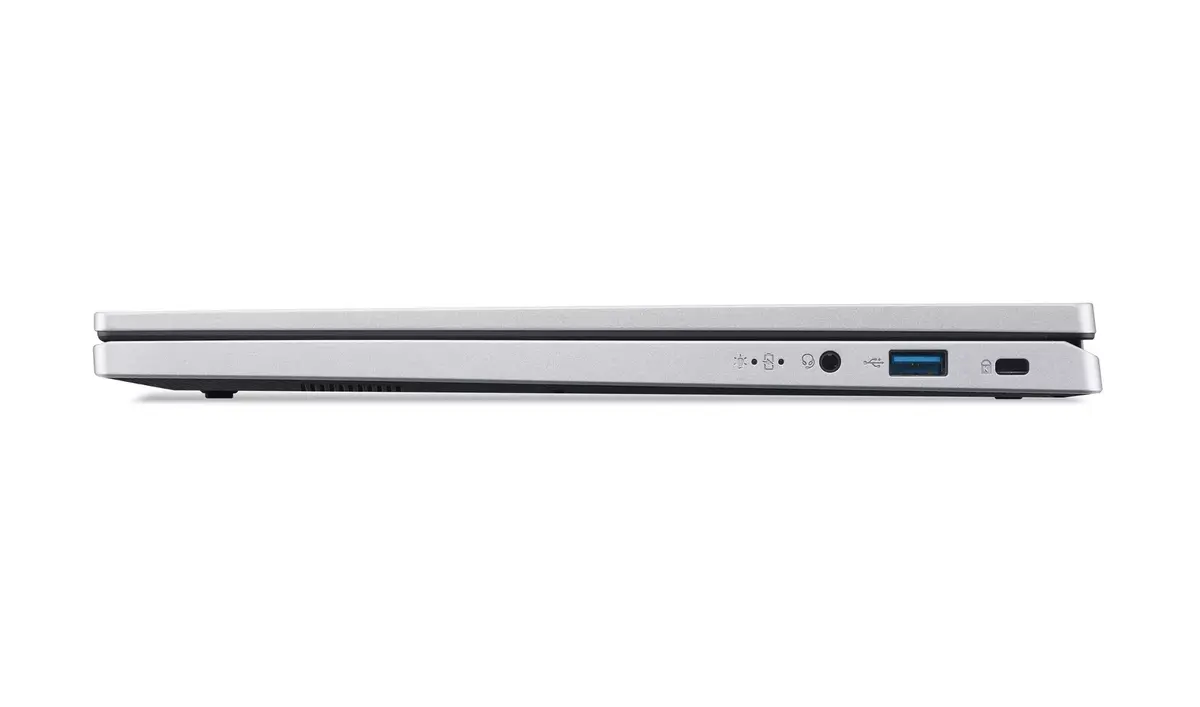
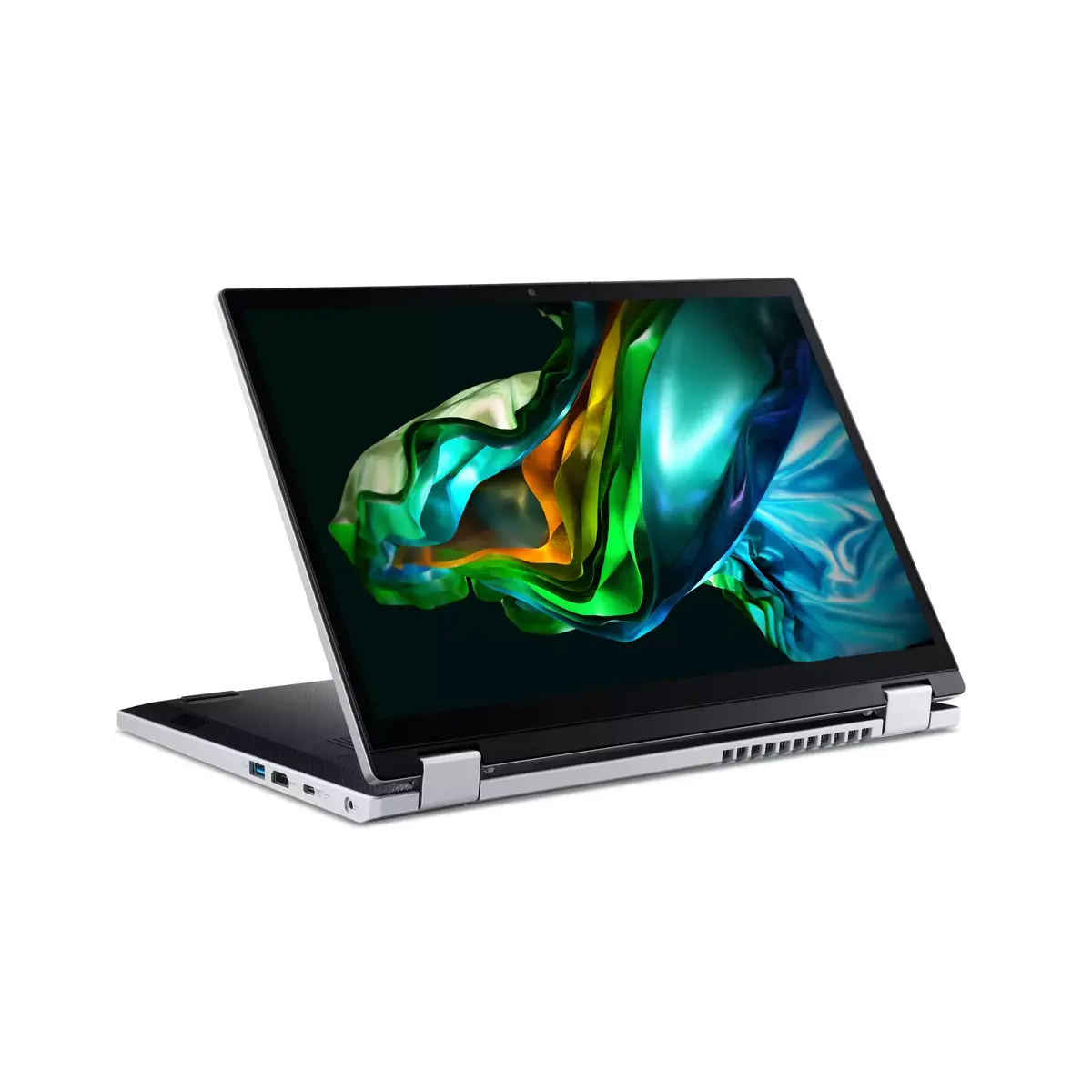
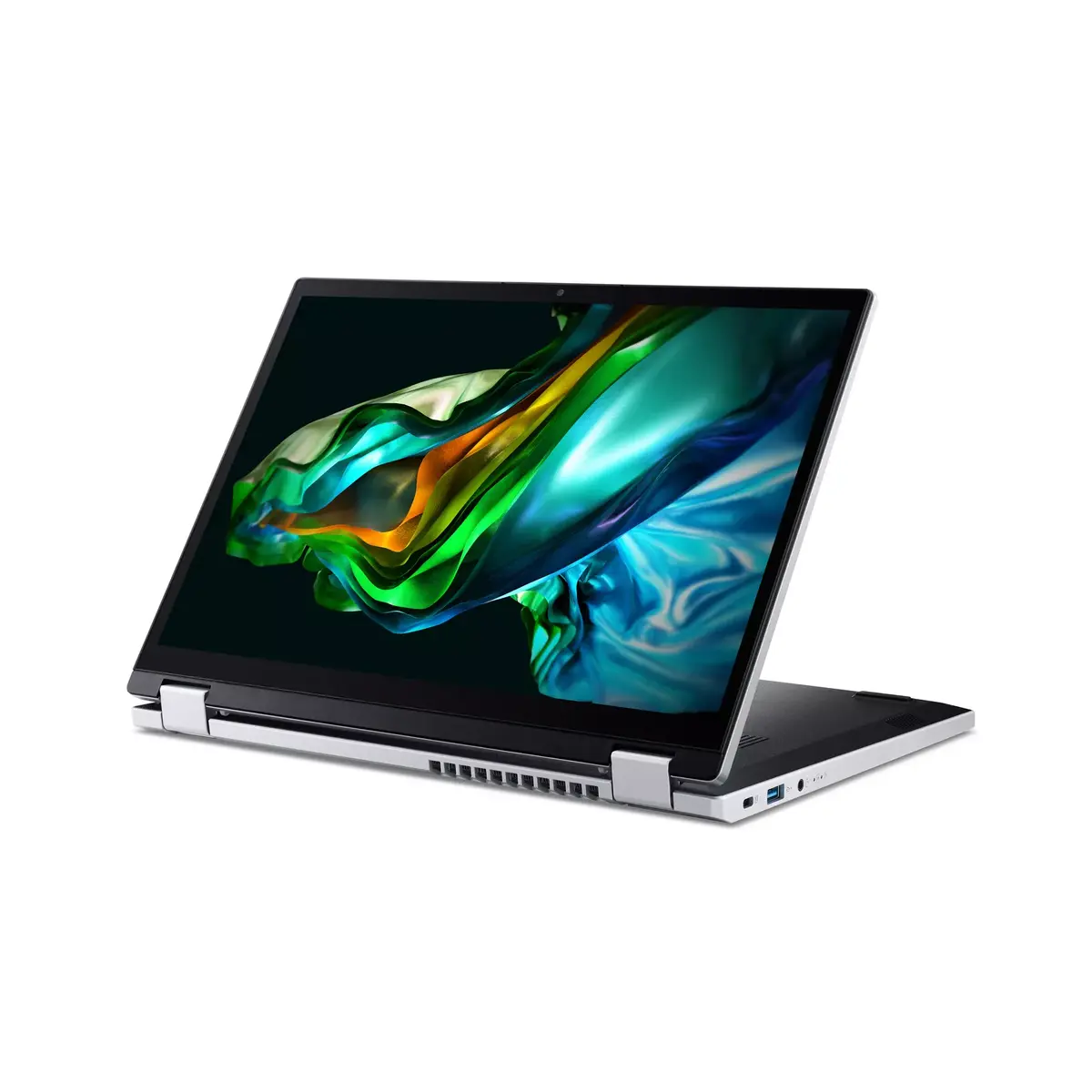
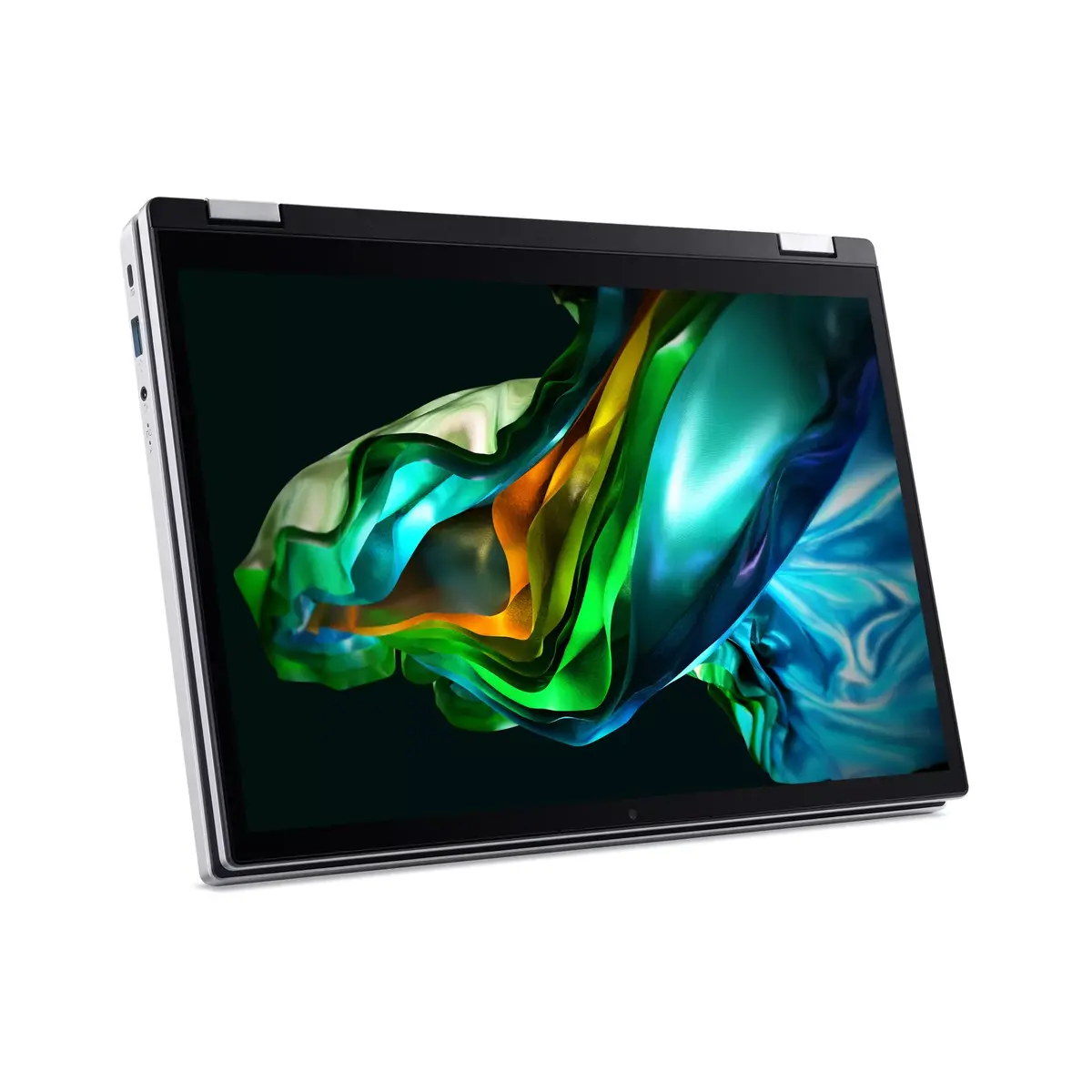
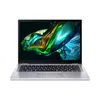
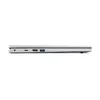
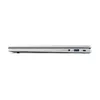
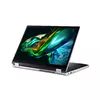
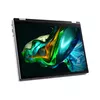
Hybrid Laptop Acer Aspire 3 Spin 14 14" Intel Core i3 N305 8GB RAM 256GB SSD Windows 11
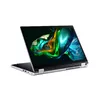
The Acer Aspire 3 Spin 14 is a versatile 2-in-1 hybrid laptop designed to adapt to your daily productivity needs. Featuring a 360-degree hinge, this device seamlessly transitions between a traditional laptop, a tablet, and various stand modes, providing flexibility for both professional tasks and media consumption. Its sleek silver chassis houses an efficient Intel Core i3 processor, ensuring reliable performance for everyday computing.
This hybrid laptop stands out due to its highly responsive 14-inch WUXGA touchscreen, which offers a sharp 1920 x 1200 resolution for clear visuals. The inclusion of a 360-degree hinge allows for maximum versatility, enabling users to switch modes instantly based on their current environment. With its lightweight design and integrated Wi-Fi 6 technology, it provides excellent portability and fast connectivity, making it an ideal companion for students and professionals on the move. The system is optimized for efficiency, utilizing LPDDR5 memory and a fast SSD to ensure quick boot times and smooth multitasking.
This laptop is not designed for resource-intensive tasks such as professional video editing, 3D rendering, or high-end gaming, as it lacks a discrete graphics card and high-performance processing cores. Additionally, users who require extensive local storage for large media libraries may find the 256 GB SSD capacity limiting without the use of external storage solutions.
To begin using the Acer Aspire 3 Spin 14, simply lift the lid to power on the device. You can use it in standard laptop mode for typing or rotate the screen 360 degrees to utilize it as a tablet. The touchscreen interface allows for intuitive navigation through Windows 11. Ensure the device is connected to a stable Wi-Fi network to take full advantage of cloud-based applications and updates. For optimal performance, keep the device updated through the Windows settings menu.
For the best experience, keep the touchscreen clean using a microfiber cloth and ensure the air vents remain unobstructed to maintain proper cooling during operation. If you require more software flexibility, you may choose to switch out of S mode, though this process is permanent.
{{highlightedFeature.featureTitle}}:
{{getProductFeatureValueById(product, highlightedFeature.featureId)}}
{{ productComparisonGenerationError }}