
Dreame vacuums for fast and efficient cleaning!
In cart {{totalProductsCount}} item(s)
Your cart is empty
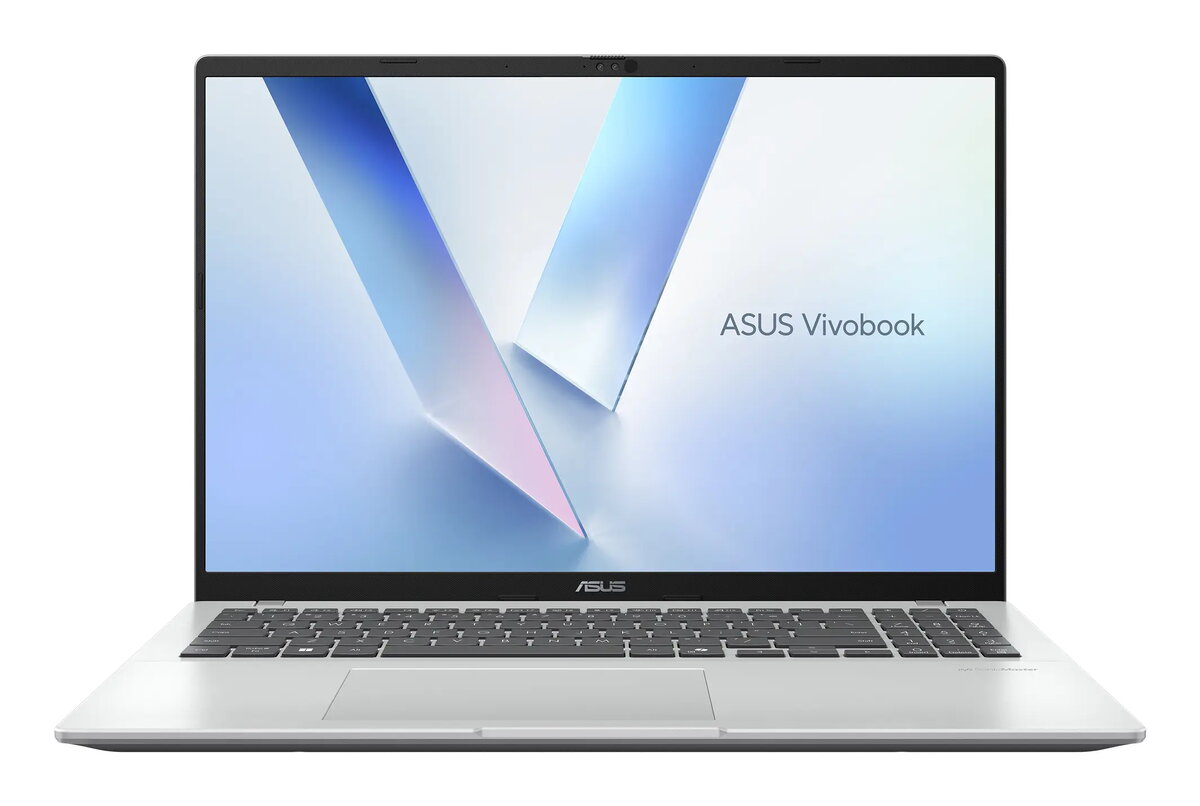
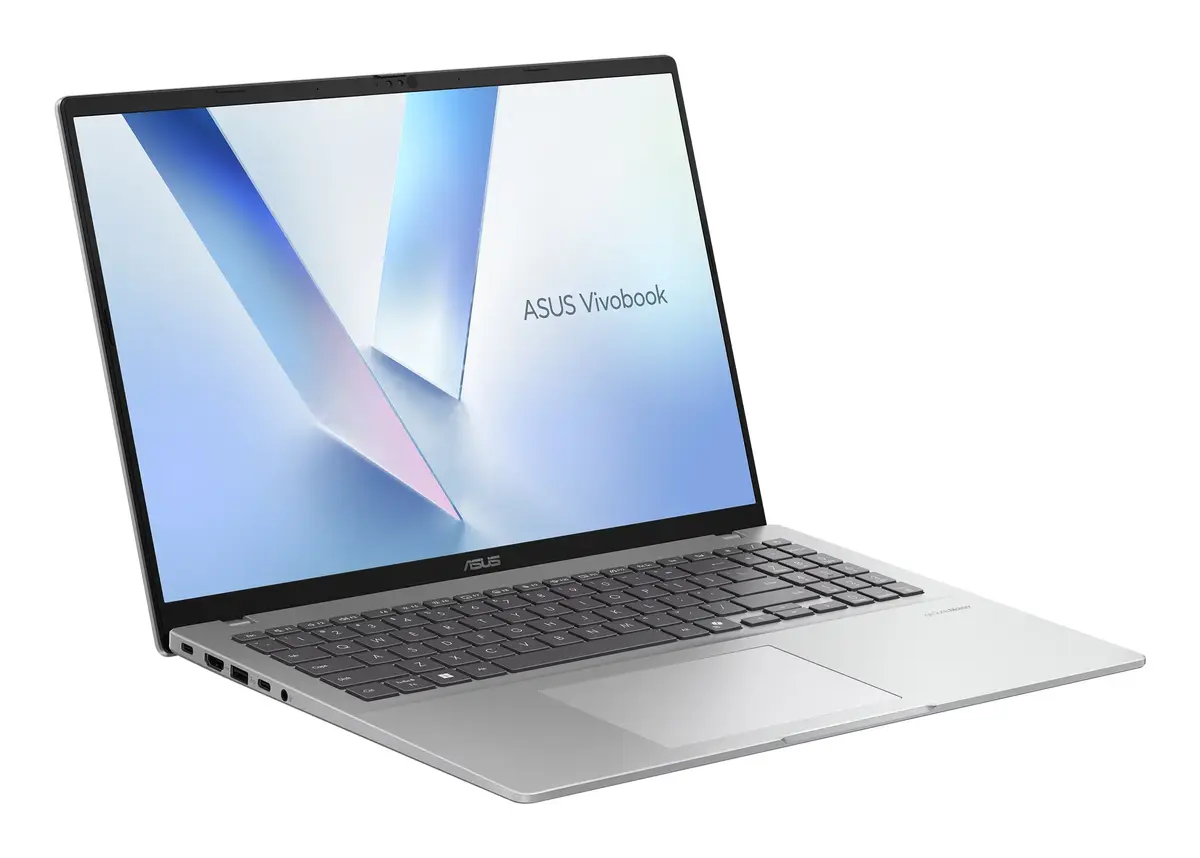
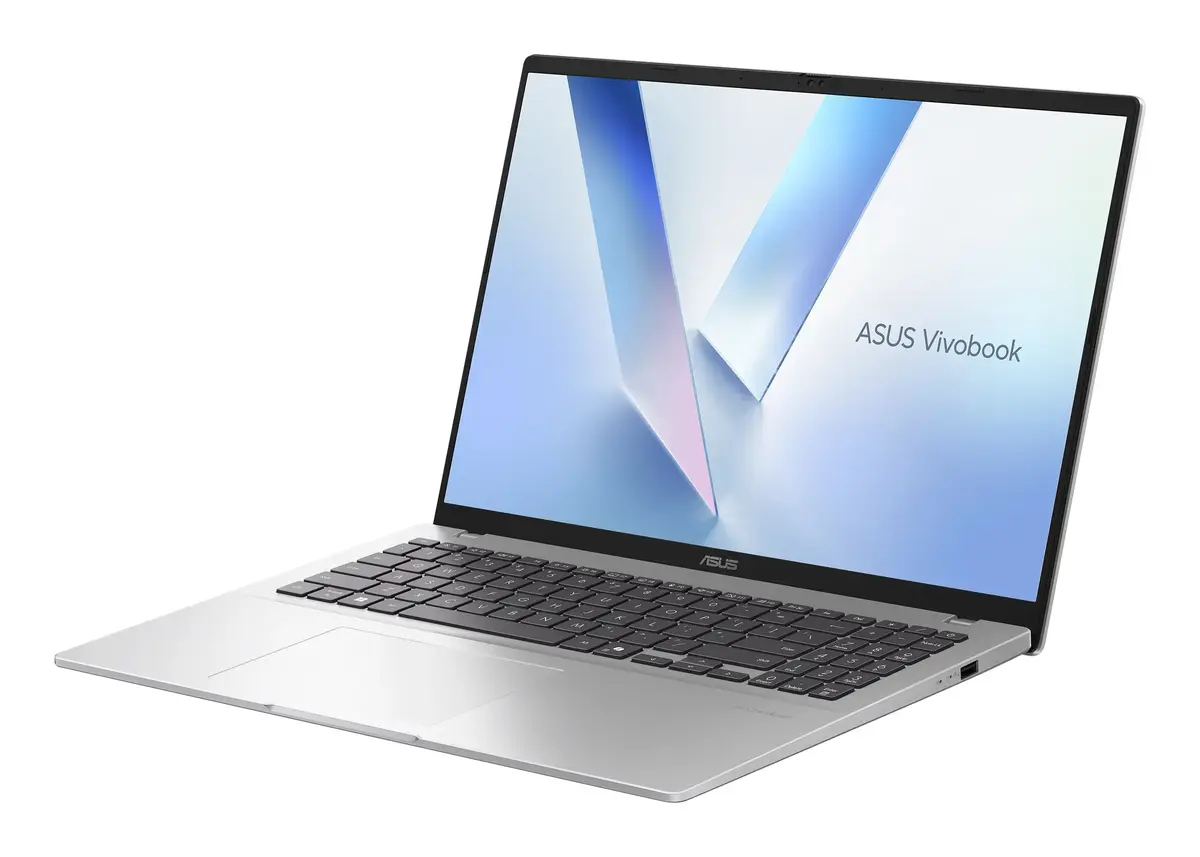
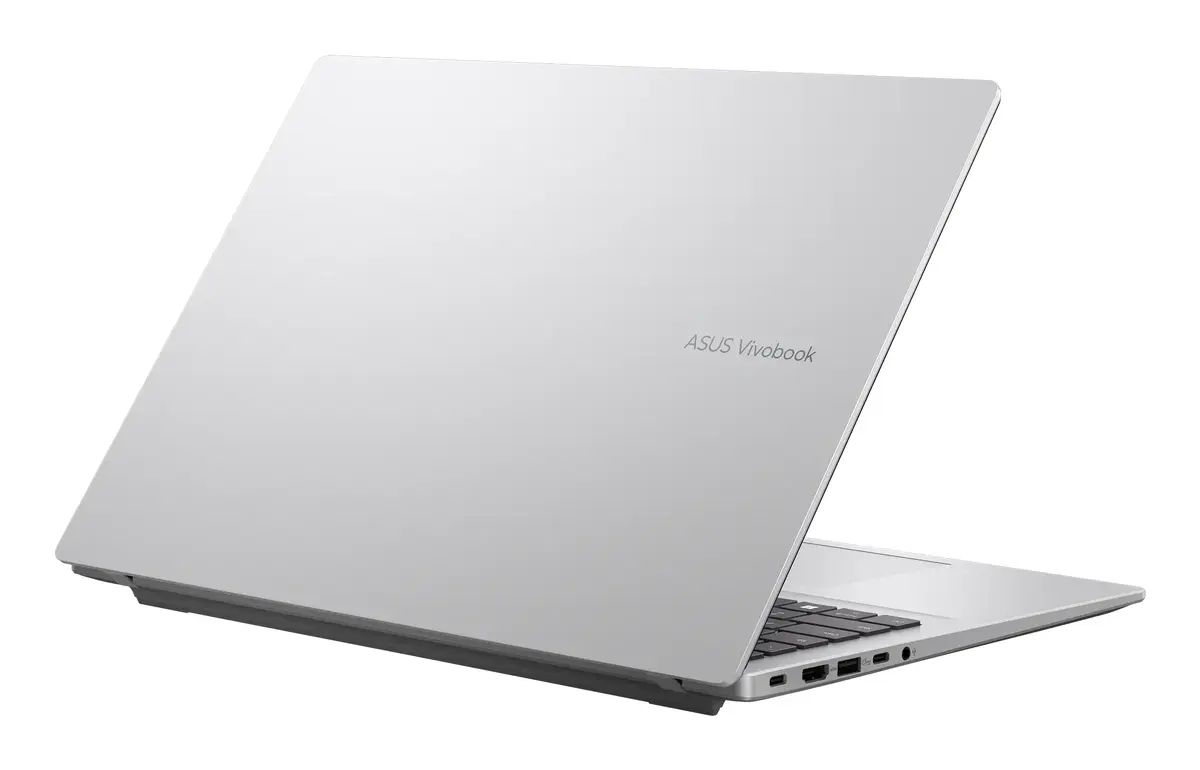
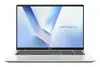
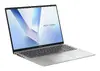
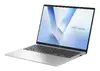
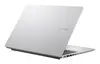
Asus Vivobook 16 M1607KA-MB172W Laptop, 16" WUXGA, AMD Ryzen AI 5 330, 16GB RAM, 1TB SSD, Windows 11 Home, Silver
The Asus Vivobook 16 M1607KA-MB172W is a versatile and efficient laptop designed to handle modern computing demands with ease. Featuring a spacious 16-inch WUXGA display with a 1920 x 1200 resolution, this device offers a clear and expansive workspace for both professional and personal use. Powered by the AMD Ryzen AI 5 330 processor and equipped with 16GB of high-speed DDR5 RAM, it ensures smooth performance for multitasking and daily applications. The inclusion of a 1TB SSD provides ample storage space for files, media, and software, while the sleek silver chassis offers a professional aesthetic suitable for any environment.
This laptop excels in providing a balanced combination of performance and portability. The large 16-inch screen with a 16:10 aspect ratio offers more vertical space, which is ideal for document editing and web browsing. With the efficient AMD Ryzen AI processor and fast DDR5 memory, users can expect responsive system performance during everyday tasks. The generous 1TB SSD storage allows for quick boot times and rapid access to large files, eliminating the need for frequent external storage management. Additionally, the lightweight design at 1.89 kg makes it a practical choice for users who need a reliable machine that can be easily transported between home, office, or school.
This laptop is not designed for high-end gaming or professional-grade video editing, as it relies on integrated AMD Radeon 820M graphics rather than a dedicated graphics card. Users requiring intensive 3D rendering or heavy graphical workloads may find the performance limitations of the integrated GPU insufficient for their specific needs.
To begin using your Asus Vivobook 16, connect the provided power adapter to charge the battery fully before the first startup. Press the power button to initiate the Windows 11 Home setup process, following the on-screen instructions to configure your language, network connection, and user account. Once set up, you can navigate the interface using the integrated touchpad and keyboard. For optimal performance, ensure that the laptop is placed on a flat, stable surface to allow for proper airflow through the ventilation ports. You can connect external peripherals such as mice, printers, or external drives via the available ports on the sides of the chassis.
To maintain the longevity of your device, keep the air vents clear of dust and obstructions. Regularly update your Windows 11 Home operating system and drivers through the official support channels to ensure optimal security and performance. When traveling, use a padded laptop sleeve to protect the silver finish and screen from accidental damage.
{{highlightedFeature.featureTitle}}:
{{getProductFeatureValueById(product, highlightedFeature.featureId)}}
{{ productComparisonGenerationError }}