


Save time and money with our discounts!
In cart {{totalProductsCount}} item(s)
Your cart is empty
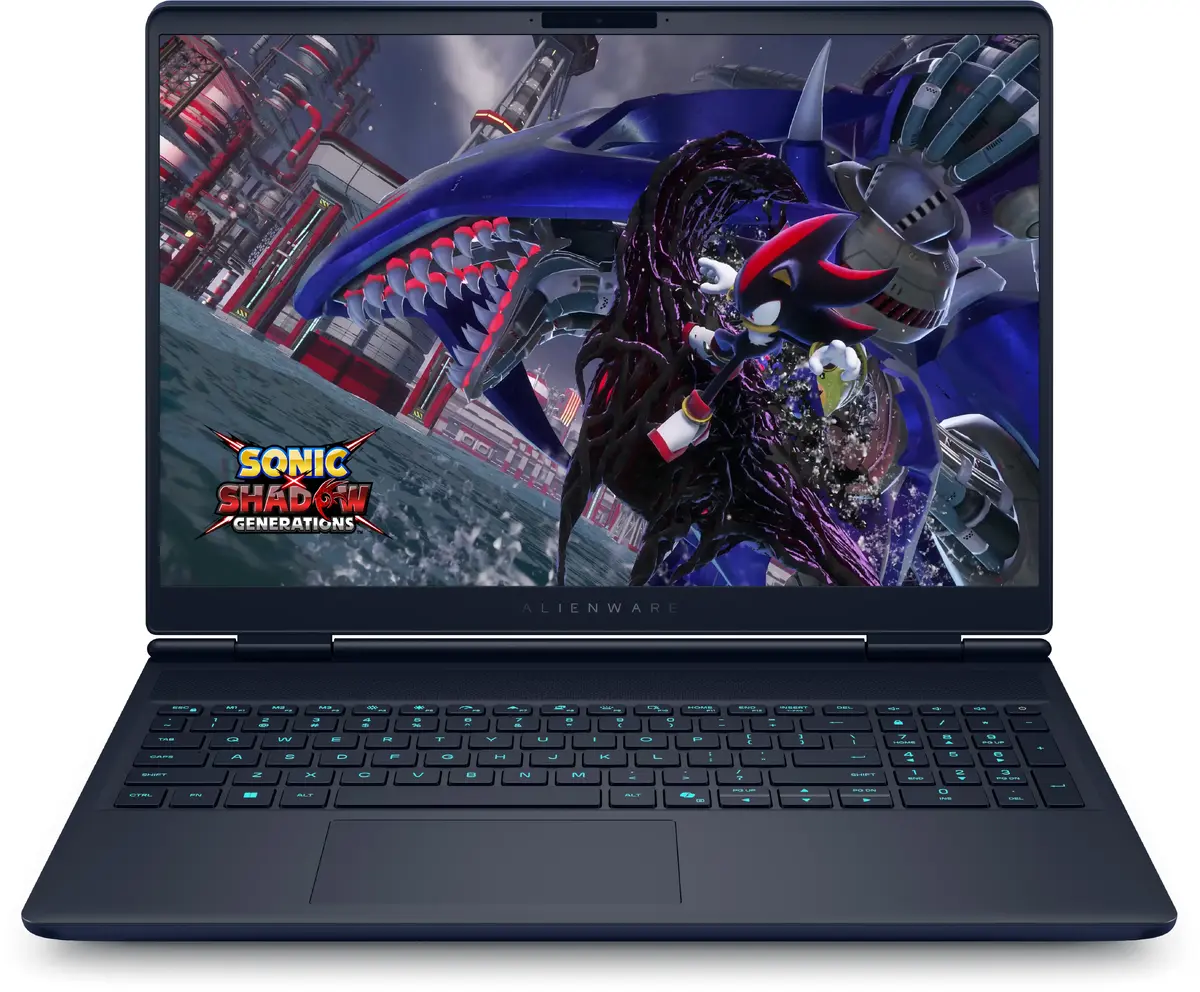
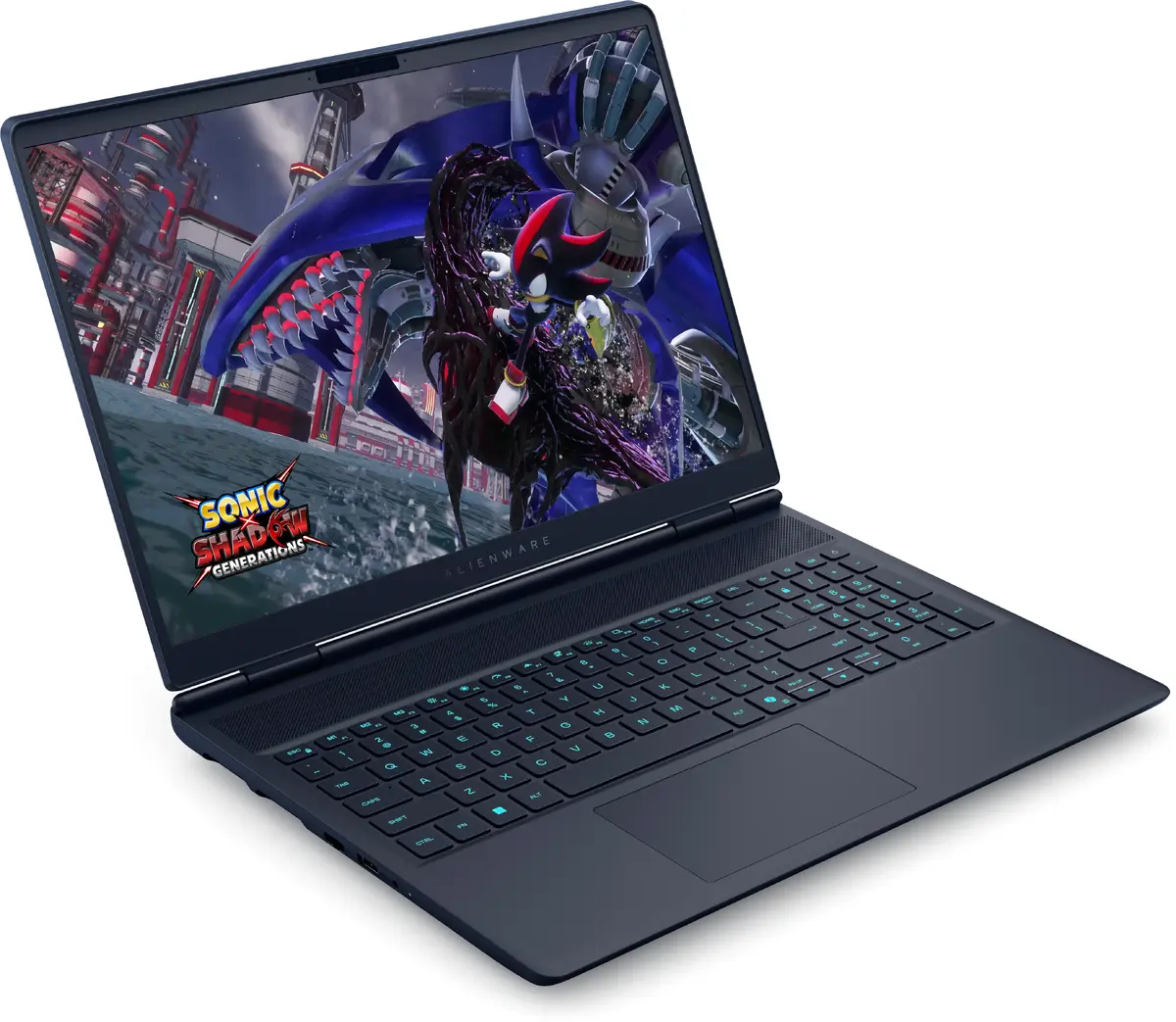
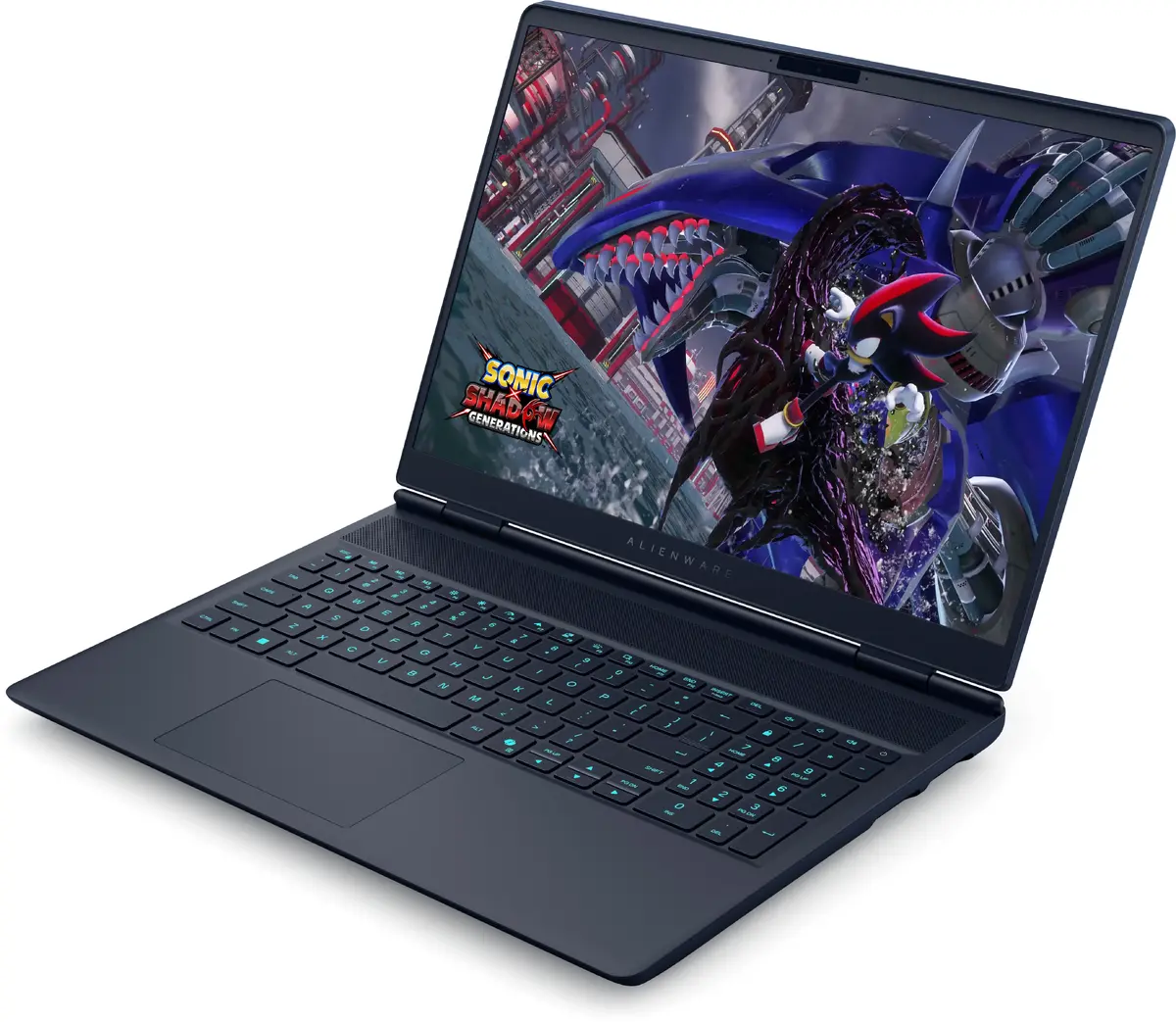
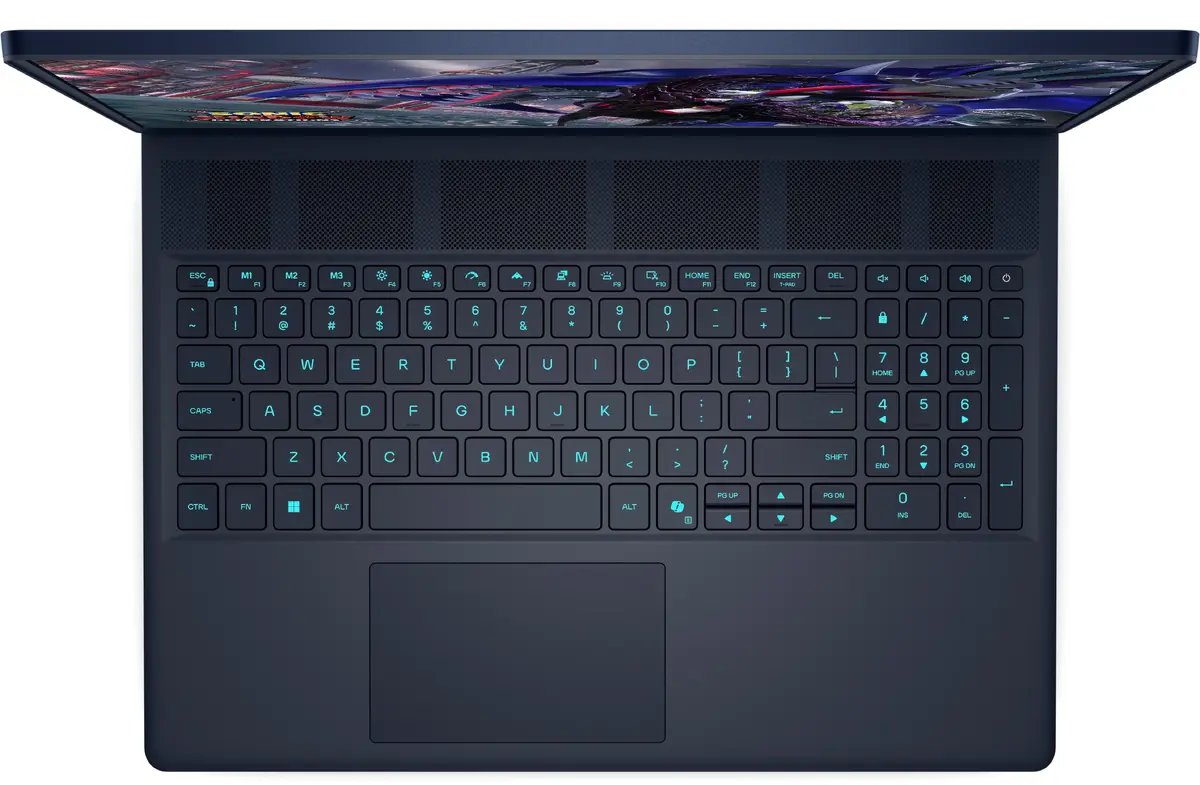
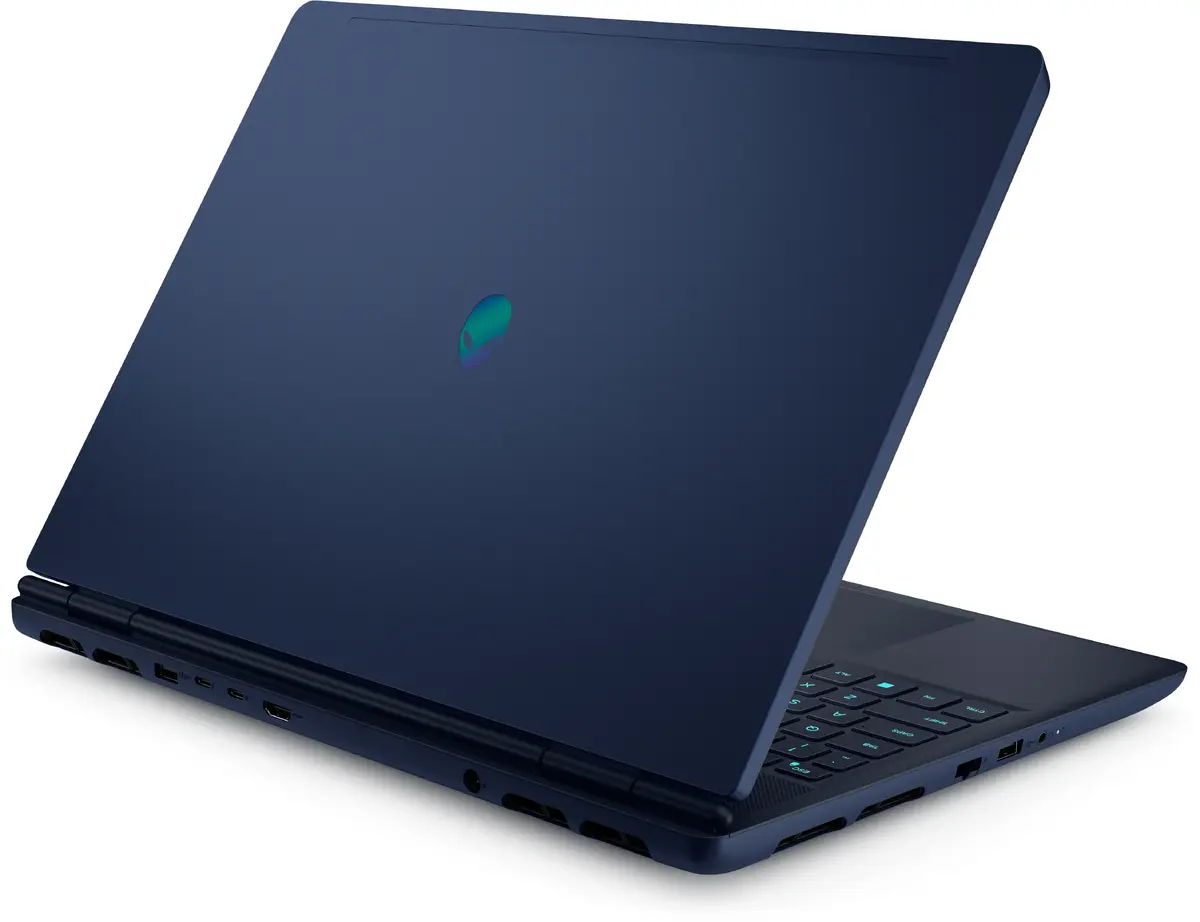
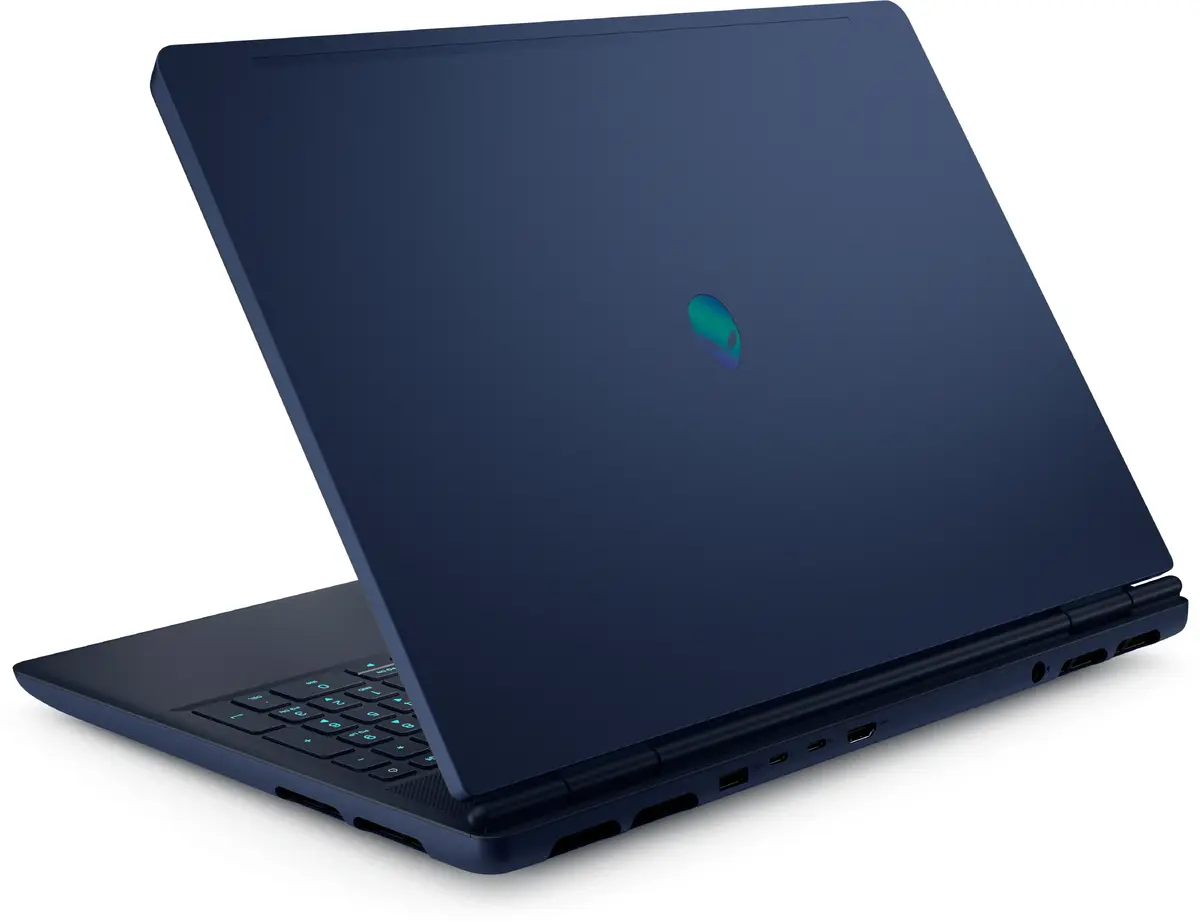
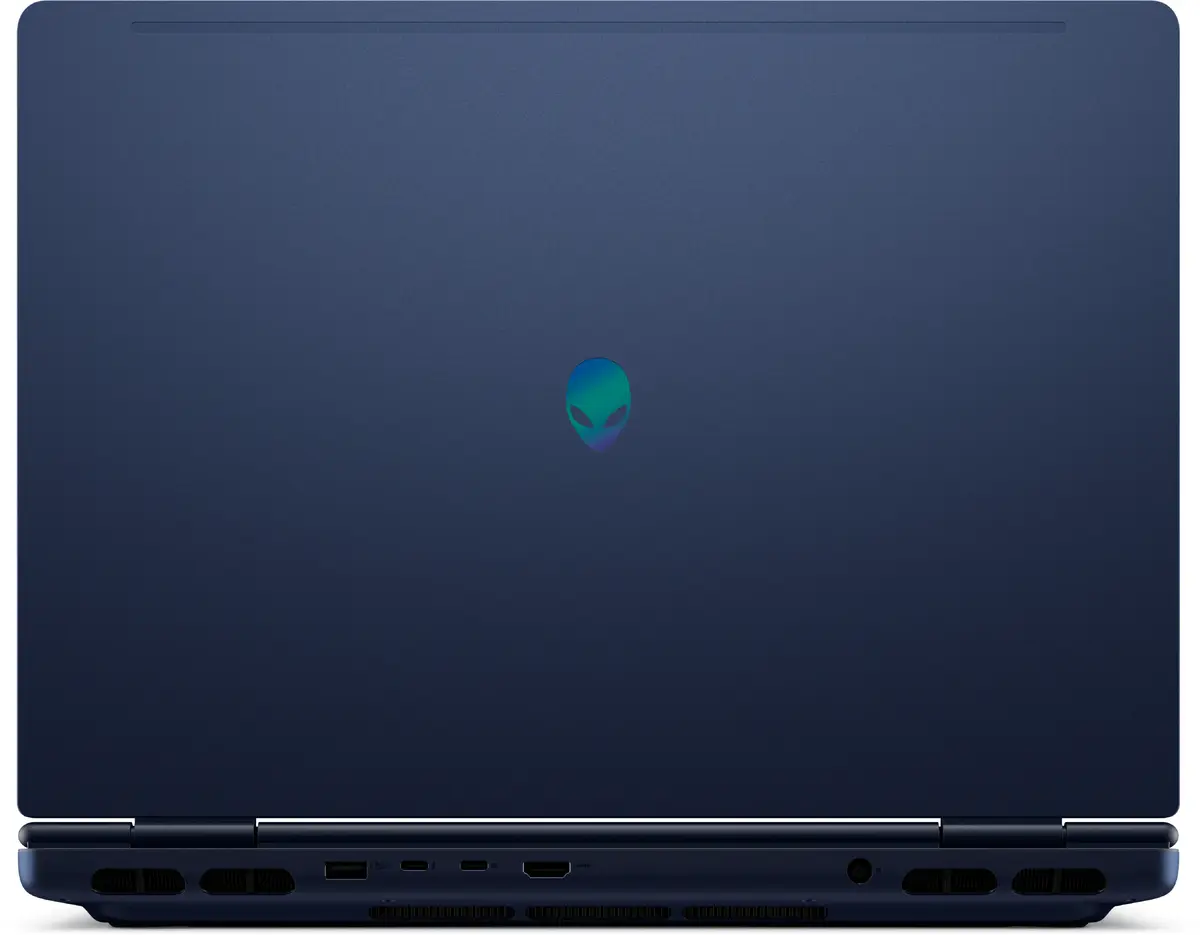
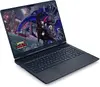
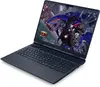
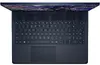
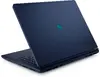
Dell Alienware AC16251 Laptop, 16" WQXGA, Intel Core Ultra 9 275HX, 32GB RAM, 2TB SSD, NVIDIA GeForce RTX 5070, Windows 11 Pro, Indigo
The Dell Alienware AC16251 is a high-performance 16-inch laptop engineered for users who demand top-tier computing power and visual fidelity. Housed in a distinctive Indigo chassis, this clamshell device integrates the latest Intel Core Ultra 9 275HX processor with advanced NVIDIA GeForce RTX 5070 graphics to handle intensive workloads, modern gaming, and creative projects with ease. With a generous 32GB of DDR5 memory and a spacious 2TB SSD, the system ensures rapid data access and seamless multitasking in a professional Windows 11 Pro environment.
This laptop stands out due to its robust hardware configuration, which provides a significant performance boost for demanding applications. The combination of the high-speed processor and dedicated graphics card allows for smooth rendering and high frame rates in complex software. The 16-inch WQXGA display offers a sharp, expansive workspace that enhances productivity and immersion. Furthermore, the inclusion of Windows 11 Pro provides enterprise-grade security and management features, making it a reliable choice for both professional environments and high-end personal use.
This device is designed for maximum performance and may not be the ideal choice for users who prioritize extreme portability or long battery life for travel, as its high-performance components and 2.66 kg weight reflect its desktop-replacement nature. It may also be overkill for basic office tasks, web browsing, or media consumption where such high processing power is not required.
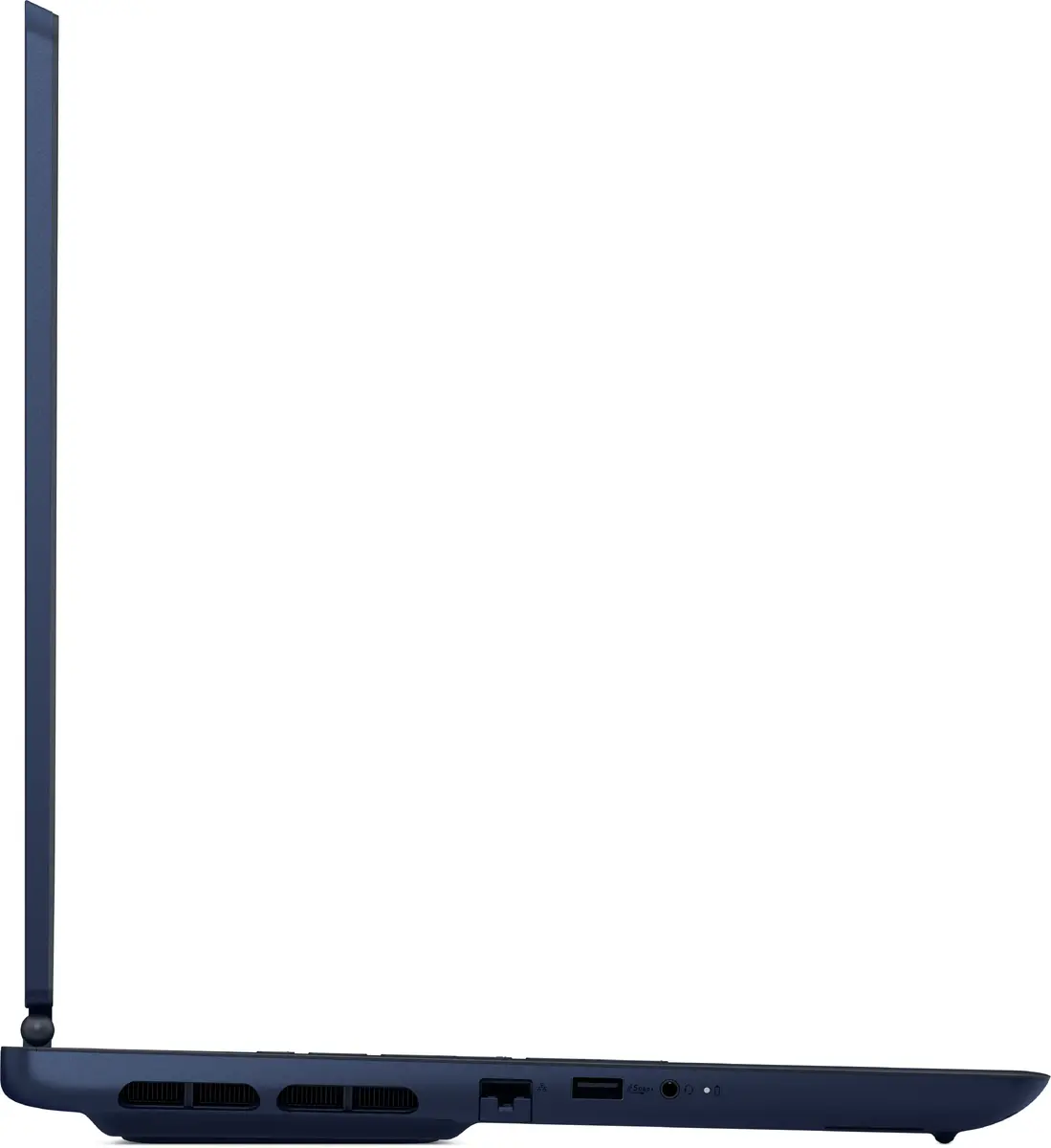
To begin using your Dell Alienware laptop, connect the provided 280W power adapter to ensure stable performance during initial setup. Follow the on-screen prompts to configure your Windows 11 Pro account and connect to your local network. For optimal performance, ensure that the laptop is placed on a flat, hard surface to allow for proper airflow through the cooling vents. You can manage system settings, including performance modes and display configurations, through the pre-installed Alienware software suite.
To maintain the longevity of your hardware, keep the air vents clear of obstructions and regularly update your graphics drivers through the official manufacturer support portal. Using the device on a desk rather than soft surfaces will significantly improve thermal management during heavy tasks.
{{highlightedFeature.featureTitle}}:
{{getProductFeatureValueById(product, highlightedFeature.featureId)}}
{{ productComparisonGenerationError }}