
Powerful EcoFlow stations for energy anywhere!
In cart {{totalProductsCount}} item(s)
Your cart is empty
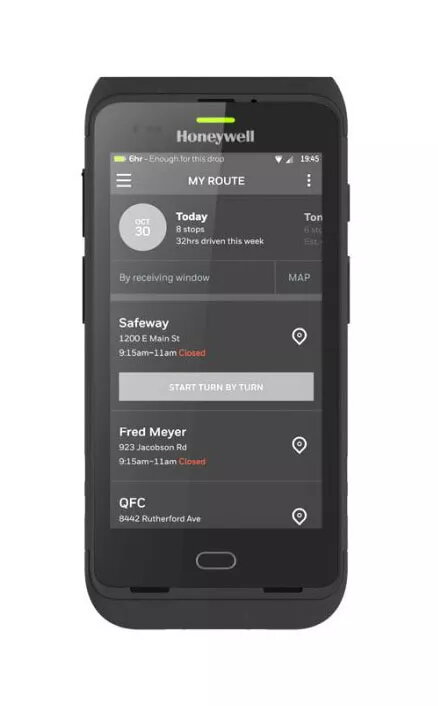
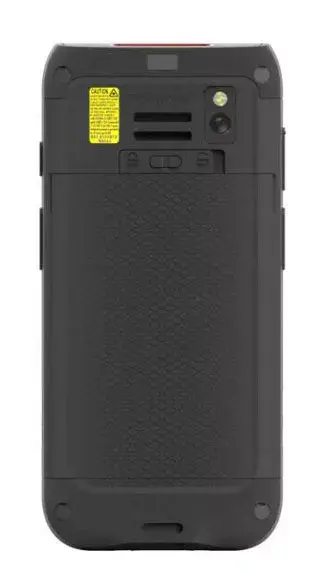
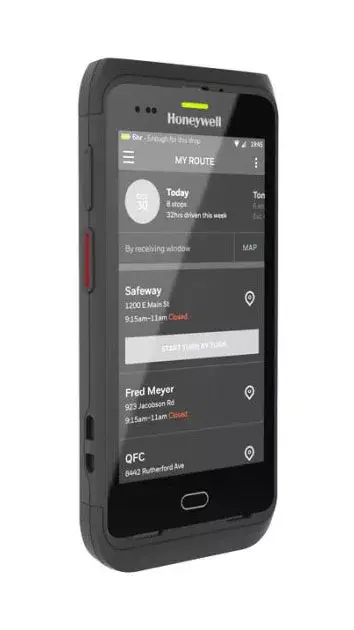
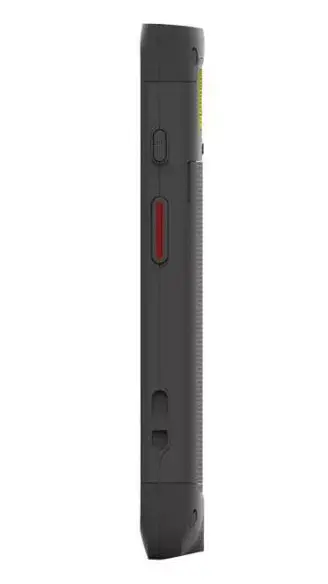
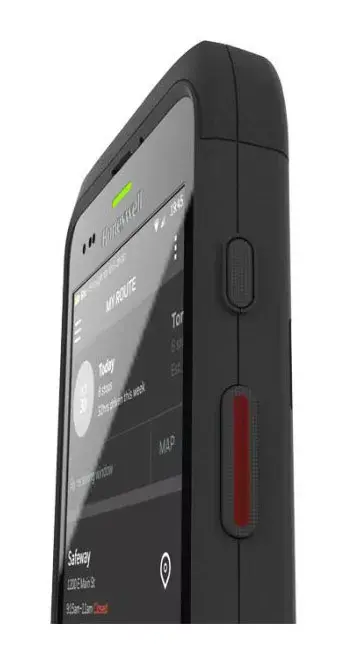
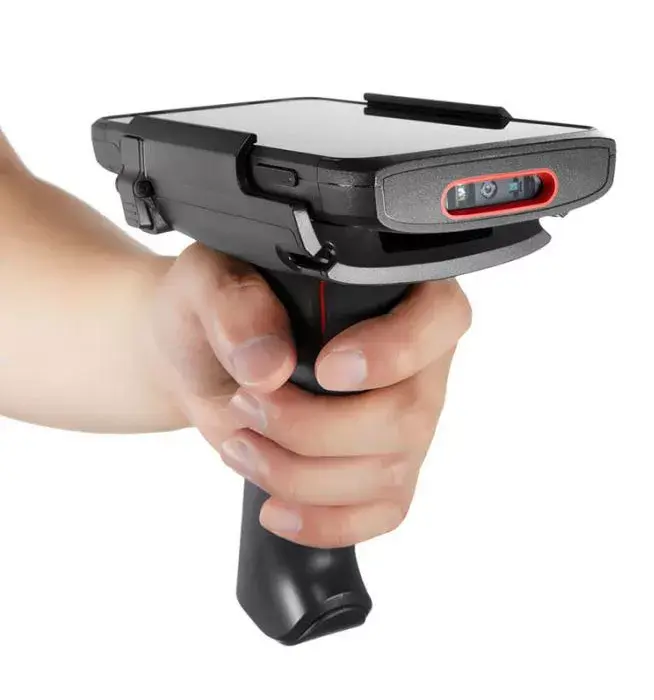
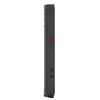
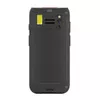
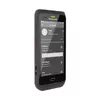
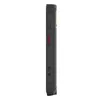
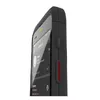
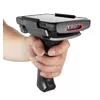
Handheld mobile computer Honeywell Dolphin CT40
The Honeywell Dolphin CT40 is a versatile, enterprise-class handheld mobile computer designed to streamline operations in retail, logistics, and field service environments. Built on the robust Mobility Edge platform, this device combines the intuitive user experience of a modern smartphone with the rugged durability required for demanding professional tasks. Featuring a 5-inch high-definition touchscreen, it provides a clear interface for managing inventory, processing orders, and accessing critical business data on the go.
The primary benefit of the Honeywell Dolphin CT40 is its long-term reliability and forward-compatible architecture, which supports multiple generations of the Android operating system to protect your technology investment. Its ergonomic, lightweight design ensures that workers can operate the device comfortably throughout an entire shift without fatigue. The integrated high-performance barcode scanner allows for rapid data capture, significantly increasing efficiency during inventory management or order picking. Furthermore, the device is built to withstand the rigors of daily use, featuring a durable housing and scratch-resistant glass that minimize downtime caused by accidental drops or environmental exposure.
The Honeywell Dolphin CT40 may not be the ideal choice for heavy-duty industrial environments that require extreme ruggedization beyond standard enterprise specifications. Additionally, for tasks requiring a physical keyboard for high-volume data entry, a device with a dedicated keypad might be more efficient than this full-touch interface.
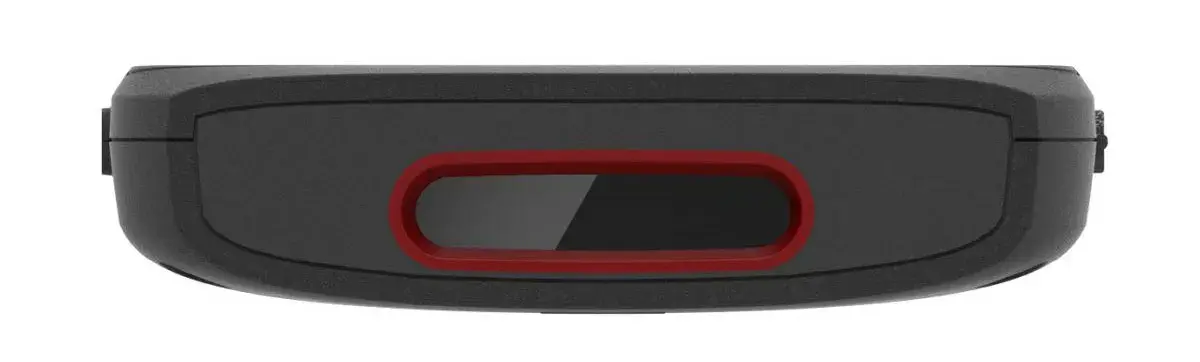
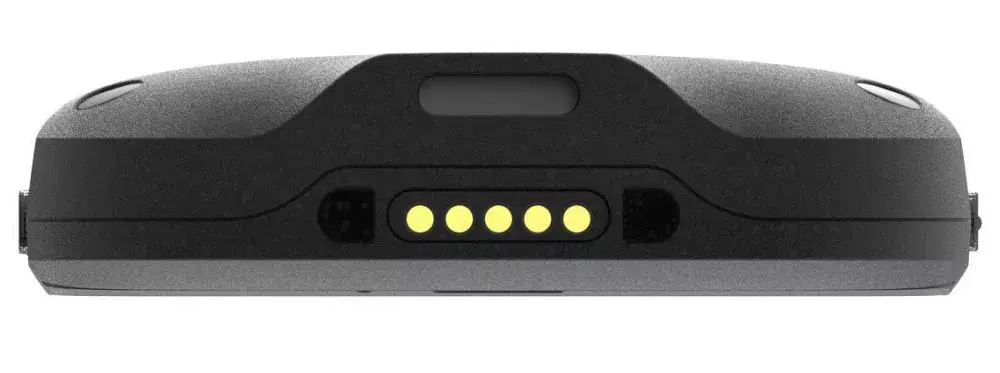
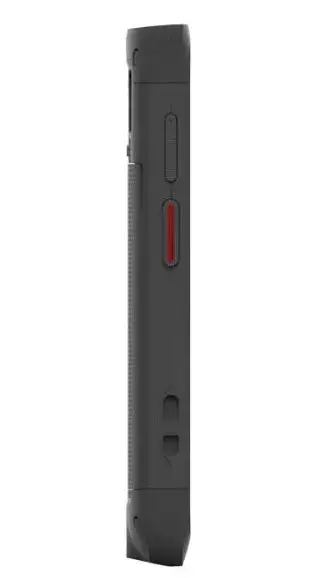
To begin using the Honeywell Dolphin CT40, ensure the battery is fully charged using the appropriate docking station or charging cable. Power on the device by holding the power button until the Honeywell logo appears. Follow the on-screen Android setup wizard to connect to your local Wi-Fi network and configure your enterprise account settings. Once initialized, you can install your business applications via your mobile device management system. To scan a barcode, aim the scanner window at the code and press the designated scan trigger button; the device will provide visual or audible feedback upon a successful read.
To maximize the lifespan of your Honeywell Dolphin CT40, it is recommended to perform regular software updates and keep the touchscreen clean using a soft, lint-free cloth. Always ensure the device is stored in a secure, dry location when not in use and utilize the manufacturer-approved charging accessories to maintain battery health.
{{highlightedFeature.featureTitle}}:
{{getProductFeatureValueById(product, highlightedFeature.featureId)}}
{{ productComparisonGenerationError }}