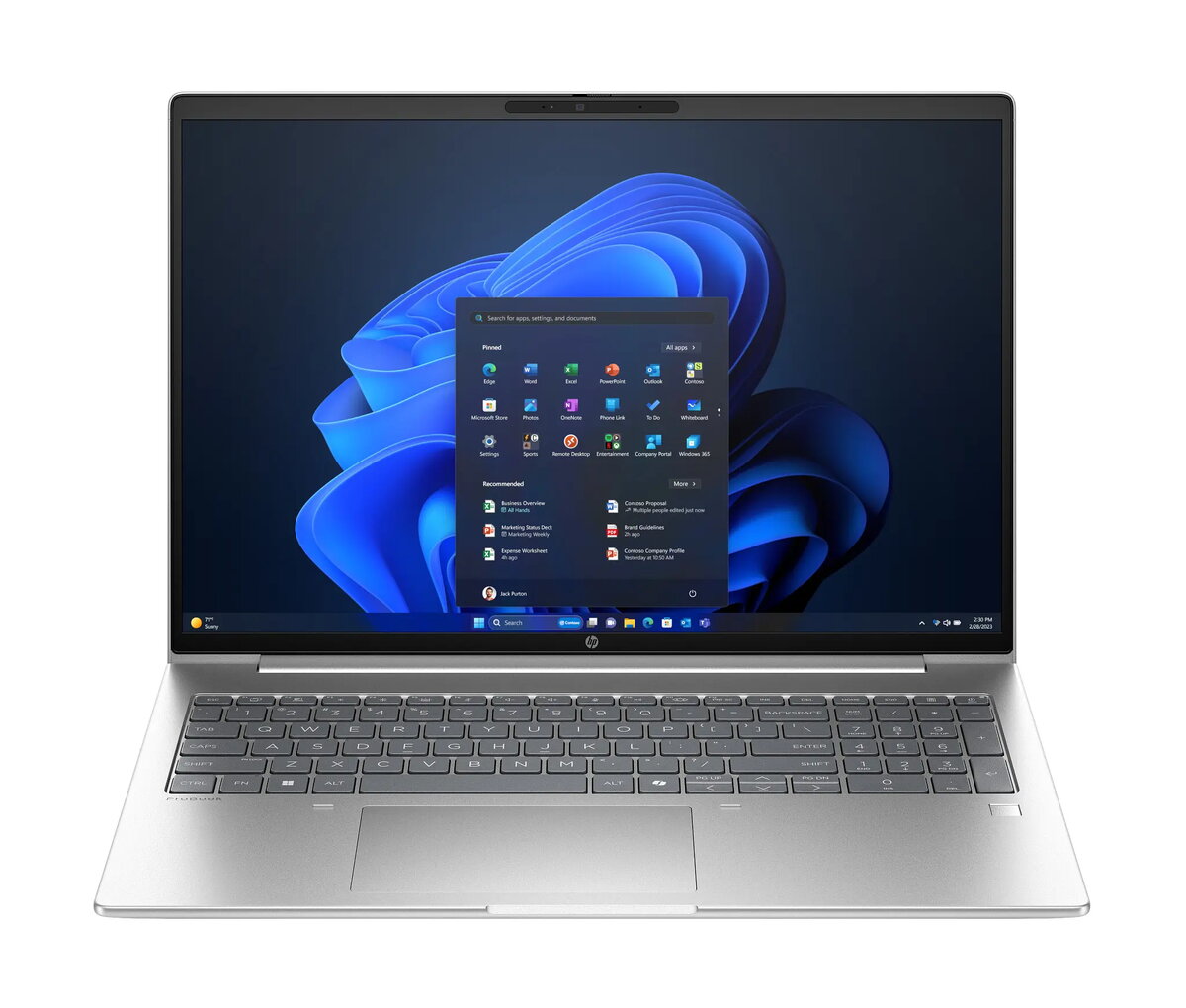
The HP ProBook 4 G2a is a robust 15.6-inch laptop engineered specifically for educational settings and professional productivity. Equipped with an AMD Ryzen 5 230U processor and 16GB of DDR5 memory, this device delivers consistent performance for multitasking, research, and administrative tasks. The inclusion of a 512GB PCIe NVMe SSD ensures rapid boot times and quick access to files, while the WUXGA matte display provides a clear, comfortable viewing experience for extended study sessions.
Advantages
This laptop offers a balanced combination of durability and efficiency, making it an ideal choice for students and educators. The high-speed DDR5 memory and modern processor architecture allow for smooth operation across multiple applications simultaneously. With a bright 300-nit matte screen, users can work effectively in various lighting conditions without excessive glare. The inclusion of versatile connectivity options, including USB-C with Power Delivery and DisplayPort support, ensures that the device can easily integrate into modern classroom or office setups. Furthermore, the backlit keyboard with a dedicated numeric keypad enhances typing comfort and data entry speed.
Suitable for
- Daily academic research and writing tasks
- Administrative work and document management
- Video conferencing and online learning sessions
- Multitasking with multiple browser tabs and office applications
This laptop may not be suitable for users requiring high-end dedicated graphics performance for professional 3D rendering, complex video editing, or demanding gaming. Additionally, it lacks an integrated optical drive and memory card reader, which may require external adapters for users who frequently work with legacy media or external storage cards.
Key specifications
- Processor: AMD Ryzen 5 230U
- Memory: 16GB DDR5-5600
- Storage: 512GB PCIe NVMe M.2 SSD
- Display: 16-inch WUXGA, matte, 300 nits
- Graphics: AMD Radeon 760M
- Connectivity: WiFi 6E, Bluetooth, RJ-45 Ethernet
- Ports: 2x USB-A, 2x USB-C (Power Delivery/DisplayPort), HDMI 2.1, Headphone/mic combo
- Features: Backlit keyboard, numeric keypad, 16 TOPS NPU
To begin using the HP ProBook 4 G2a, connect the provided power adapter to the device and charge it fully before the first use. Power on the laptop using the dedicated button and follow the on-screen prompts to configure your Windows 11 Pro EDU settings. Once set up, you can connect to your local network via WiFi or the RJ-45 port. Use the USB-C ports for charging or connecting external displays, and utilize the HDMI 2.1 port for high-resolution output to projectors or monitors.
What to consider before purchase
- Verify if your specific software requirements are compatible with the Windows 11 Pro EDU environment.
- Ensure you have the necessary adapters if you frequently use SD cards or optical discs.
- Consider the physical dimensions to ensure it fits comfortably in your backpack or workspace.
Usage recommendations: To maintain optimal performance and battery longevity, keep the laptop firmware updated through the manufacturer's support portal and avoid blocking the air vents during operation.