

JBL speakers and headphones for pure and deep sound!
In cart {{totalProductsCount}} item(s)
Your cart is empty
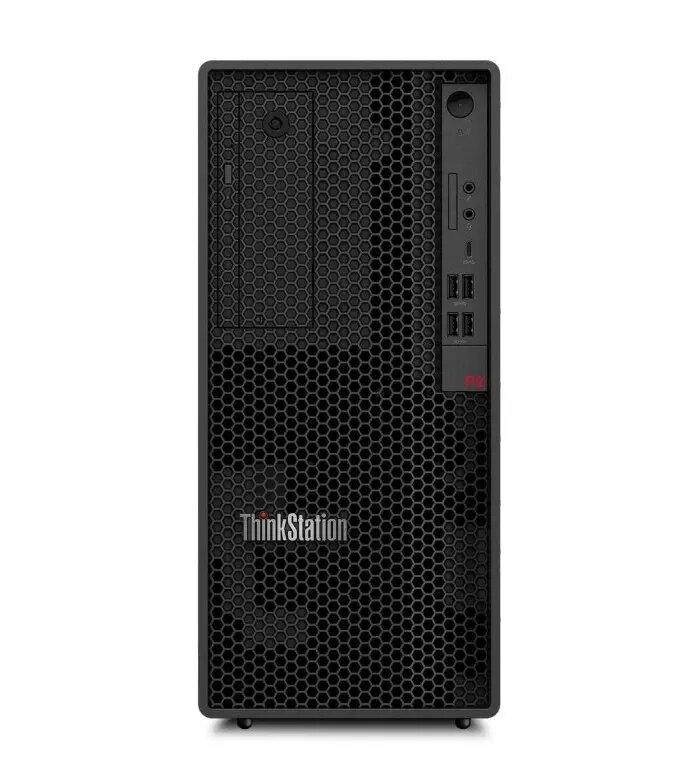
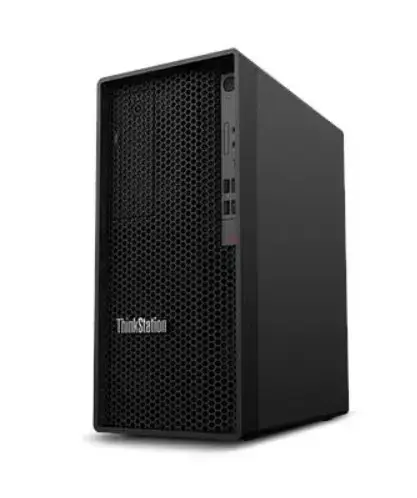
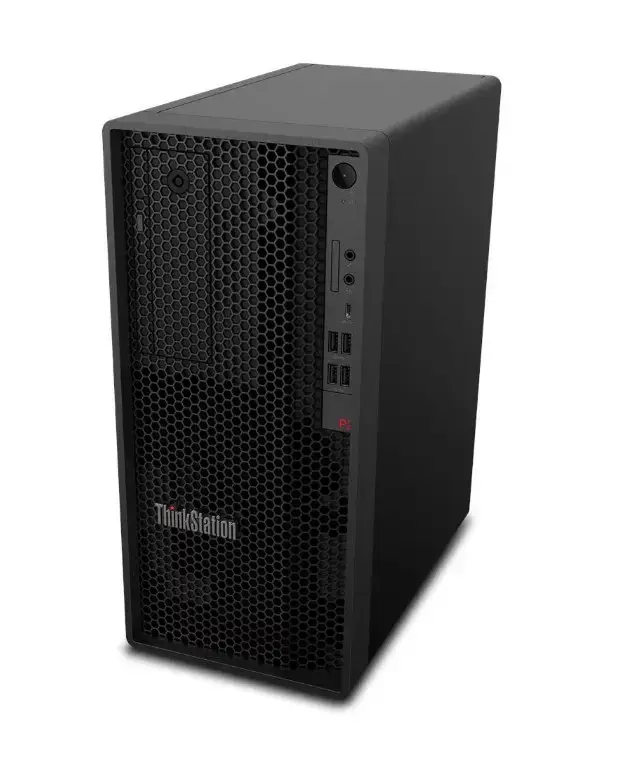
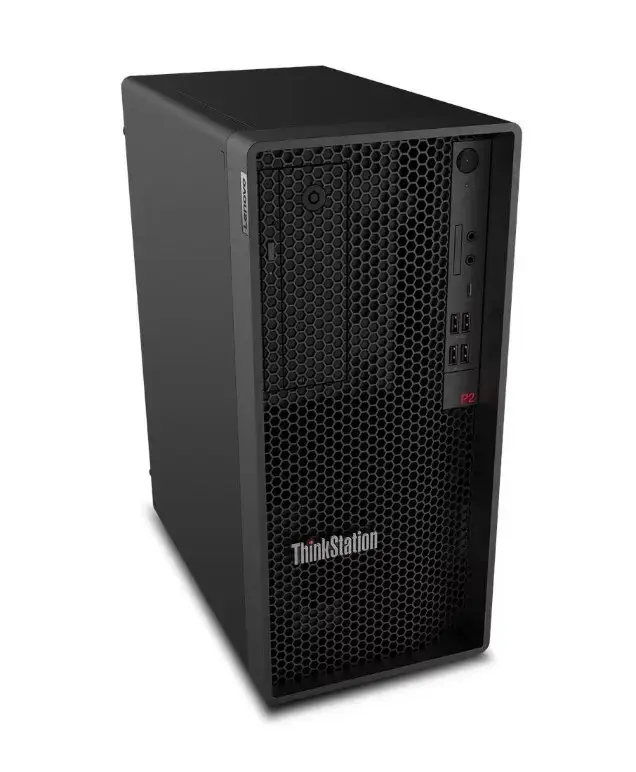
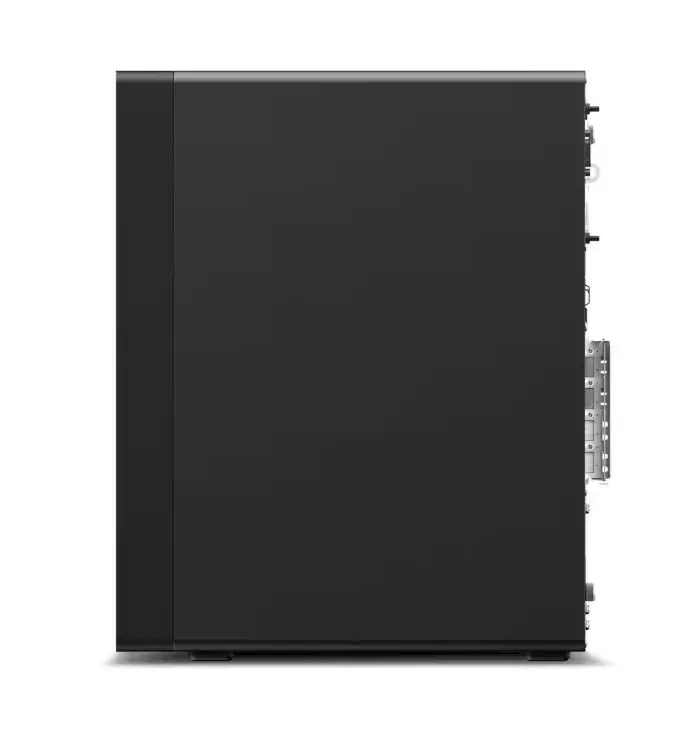
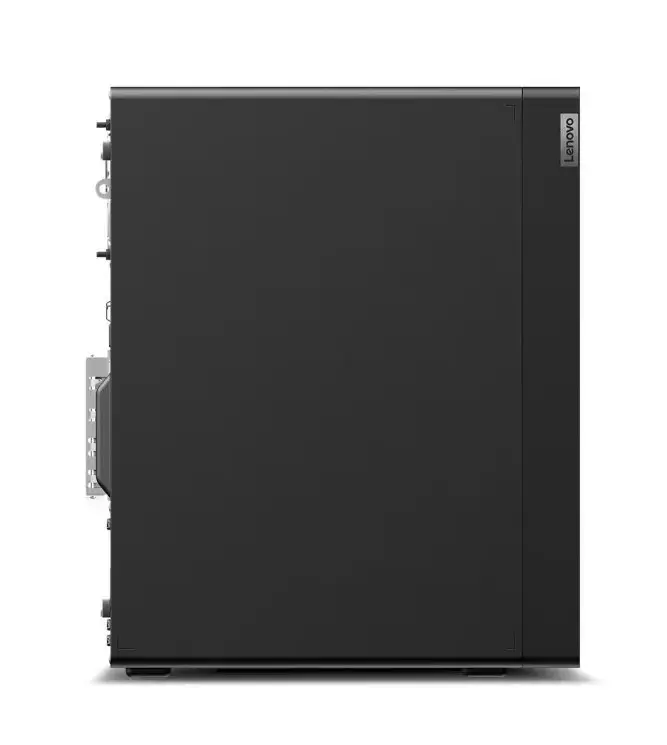
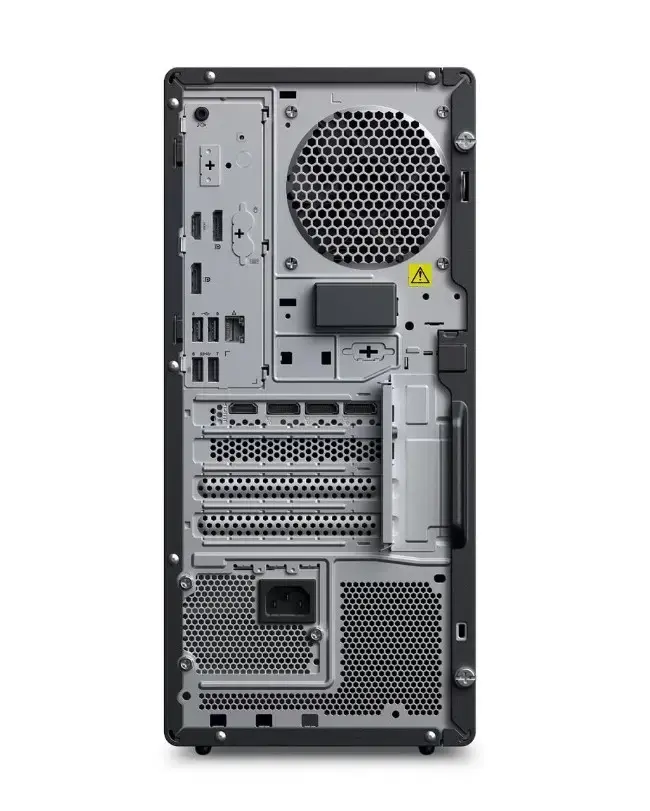
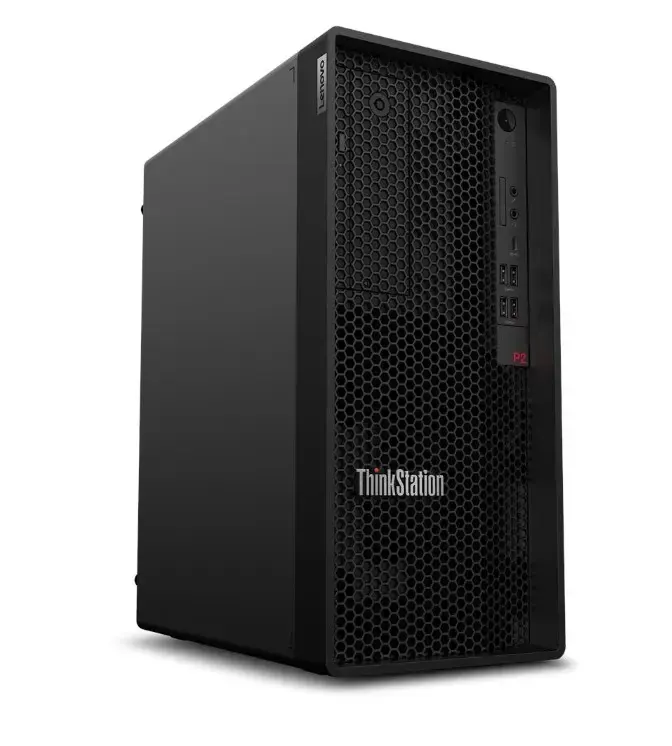
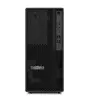
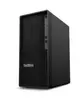
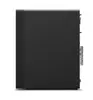
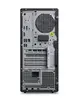
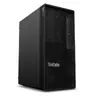
Lenovo ThinkStation P2 Tower G2 Workstation, Intel Core Ultra 7 265, 32GB RAM, 1TB SSD, NVIDIA RTX 5060 8GB, Windows 11 Pro
The Lenovo ThinkStation P2 Tower G2 is a professional-grade workstation engineered to handle demanding computing tasks with precision and reliability. Built with the latest Intel Core Ultra 7 265 processor and 32GB of RAM, this system provides the necessary power for complex workflows, multitasking, and data-intensive applications. The inclusion of a 1TB SSD ensures rapid data access and ample storage for large project files, while the NVIDIA RTX 5060 8GB graphics card delivers the visual performance required for professional design and engineering software.
This workstation excels in providing a stable and secure computing environment, thanks to the integration of Windows 11 Pro and vPro technology, which are essential for enterprise-level management and security. The tower chassis is designed for optimal thermal management and expandability, allowing the system to maintain peak performance during extended periods of heavy usage. Its robust hardware configuration minimizes bottlenecks, ensuring that creative professionals and engineers can work efficiently without interruptions.
This workstation may not be the ideal choice for users seeking a highly portable or compact computing solution, as its tower form factor is designed for stationary office or studio use. Additionally, it may exceed the requirements for basic administrative tasks or general home office use where high-end graphical processing is not necessary.
To begin using the Lenovo ThinkStation P2 Tower G2, connect the power cable to a grounded outlet and attach your peripherals, such as a monitor, keyboard, and mouse, to the designated ports on the rear or front panels. Once connected, press the power button to initiate the Windows 11 Pro setup process. Follow the on-screen instructions to configure your user account and network settings. For optimal performance, ensure the workstation is placed in a well-ventilated area to allow for proper airflow through the chassis.
To maintain the longevity and performance of your workstation, keep the system updated with the latest drivers and security patches provided by Lenovo. Regularly clean the air vents to prevent dust accumulation, which can affect cooling efficiency.
{{highlightedFeature.featureTitle}}:
{{getProductFeatureValueById(product, highlightedFeature.featureId)}}
{{ productComparisonGenerationError }}