
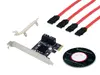
Conceptronic EMRICK 4-Port SATA PCIe Adapter with SATA Cables
47.49 €
Keep track of price changes
You keep track of price changes
Watch the price drop
Leave your address - as soon as the price of the product goes down, you'll know about it right away
You keep track of price changes
Conceptronic EMRICK 4-Port SATA PCIe Adapter with SATA Cables
{{email}}
You keep track of price changes
Conceptronic EMRICK 4-Port SATA PCIe Adapter with SATA Cables
{{email}}
{{selectedOffer && selectedOffer.price | formatAmount}}
Short description
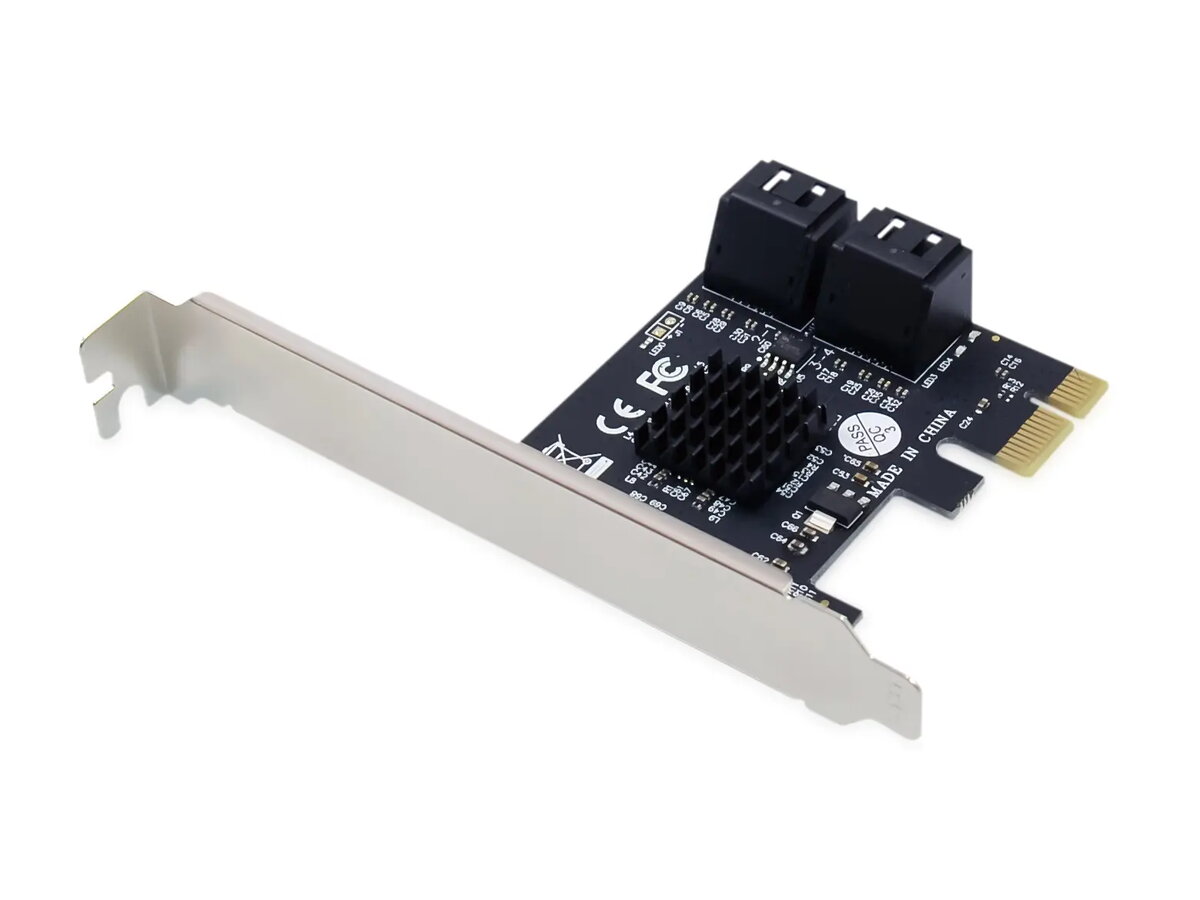
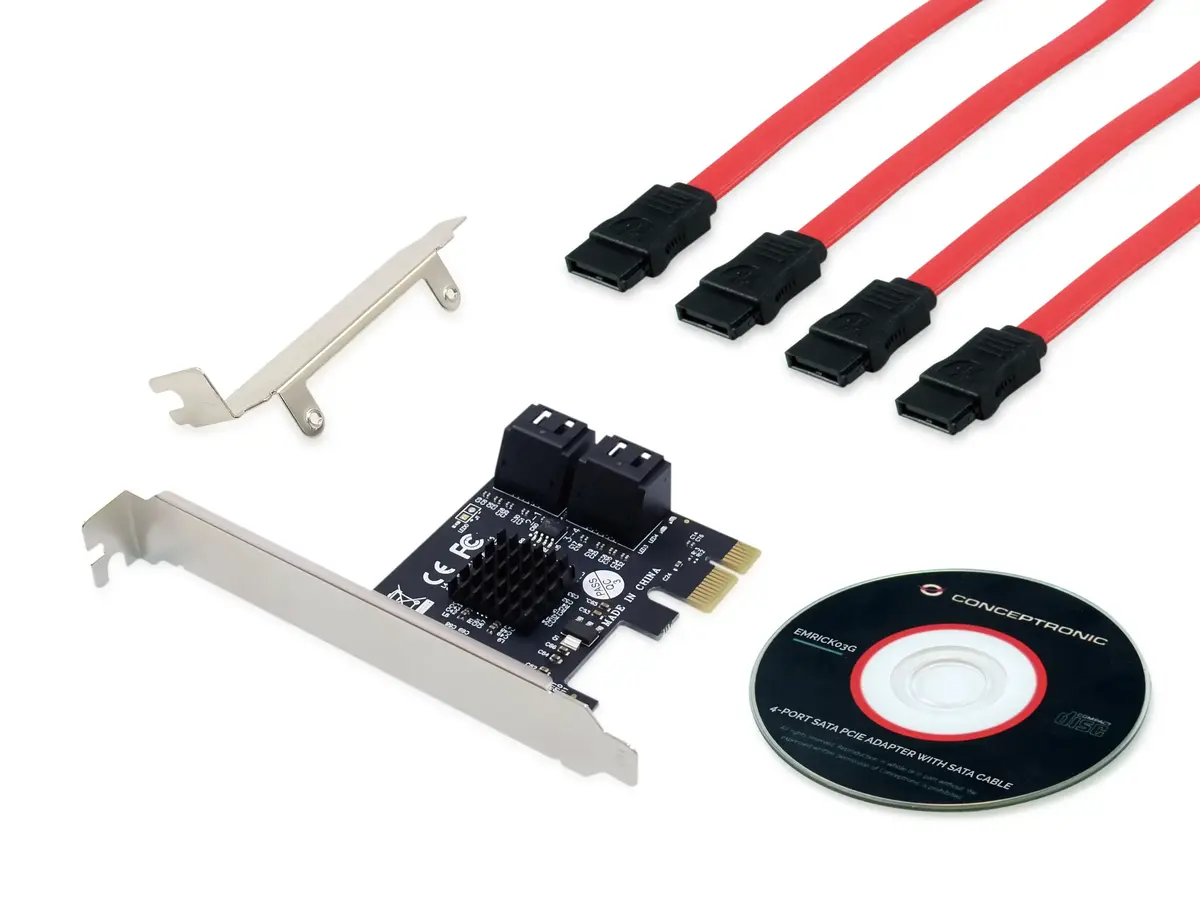
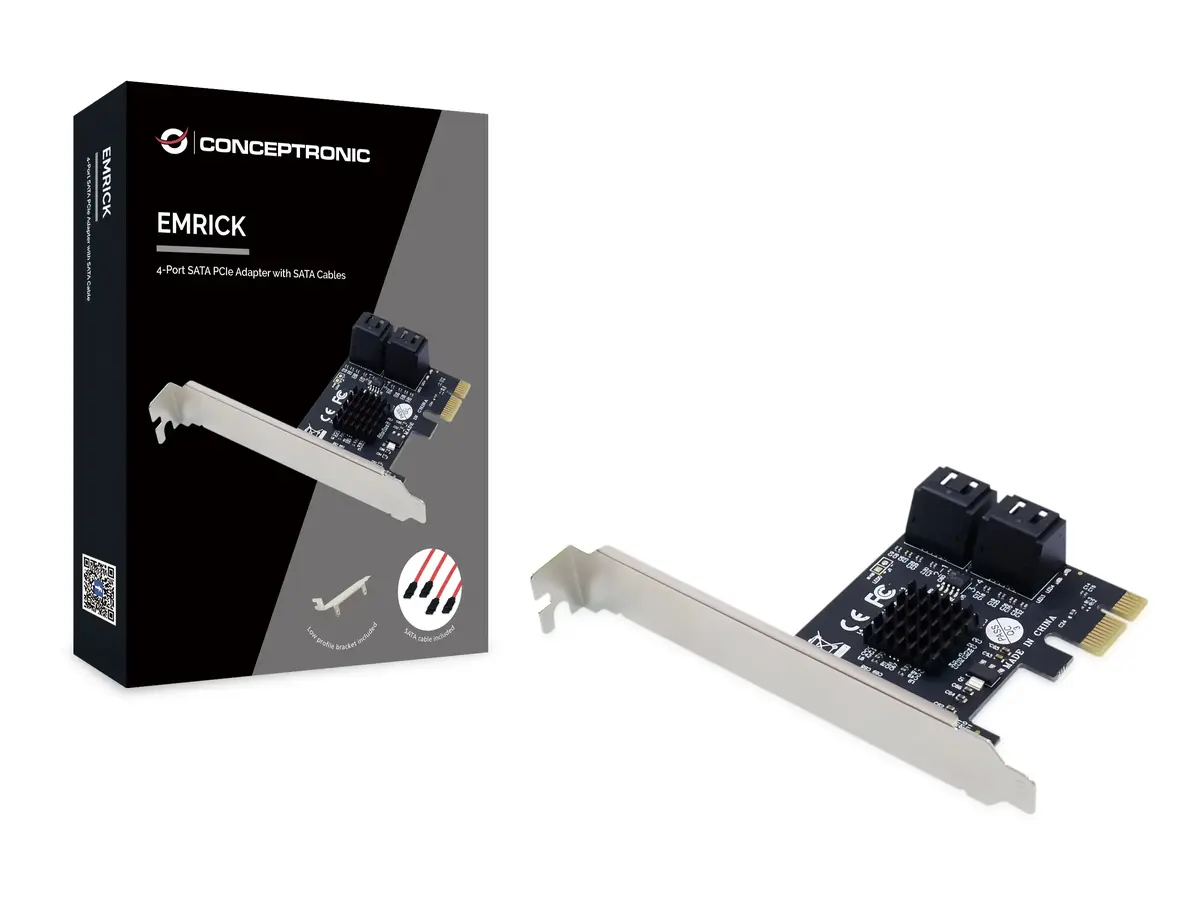
The Conceptronic EMRICK is a 4-port SATA PCIe adapter designed to expand your system's storage connectivity. Featuring a PCIe host interface and SATA output, it supports data transfer rates up to 6 Gbit/s. This black adapter is compatible with various Windows operating systems and includes necessary SATA cables for immediate installation, making it an ideal solution for adding extra hard drives or SSDs to your desktop computer.
Deliver the order:
to the Customer Service Center at Kengaraga 2b, Riga
29.06.2026
{{selectedOffer.officeDeliveryString}}
free
Customer service center
2b. Kengaraga str., Riga, Latvia, LV-1063
29.06.2026
{{selectedOffer.officeDeliveryString}}
free
Courier Delivery
Please note that in case of a large parcel additional delivery costs may apply!
From 4.99 € (Weight: 0.62 kg)
Parcel couriers
Latvijas Pasts pakomāts / Unisend / DPD Paku skapis / Omniva / Venipak Pickup / Venipak Locker / Latvijas Pasts nodaļa
02.07.2026
{{selectedOffer.parcelStationDeliveryString}}
From 1.99 €

Payment Methods:
Bank transfer, Bank cards on-line, Apple Pay, Google Pay


