
Hurry and order now – up to 50% off!
In cart {{totalProductsCount}} item(s)
Your cart is empty
Yealink MP58 Skype for Business Edition IP Phone with 7-inch Touchscreen Display
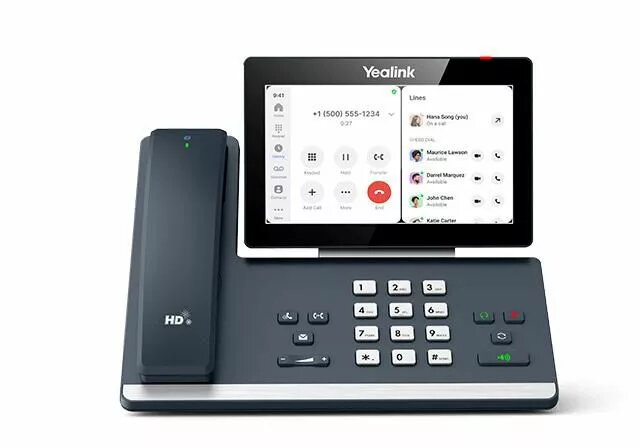
The Yealink MP58 is a professional-grade IP phone designed specifically for seamless integration with Zoom Phone and Meetings environments. Featuring a large 7-inch responsive LCD touchscreen, this device offers an intuitive interface that simplifies call management, meeting scheduling, and collaboration. Built on an Android-based operating system, it provides a familiar and efficient user experience for business professionals.
This device excels in delivering high-quality audio through Yealink Optima HD voice technology and advanced Noise Proof features, ensuring that every conversation remains clear and focused. The inclusion of a full-duplex hands-free speakerphone with Acoustic Echo Cancellation and a Hearing Aid Compatible handset further enhances communication quality. With built-in Wi-Fi and Bluetooth, the phone offers exceptional flexibility, allowing users to connect wirelessly to networks or peripherals. The support for Power over Ethernet simplifies installation by reducing cable clutter, while the USB port provides additional connectivity options for wired or wireless headsets.
This device may not be the optimal choice for environments that do not utilize the Zoom ecosystem, as its primary features are tailored for native Zoom applications. Additionally, it may be overkill for basic telephony needs where advanced touchscreen functionality and video meeting capabilities are not required.
To begin using the Yealink MP58, connect the device to your network via the Gigabit Ethernet port or configure the Wi-Fi settings through the touchscreen menu. If using Power over Ethernet, ensure your network switch supports PoE to power the device without an external adapter. Once powered on, follow the on-screen prompts to sign in to your Zoom account. You can manage your contacts, meeting schedules, and call history directly through the intuitive touchscreen interface. For headset usage, connect your preferred device via the integrated USB port or pair it using the built-in Bluetooth settings.
For the best audio performance, ensure the device is placed on a stable surface and that the Noise Proof technology is enabled in the settings. Regularly check for firmware updates through your device management platform to maintain optimal security and feature compatibility.
{{highlightedFeature.featureTitle}}:
{{getProductFeatureValueById(product, highlightedFeature.featureId)}}
{{ productComparisonGenerationError }}