
Hurry and order now – up to 50% off!
In cart {{totalProductsCount}} item(s)
Your cart is empty
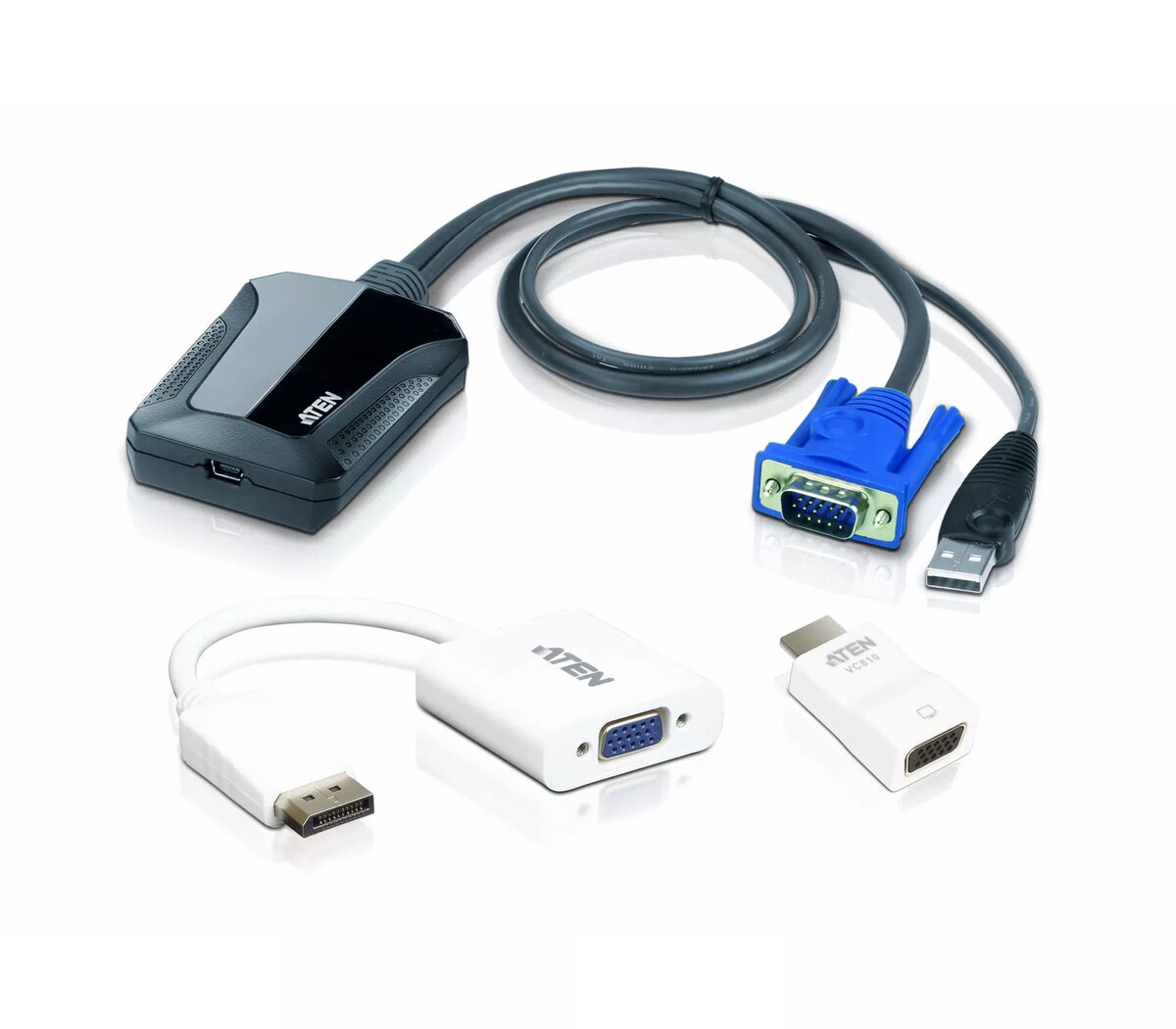
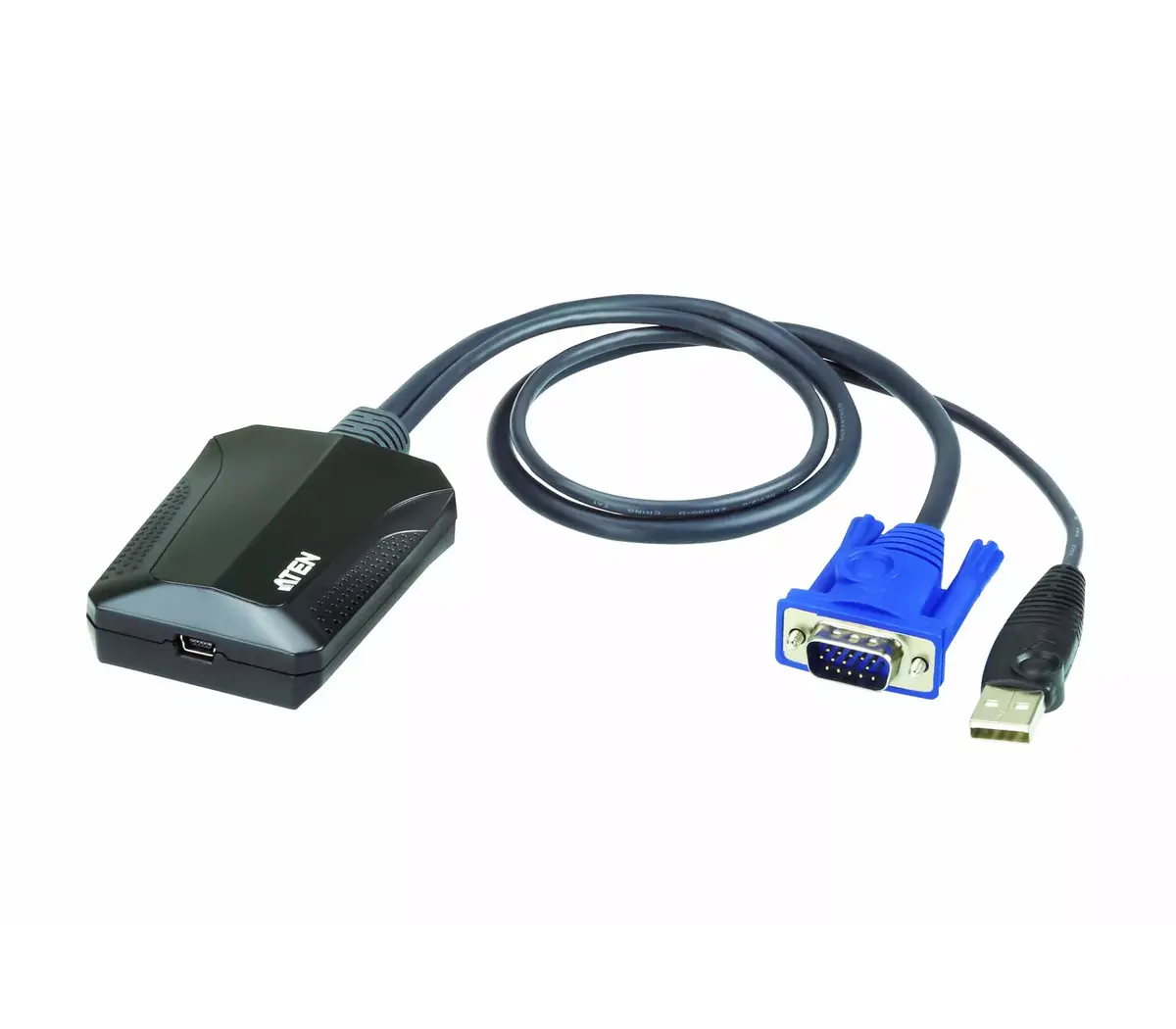
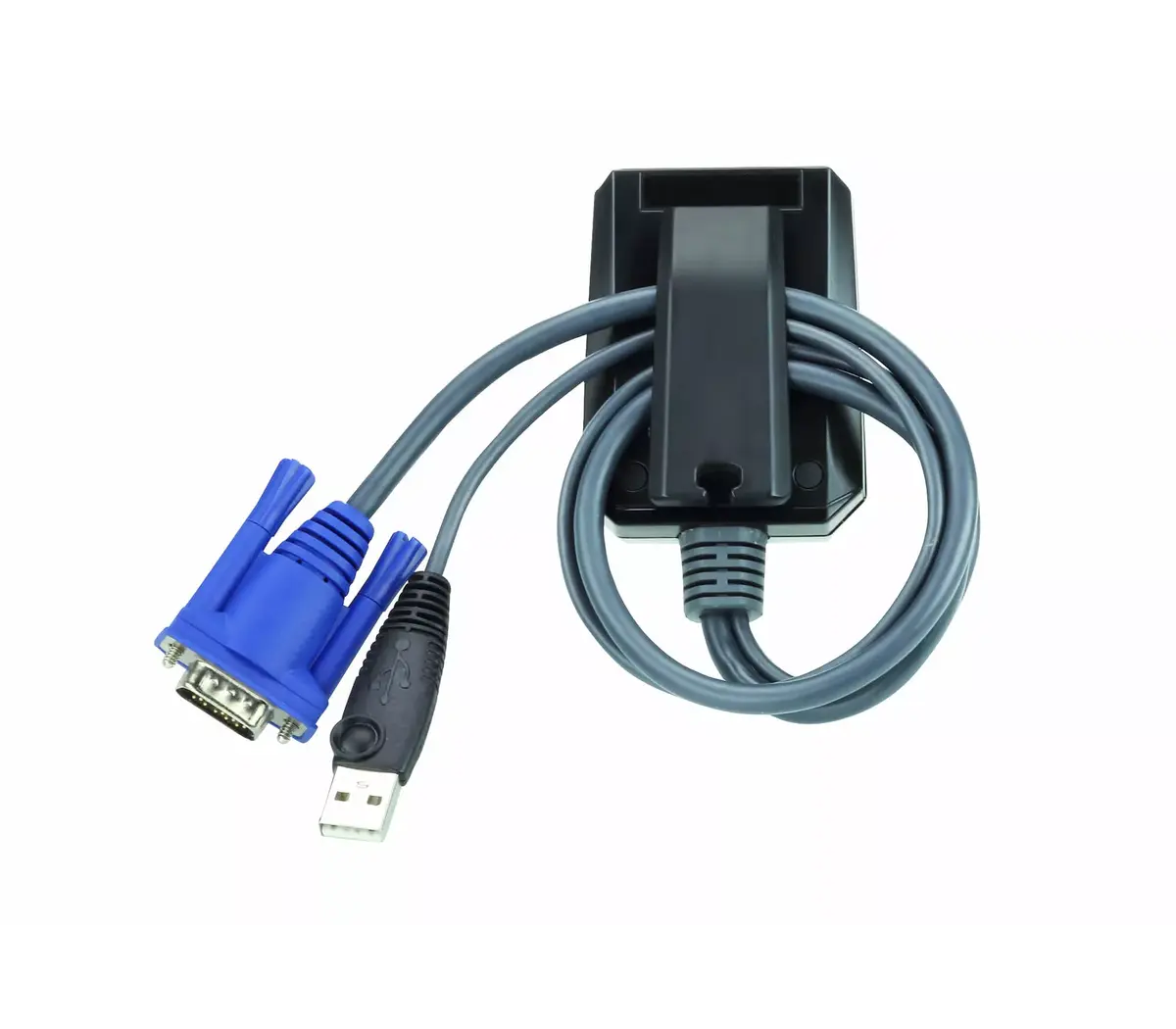
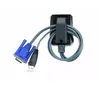
ATEN CV211CP-AT Laptop USB KVM Console Crash Cart Adapter with VGA Support
The ATEN CV211CP-AT Laptop USB KVM Console Crash Cart Adapter is a professional-grade tool designed to streamline server management and system troubleshooting. By connecting directly to a laptop, this compact device transforms the computer into a mobile KVM console, providing full BIOS-level access to servers, computers, ATMs, and point-of-sale systems. It effectively replaces bulky traditional crash carts, offering a portable and efficient solution for IT administrators who need to perform maintenance in diverse environments.
This adapter offers exceptional portability, allowing IT professionals to carry a complete console solution in a single, compact unit. It eliminates the need for external monitors, keyboards, and mice when working on-site, as it integrates these functions directly through the laptop interface. The device supports high-resolution VGA video output, ensuring clear visual feedback during critical system diagnostics. Its plug-and-play design facilitates rapid deployment, significantly reducing downtime during hardware failures or system configuration tasks.
This device may not be suitable for environments that rely exclusively on digital video interfaces like HDMI or DisplayPort, as it is specifically designed for VGA connectivity. Additionally, it is intended for direct, local access and is not designed for remote network-based server management over long distances.
To use the ATEN CV211CP-AT, connect the adapter to the target server or system using the integrated VGA and USB cables. Connect the USB end of the adapter to your laptop. Once connected, your laptop will recognize the target system, allowing you to control the keyboard, mouse, and monitor output directly from your laptop screen. This provides immediate access to the target system's BIOS and operating system for efficient troubleshooting.
For optimal performance, ensure that all cable connections are secure before initiating system diagnostics. Keep the firmware updated to maintain compatibility with the latest operating systems and hardware configurations.
{{highlightedFeature.featureTitle}}:
{{getProductFeatureValueById(product, highlightedFeature.featureId)}}
{{ productComparisonGenerationError }}