
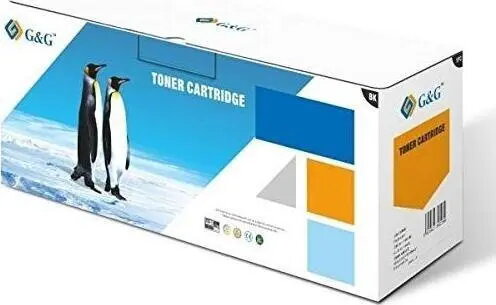
G&G NT-CC069C Cyan Laser Toner Cartridge
38.99 €
{{selectedOffer && selectedOffer.price | formatAmount}}
Short description
The G&G NT-CC069C cyan laser toner cartridge is a reliable alternative printing supply designed for high-quality color document production. This compatible toner ensures consistent performance and sharp output for laser printers, making it an ideal choice for office or home printing needs. It provides professional results with accurate color reproduction and is engineered for easy installation and seamless integration with compatible printer models.
Cheapest delivery:
Unisend LV
Pick-up points
Unisend LV
Cost
1.79 €
Deliver
{{selectedOffer.parcelStationDeliveryString}}
Customer service center
2b. Kengaraga str., Riga, Latvia, LV-1063
03.08.2026
{{selectedOffer.officeDeliveryString}}
free
Courier Delivery
Please note that in case of a large parcel additional delivery costs may apply!
From 4.99 €
Parcel couriers
Unisend LV / Venipak Pickup LV / Venipak Locker LV / Latvijas Pasts pakomāts / DPD Paku skapis / Omniva LV / Latvijas Pasts nodaļa
06.08.2026
{{selectedOffer.parcelStationDeliveryString}}
From 1.79 €

Payment Methods:
Bank transfer, Bank cards on-line, Apple Pay, Google Pay


