
KVM Switch Inter-Tech KVM-AS-21UA
{{selectedOffer && selectedOffer.price | formatAmount}}
{{selectedOffer && selectedOffer.price | formatAmount}}
Offer for legal entity, cashless payment.
Why is an item available only for a legal entity?
This is due to long delivery times and limited product warranties.
This is due to long delivery times and limited product warranties.
Short description
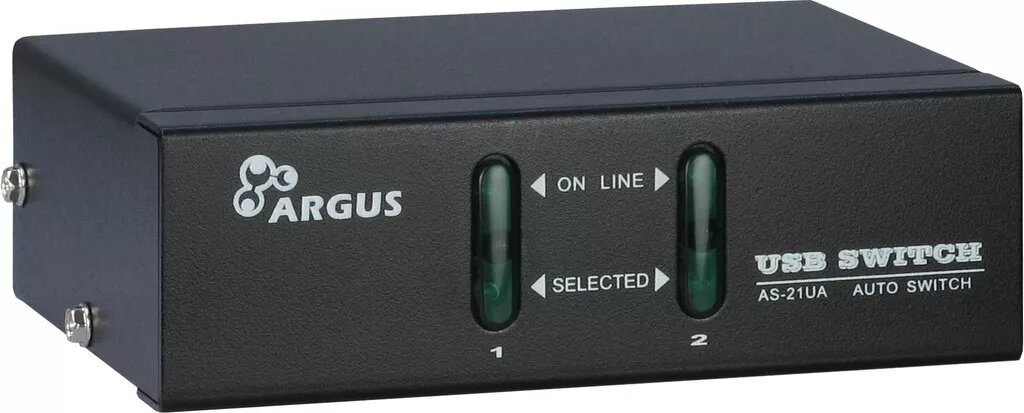
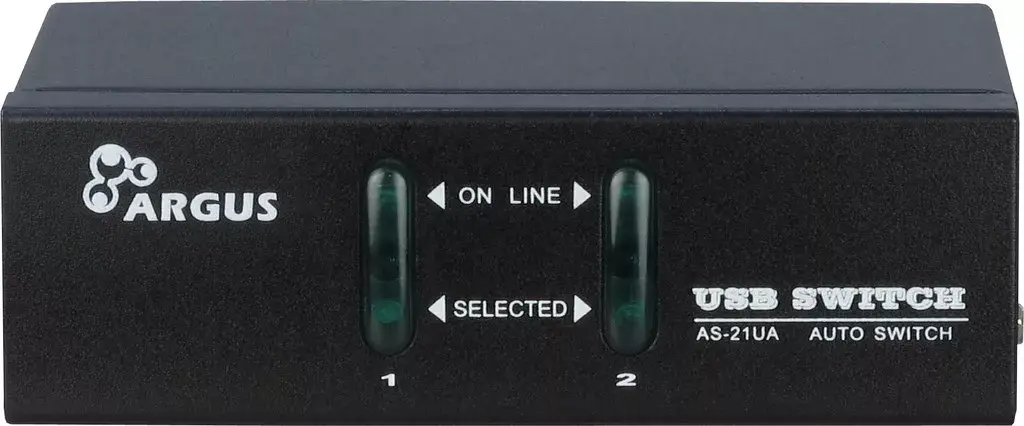
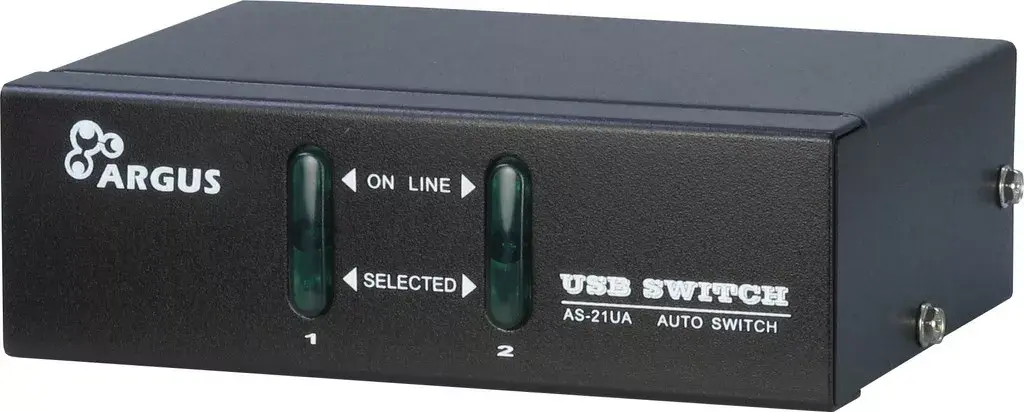
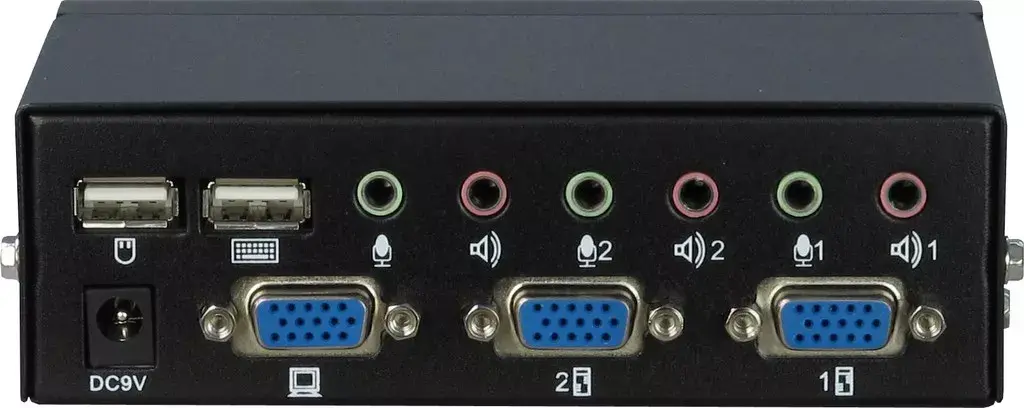
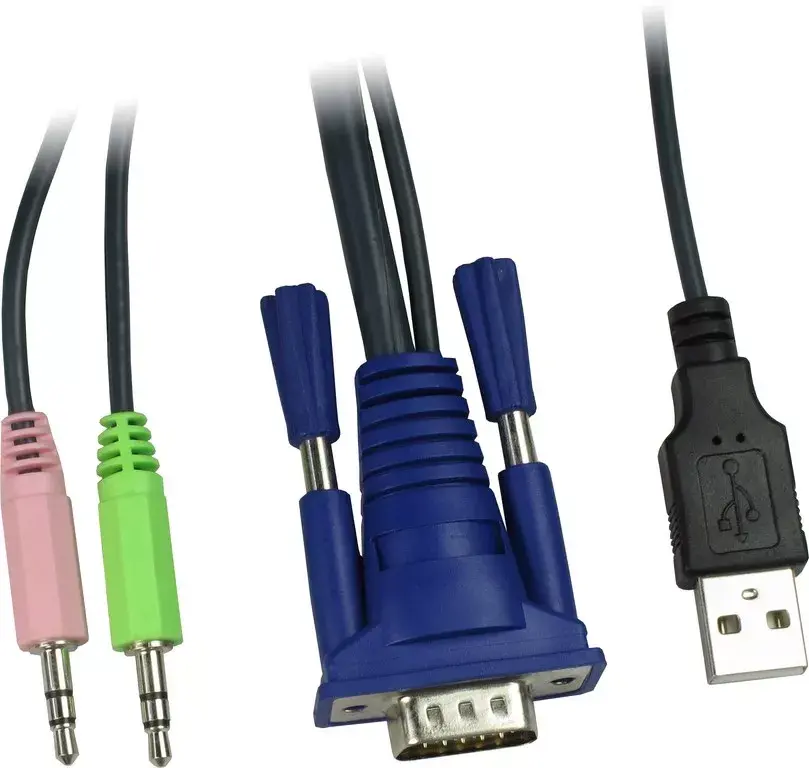
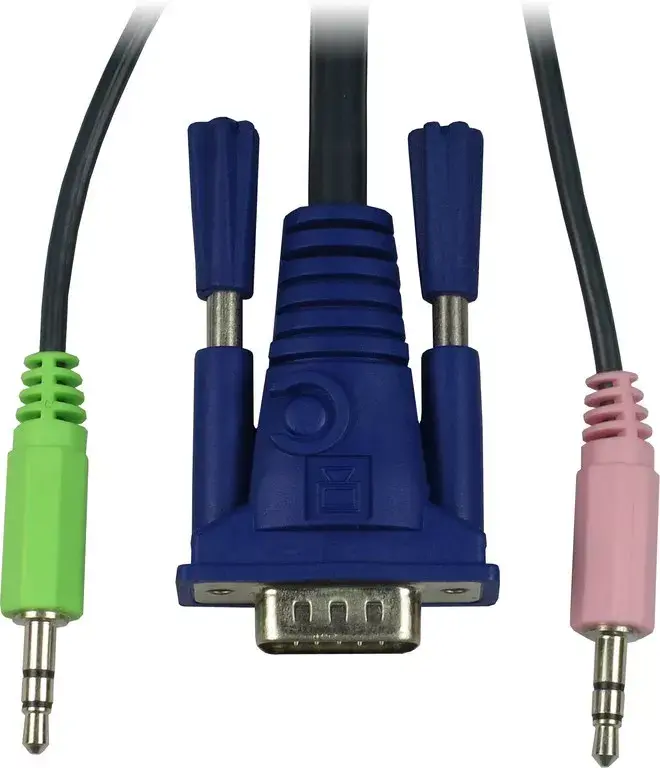
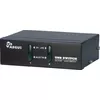
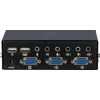
The Inter-Tech KVM-AS-21UA is a reliable KVM switch that allows you to control multiple computers using a single keyboard, mouse, and monitor. It features USB ports for both keyboard and mouse, and supports VGA video output with a maximum resolution of 1920 x 1440 pixels. The device has a scan interval of 5 seconds, ensuring seamless switching between connected systems. Its sturdy steel housing ensures durability, while the compact dimensions make it easy to integrate into any workspace.
Cheapest delivery:
Unisend LV
Pick-up points
Unisend LV
Cost
1.99 €
Deliver
{{selectedOffer.parcelStationDeliveryString}}
Customer service center
2b. Kengaraga str., Riga, Latvia, LV-1063
09.11.2026
{{selectedOffer.officeDeliveryString}}
free
Courier Delivery
Please note that in case of a large parcel additional delivery costs may apply!
From 4.99 € (Weight: 0.99 kg)
Parcel couriers
Unisend LV / Venipak Pickup LV / Venipak Locker LV / DPD Paku skapis / Omniva LV / Latvijas Pasts pakomāts / Latvijas Pasts nodaļa
12.11.2026
{{selectedOffer.parcelStationDeliveryString}}
From 1.99 €

Payment Methods:
Bank transfer


