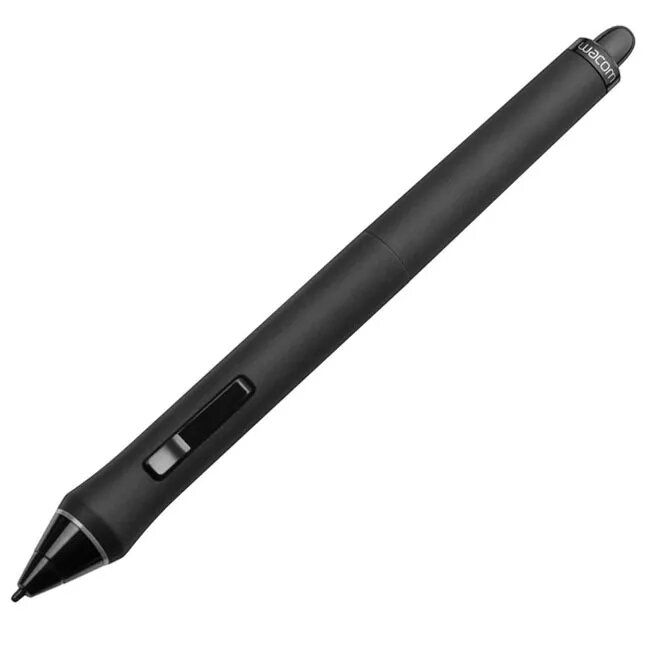
The Wacom Intuos4 Grip Pen is a professional-grade stylus designed to provide precision and comfort for digital artists and designers. As the standard pen for the Intuos4 series, it features an ergonomic, waisted rubberized grip area that significantly reduces the force required to hold the pen, helping to alleviate fatigue during long creative sessions. With its balanced weight and natural feel, this stylus acts as a seamless extension of the hand, allowing for highly accurate freehand work.
Advantages
This stylus offers exceptional control through its advanced pressure sensitivity, featuring 2,048 levels that allow for nuanced line variation and shading. The inclusion of tilt sensitivity, ranging from -60 to 60 degrees, mimics the behavior of traditional art tools, providing a more intuitive drawing experience. The device is both cord-free and battery-free, ensuring it is always ready for use without the need for charging. Furthermore, the customizable side-switches and pressure-sensitive eraser allow users to tailor the pen to their specific workflow, while the included variety of nibs—including stroke, flex, and felt options—provides versatility for different drawing styles and surface textures.
Suitable for
- Digital illustration and sketching
- Professional photo retouching
- Graphic design and layout work
- 3D modeling and sculpting
This pen is specifically engineered for use with Wacom Intuos4 tablets. It may not be compatible with other tablet brands or older/newer Wacom models that utilize different pen technologies. Users should verify their specific tablet model compatibility before purchase to ensure the device will function correctly.
Key specifications
- Pressure sensitivity: 2,048 levels
- Tilt sensitivity: -60 to 60 degrees
- Dimensions: 156.5 x 14.9 mm
- Weight: 18 g
- Features: Programmable side-switches, pressure-sensitive eraser, Tool ID
- Technology: Cord-free and battery-free Wacom pen technology
How to use
To begin using the Wacom Intuos4 Grip Pen, simply bring the pen tip within the active area of your compatible Wacom tablet. The tablet will automatically detect the pen. You can customize the two side-switches and the pressure sensitivity settings through the Wacom driver software installed on your computer. To replace the nib, use the provided removal tool to gently pull the current nib out and insert a new one until it clicks into place. The eraser functions automatically in supported software when the pen is flipped.
What to consider before purchase
- Ensure your tablet model is compatible with the Intuos4 series.
- Consider the type of nibs included to match your preferred drawing surface.
- Verify that your computer has the latest Wacom drivers installed for full functionality.
Usage recommendations
For the best results and to maintain the longevity of your tablet surface, replace the pen nib as soon as it shows signs of wear or becomes sharp. Regularly clean the rubberized grip area with a dry cloth to maintain its tactile properties.